Desktop Icons Disappeared on Windows? Bring Them Back
Desktop icons can disappear after an update, a display change, or an accidental setting, and it can look like your files are gone. In most cases the files are still there, only the icons are hidden. You can bring them back from a setting, without reinstalling anything.
TL;DR / Quick Fix
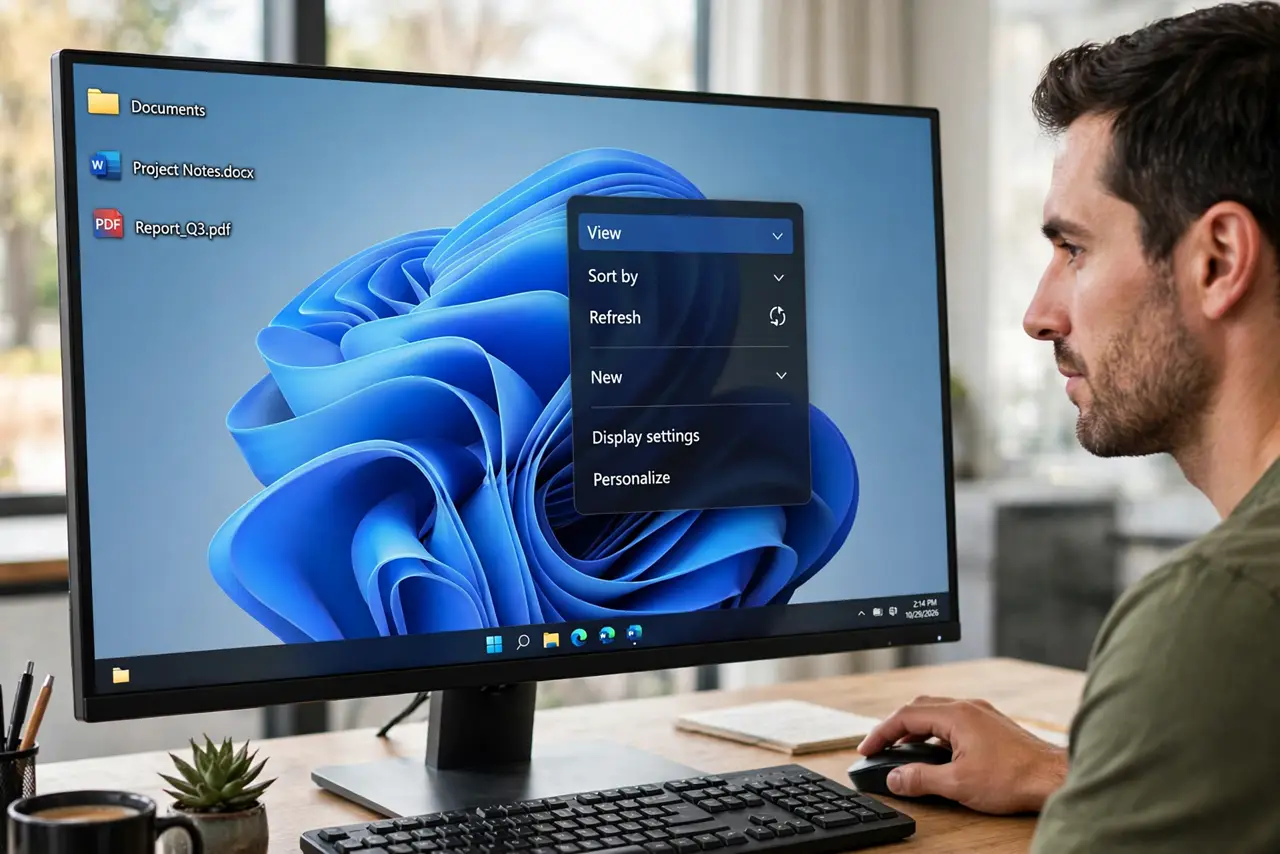
Quick fix: right-click the desktop, choose View, and make sure Show desktop icons is ticked. If that does not work, open Settings, then Personalization, then Themes, then Desktop icon settings, and tick the icons you want. Check the Desktop folder in File Explorer to confirm your files are still there.
Follow these steps
- Show desktop icons from the desktop menu. Right-click an empty part of the desktop, choose View, then make sure Show desktop icons is ticked. If it was unticked, your icons should return at once. If it was already ticked, move to Desktop icon settings.
- Open Desktop icon settings. Open Settings, then Personalization, then Themes, then Desktop icon settings. Tick Computer, Recycle Bin, and any other icons you normally use. Click Apply, then OK, and check the desktop again.
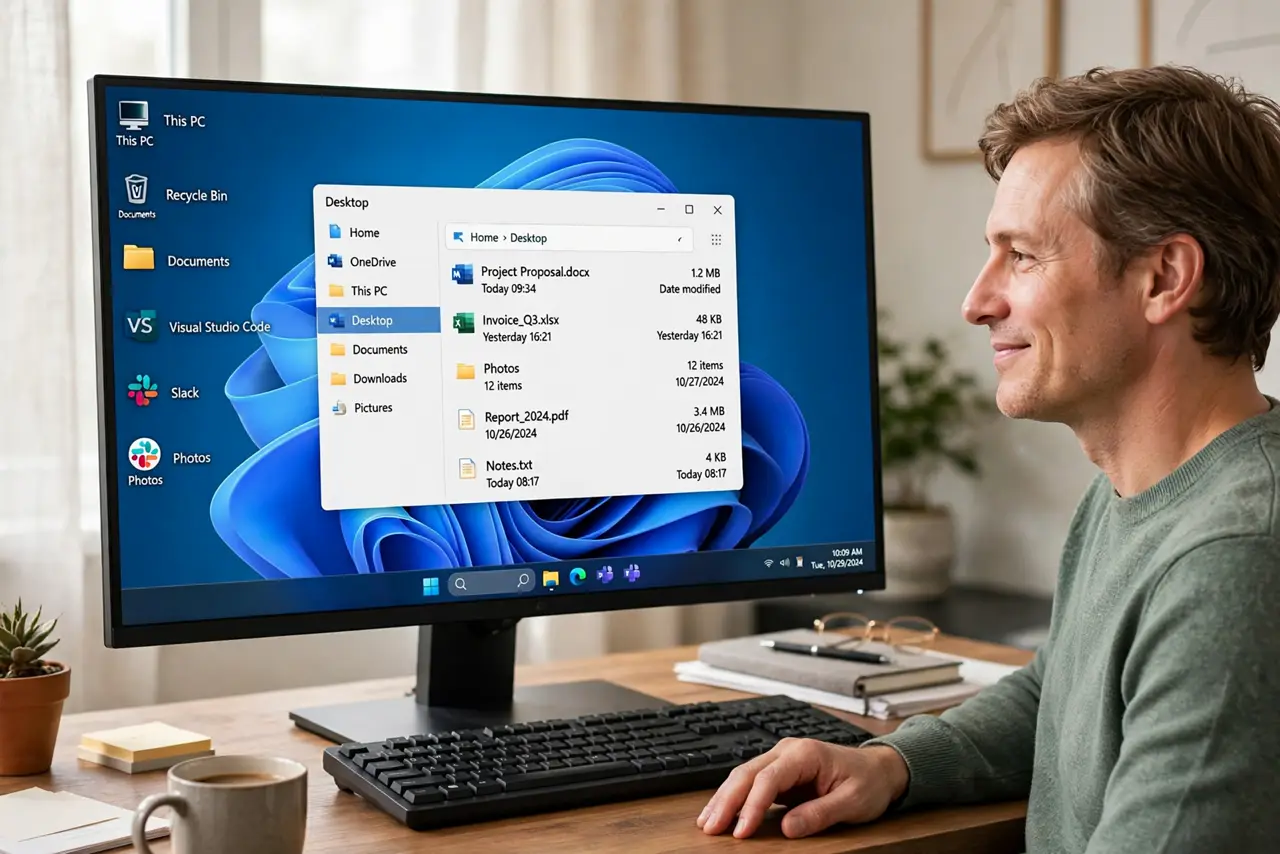
- Check the Desktop folder in File Explorer. Open File Explorer and choose Desktop in the left pane. If your files are listed there, they were only hidden from the desktop view, not deleted. Do not move them yet, because moving them can break shortcuts.
- Check if you are on the wrong display. If you use two monitors, check the other monitor for your icons. After a display change, icons can end up on the other screen or off screen. Set the main display in Display settings if needed.
- Check for a temporary profile warning. If Windows shows a message about a temporary profile at sign-in, do not save important work in that session if you can avoid it. Restart the computer and sign in again, because a temporary profile can hide your normal desktop.
- Restart File Explorer only if needed. If icons still do not appear and File Explorer looks frozen, save your work and restart the computer normally. A normal restart is safer than forcing File Explorer closed if you are unsure.
What NOT to do
- Do not assume your files are deleted. Hidden desktop icons are a view setting in most cases, so check the Desktop folder before you try recovery tools.
- Do not delete shortcuts to clean up a blank desktop. A shortcut is not the file itself, but deleting the wrong item can still remove a file you need.
- Do not create a new user account as a first fix. A new account has a different desktop, and it can make your original files harder to find.
- Do not run a random desktop repair tool. These tools can change settings you did not ask for, and Windows already has the setting you need.
Frequently asked questions
Are my files gone if the icons disappeared?
Usually no. Open File Explorer, then Desktop, and check if the files are listed there. If they are, only the icons were hidden.
What if Show desktop icons is already ticked?
Then use Desktop icon settings in Personalization, then Themes, and tick the icons you want. Also check the other monitor if you use two displays.
What if Windows says I have a temporary profile?
Restart and sign in again. Do not save important work in a temporary profile session if you can avoid it, because it may not be kept.