What Are DFS Channels?
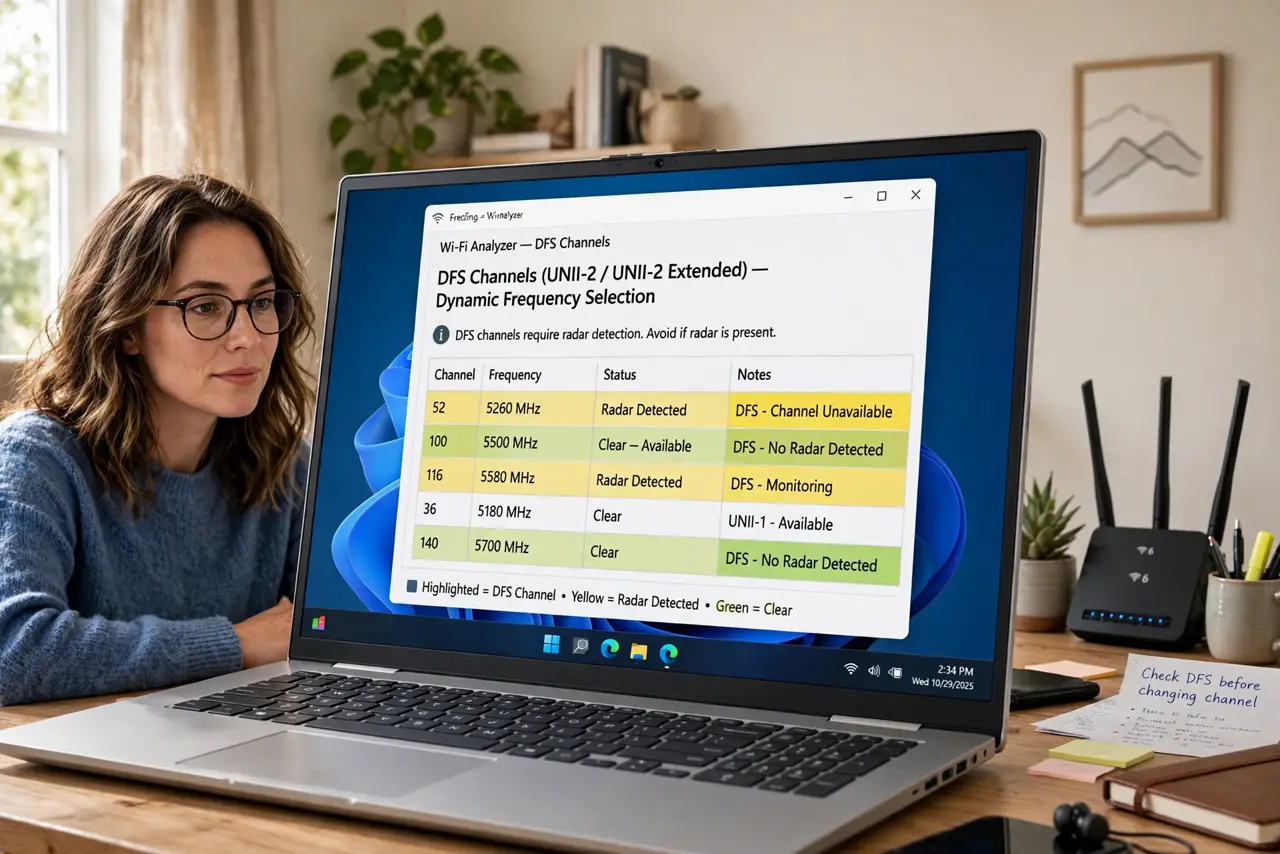
Your router offers channels with odd numbers like 52, 100, or 144, and enabling them sometimes makes Wi-Fi mysteriously drop for a minute. Those are DFS channels — slices of the 5GHz band shared with weather radar and aviation systems. Your router may use them, but by law it must instantly vacate the channel if it hears radar, which causes that brief dropout. They are usually the emptiest channels in a crowded building — with one catch.
TL;DR / Quick Fix
Quick fix: DFS channels are extra 5GHz Wi-Fi channels shared with weather radar — routers must vacate them if radar appears, briefly dropping your connection. They are usually the emptiest channels around. Enable them unless you live near an airport; disable them if your Wi-Fi drops mysteriously.
Follow these steps
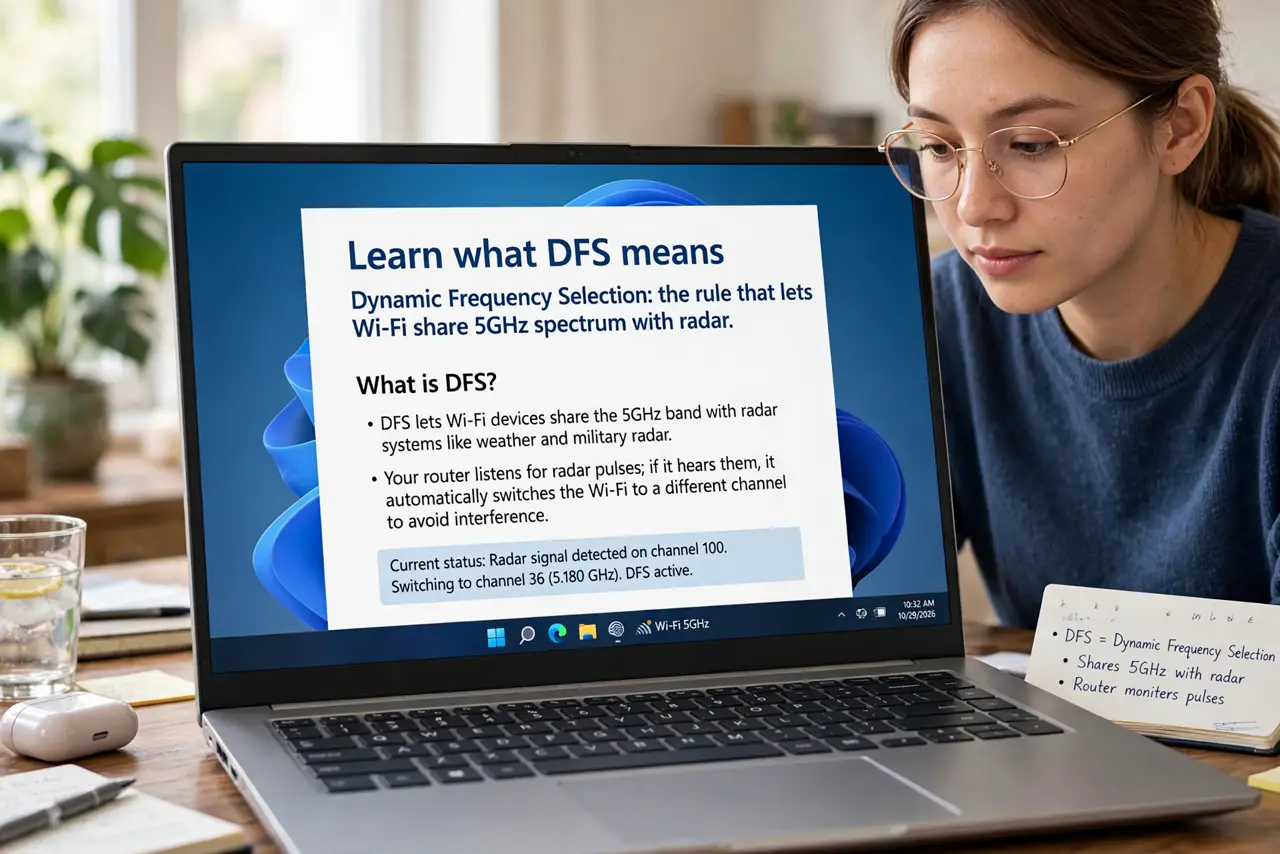
- Learn what DFS means. Dynamic Frequency Selection: the rule that lets Wi-Fi share 5GHz spectrum with radar. Your router listens for radar pulses; if it hears them, it must leave the channel within seconds. That is the entire mechanism behind the occasional dropout.
- Know why they are attractive. Most routers and neighbors stick to the standard non-DFS channels, so DFS channels are often nearly empty — especially in apartments. Empty spectrum means less interference and more consistent speed, which beats fiddling with the already-crowded standard channels.
- Check where you live. Near an airport, military base, or weather radar station, radar events are frequent and DFS becomes flaky. Far from all three, radar hits are rare and DFS is smooth sailing — geography is the whole decision.
- Enable DFS on the router. In the wireless settings, look for a DFS or extended-channels option on the 5GHz band and turn it on. The router scans for radar before transmitting (a one-minute quiet period on first enable), then operates normally.
- Watch for the dropout pattern. If devices briefly disconnect every so often — especially at consistent times — that is the radar-vacate behavior. Note when it happens; random drops are a different problem than radar drops.
- Disable DFS if drops annoy you. No shame in it: turn DFS off and use the standard channels with a good channel width choice instead. Stability you can trust beats speed that vanishes mid-call.
What NOT to do
- Do not enable DFS next to an airport and expect stability. Frequent radar means frequent vacates — geography disqualifies the feature, not the router.
- Do not confuse radar drops with a dying router. Brief, occasional disconnects on DFS channels are the protocol working as designed, not hardware failure.
- Do not use DFS for latency-critical work if drops bother you. Competitive gaming and video calls prefer boring, stable channels — save DFS for streaming and browsing.
- Do not assume all your devices support DFS. Some older gadgets cannot see DFS channels at all and will simply not find your network — check the oldest device first.
Frequently asked questions
Are DFS channels faster?
Not inherently — they are just emptier, and empty spectrum performs better. The speed comes from lack of competition, not from the channel itself.
Why does enabling DFS take a minute?
The router must silently listen for radar before its first transmission (Channel Availability Check). After that one-time wait, it operates normally.
Can my neighbor's router force mine off a DFS channel?
No — only actual radar triggers the vacate. Neighbor Wi-Fi is just interference, handled by normal channel sharing, not by DFS rules.