20 vs 40 vs 80MHz Channels?
Deep in your router's wireless settings sits a dropdown labeled Channel Width — 20MHz, 40MHz, 80MHz, maybe 160MHz — with no explanation of what any of it means. Pick wrong and you either cap your speed for no reason or invite interference from every neighbor. Width is a tradeoff: wider channels carry more data but hear more noise. The right choice depends on the band and how crowded your airspace is.
TL;DR / Quick Fix
Quick fix: wider Wi-Fi channels (40 or 80MHz) mean faster speeds but more interference; narrower (20MHz) means slower but steadier. In crowded apartments, use 20MHz on 2.4GHz for stability and 40 or 80MHz on 5GHz for speed. Change it in your router's wireless settings, then speed-test to confirm the tradeoff.
Follow these steps
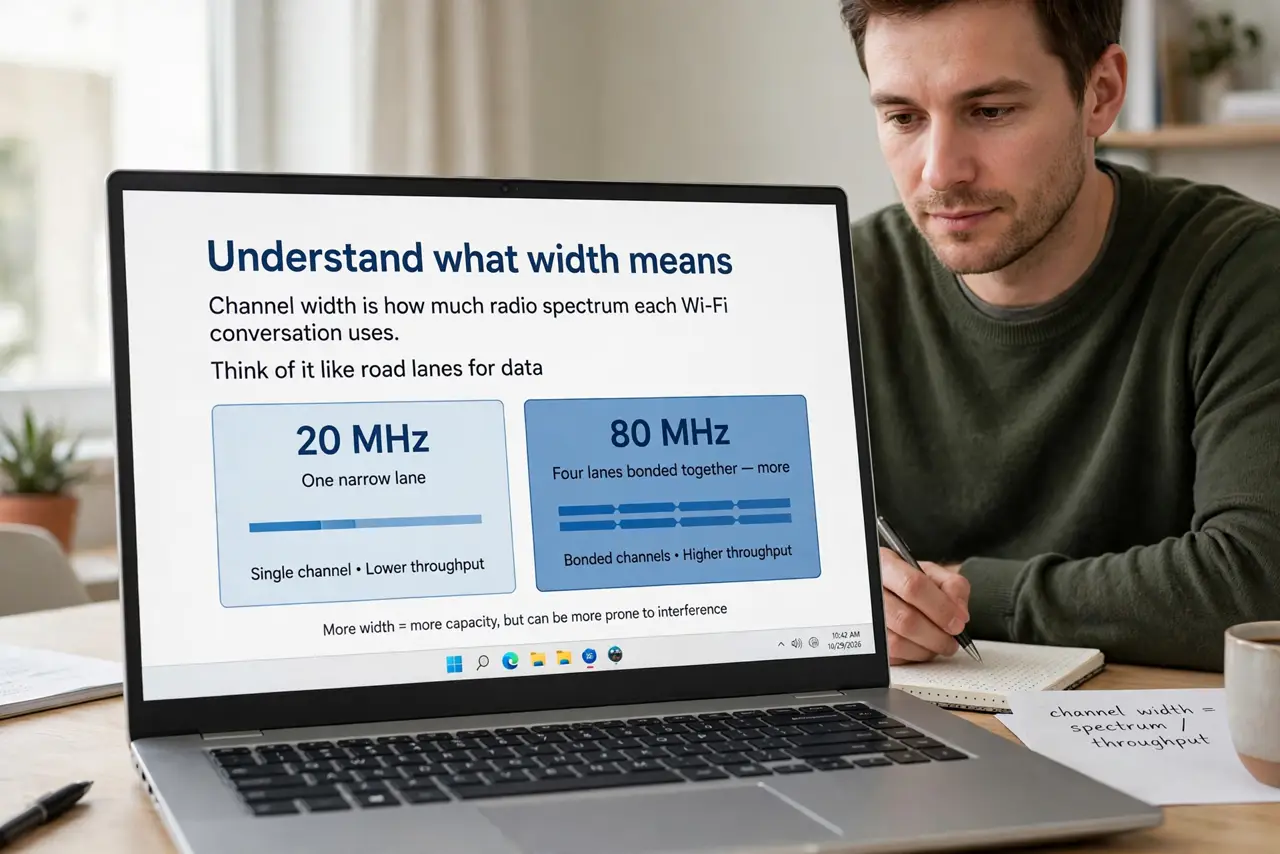
- Understand what width means. Channel width is how much radio spectrum each Wi-Fi conversation uses. 20MHz is one narrow lane; 80MHz is four lanes bonded together — more throughput, but four times the exposure to neighboring networks. It is a different setting from the channel number itself.
- Use 20MHz on 2.4GHz in crowded areas. The 2.4GHz band is already cramped — bonding channels there mostly bonds you to your neighbors' interference. 20MHz keeps connections stable; only try 40MHz on 2.4GHz if your scan shows the band nearly empty.
- Use 40 or 80MHz on 5GHz. The 5GHz band has room to breathe, so wider channels pay off: 40MHz is the safe default, 80MHz for maximum speed when your devices support it. This is where the big speed numbers on the box actually come from.
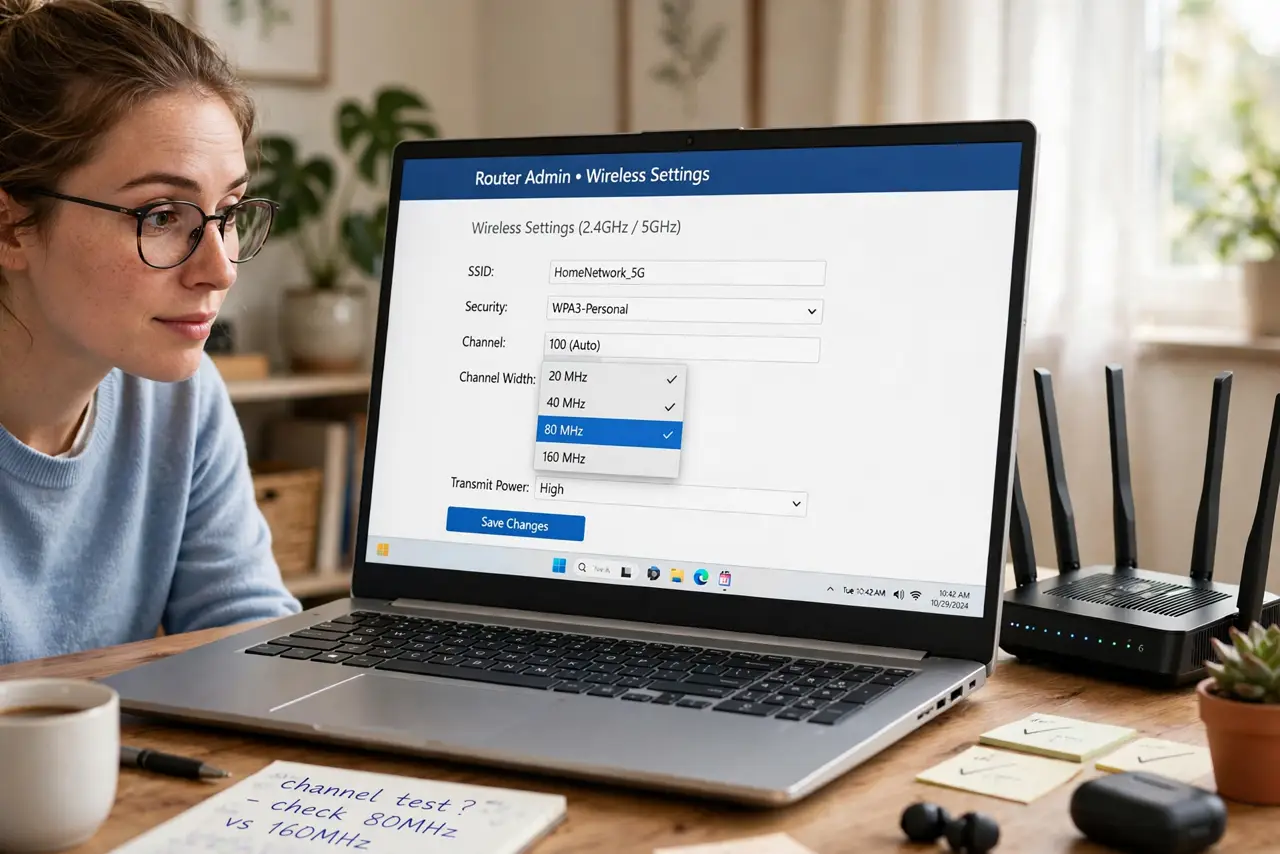
- Change it in the router's wireless settings. Log into the router admin page, find the wireless or radio settings for each band, and set the width per band — 2.4GHz narrow, 5GHz wide. Save and let the radio restart; devices reconnect on their own.
- Speed-test the tradeoff. Run a speed test near the router, then from your usual spots, at the busy evening hour. If wide channels test worse from the couch than narrow ones, interference is winning — narrow it back down.
- Consider splitting the bands. Giving 2.4GHz and 5GHz separate network names lets you steer slow smart-home gadgets to the narrow stable band and keep laptops on the wide fast one — see separate bands for the setup.
What NOT to do
- Do not set 80 or 160MHz on 2.4GHz in an apartment building. You will bond straight into a wall of neighbor interference and perform worse than 20MHz.
- Do not max everything to 160MHz blindly. Few client devices support it, and it is the most interference-prone setting — 80MHz is the practical ceiling for most homes.
- Do not change width and channel at the same time. Change one, test, then change the other — otherwise you will never know which setting helped.
- Do not assume wider is always faster in the real world. In a quiet house, yes; in a crowded building, the retransmissions from interference can make wide slower than narrow.
Frequently asked questions
Does wider channel width increase range?
No — range comes from the band and transmit power, not width. Width trades speed against interference susceptibility; it does not reach farther.
What about 160MHz — should I use it?
Only if your router and your devices both support it and your airspace is quiet. For most people it adds instability without a visible speed gain over 80MHz.
Is Auto a good setting?
Often decent on 5GHz, risky on 2.4GHz where Auto loves to pick 40MHz in crowded buildings. Set 2.4GHz manually to 20MHz and leave 5GHz on Auto if you prefer.