Reserve IPs with DHCP
Every few weeks the printer 'disappears' — the computer can't find it, jobs vanish, and re-adding it fixes things until next time. The printer isn't broken; DHCP keeps handing it a new IP address, and your computer keeps looking at the old one. A DHCP reservation pins the printer to one address forever, configured once in the router. Here's how.
TL;DR / Quick Fix
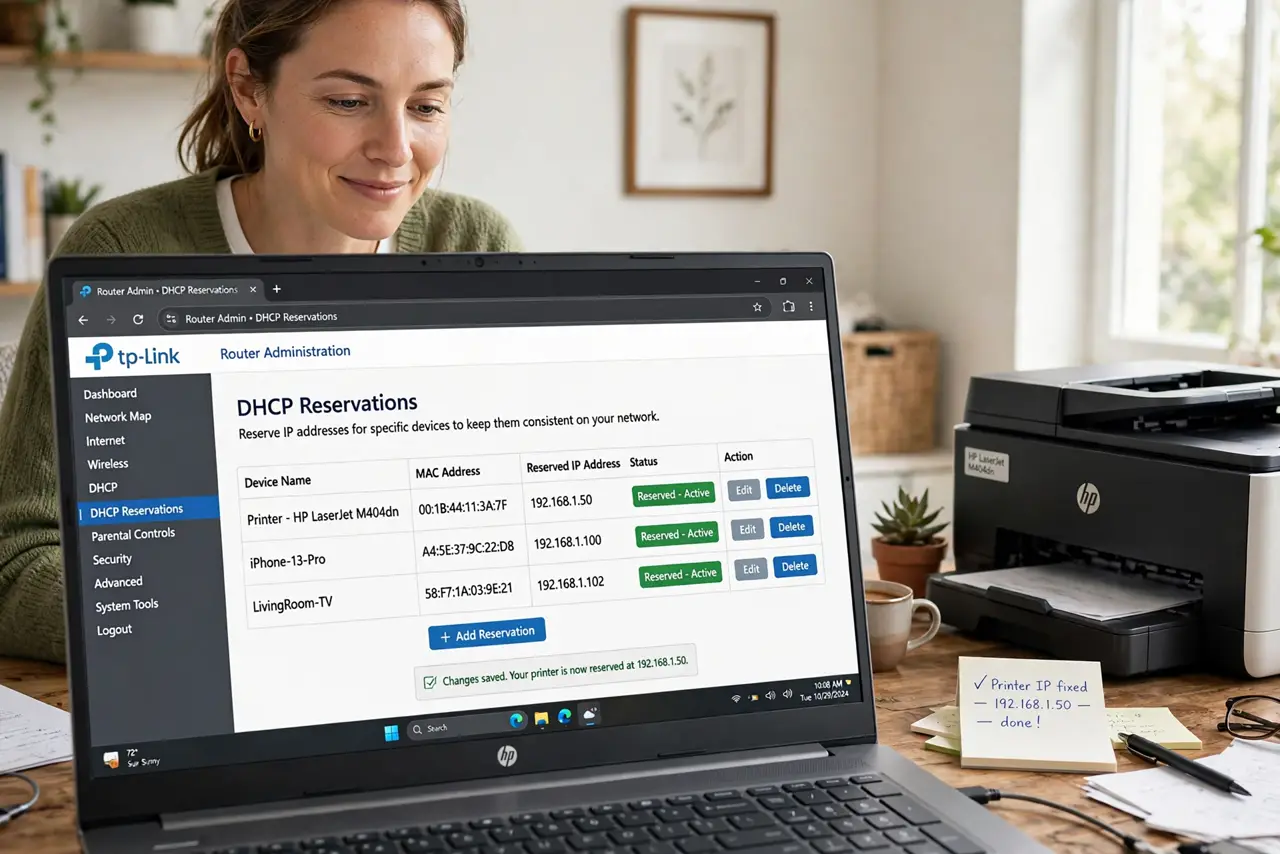
Quick fix: a DHCP reservation pins your printer to the same IP forever, without setting anything on the printer itself. Log in to your router, find the DHCP or LAN settings, locate the printer by its MAC address, and reserve its current IP. Reconnect once, and the address sticks.
Follow these steps
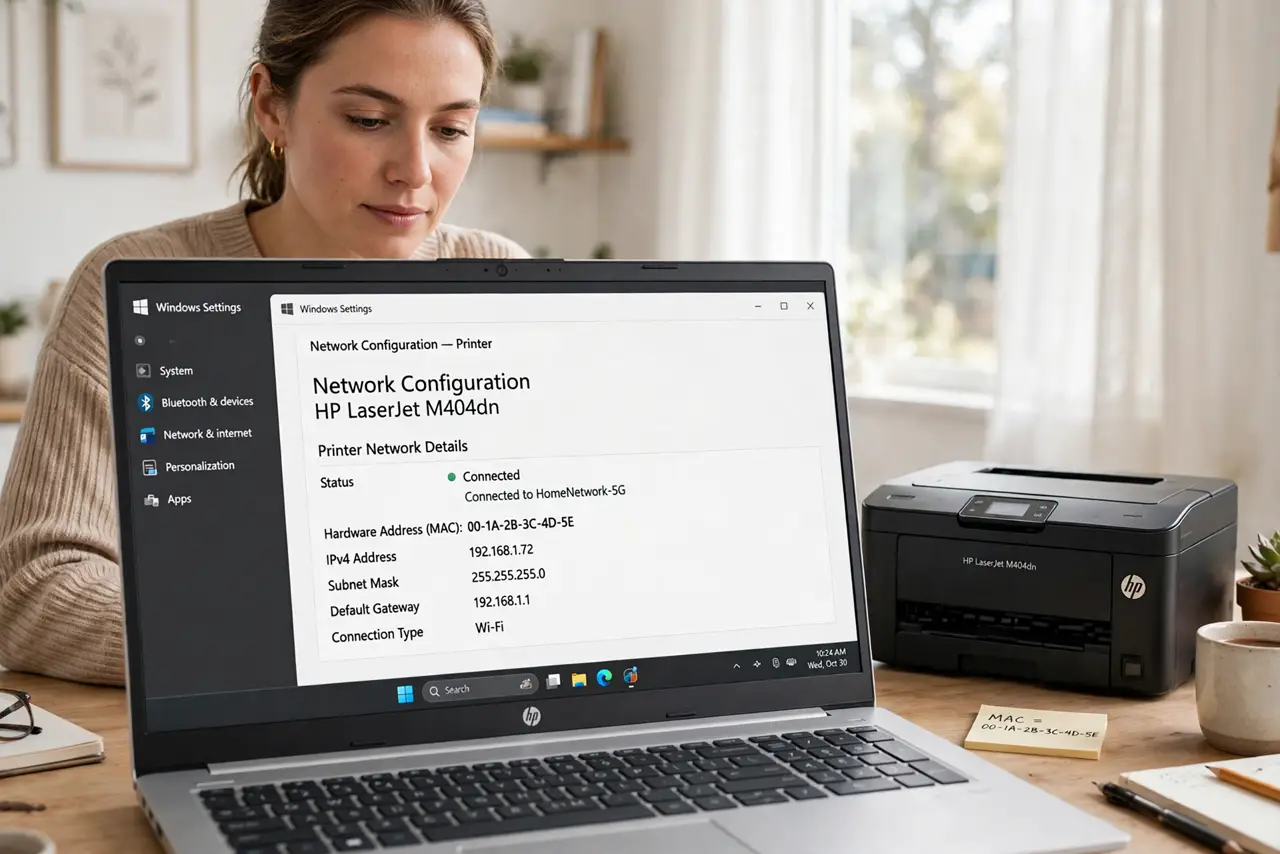
- Find the printer's MAC address. Print a network configuration page from the printer's menu — it lists the MAC (hardware) address. Alternatively, find the printer in your router's connected-devices list. The MAC is the printer's permanent name; the IP is the temporary one.
- Log in to your router. Open the router admin page and sign in. Look for DHCP Server, LAN Setup, or Address Reservation — every brand names it differently, but it lives near the DHCP settings. See the general DHCP reservation guide if your brand hides it well.
- Create the reservation. Add a new reservation: paste the printer's MAC address and assign it an IP — usually its current one. Save and let the router apply it. This is better than a manual static IP because the printer still gets everything else automatically.
- Reconnect the printer once. Restart the printer or disconnect/reconnect it to the network so it picks up the reserved address. One reconnect is enough — from here the router always hands it the same IP.
- Re-add the printer on your computers. Remove the old printer entry and add it fresh so the computer learns the now-permanent address. Do this once per computer; future 'disappearances' stop because the address never changes again.
- Label what you did. Note the reservation in the router (most let you name it 'Printer') and jot it somewhere. Six months from now, 'why does the printer always work' shouldn't be a mystery — documented reservations save future troubleshooting.
What NOT to do
- Do not set a static IP on the printer AND a reservation. Pick one method — doing both invites conflicts when the two disagree.
- Do not reserve an address inside another device's static IP. Keep a mental map: reservations and static IPs must never overlap.
- Do not skip the computer-side re-add. The reservation fixes the printer's address; your computer still remembers the old one until you refresh it.
- Do not factory-reset the printer for network issues first. Nine times in ten it's the wandering IP — the reservation fixes the actual cause.
Frequently asked questions
Will this fix my printer going offline?
If the cause is the changing IP — the most common one — yes, permanently. If the printer drops Wi-Fi entirely, that's a signal problem, not an address problem.
Do I need to do this for every device?
No — just infrastructure that others address by IP: printers, cameras, servers. Phones and laptops are happy with changing addresses.
What if my router has no reservation option?
Some ISP-provided routers hide or lack it. Then set a static IP on the printer itself, outside the DHCP pool — same result, configured on the device.