Disk Space Drops for No Reason? Fix It
When free space shrinks without you saving anything, something is growing in the background: downloads, backups, temporary files, or a runaway log. Finding the biggest folder first stops you from deleting the wrong things.
TL;DR / Quick Fix
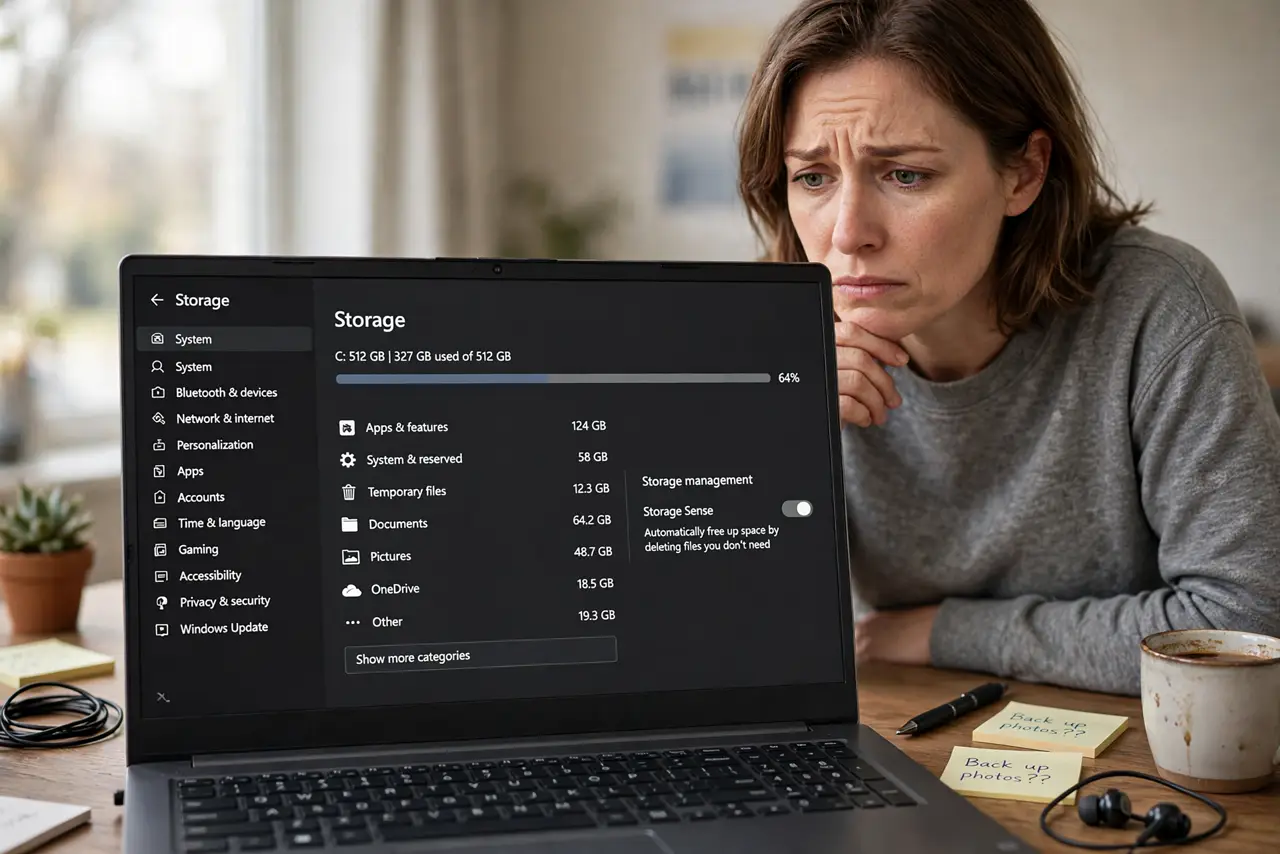
Quick fix: open Settings, then System, then Storage, and check which category uses the most space. Open File Explorer and sort your largest folders by size. If Downloads or temporary files dominate, clean those first and watch the free space over a few days.
Follow these steps
- Check Storage settings first. Open Settings, then System, then Storage, and look at the categories. The biggest category tells you where to look, instead of guessing.
- Sort folders by size. In File Explorer, open a drive, sort folders by size, and note the largest ones. Compare them with what you actually use, and investigate only the surprising ones.
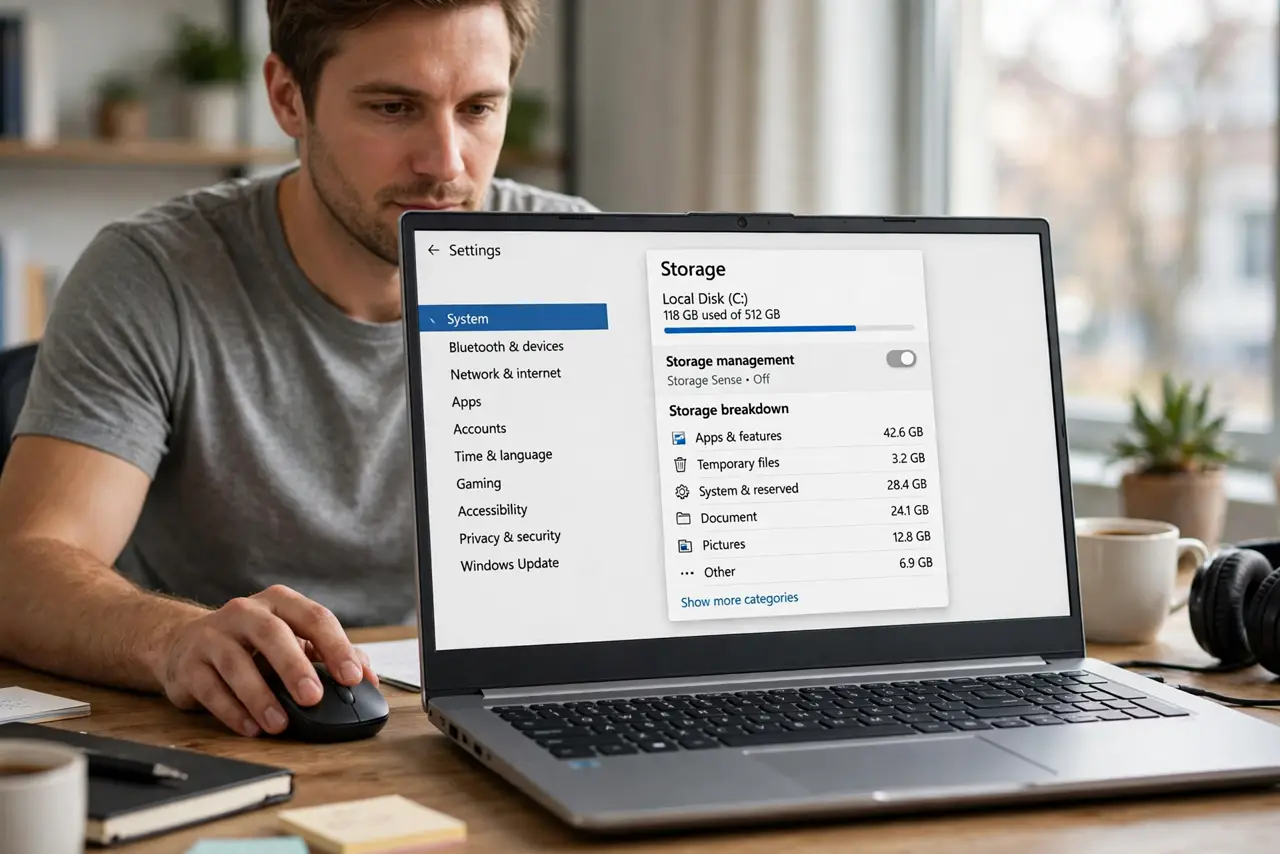
- Clean temporary files safely. In Storage settings, use Temporary files and tick only items you understand, such as the recycle bin and temporary files. Do not tick downloads unless you mean to delete them.
- Empty the Recycle Bin on purpose. Open the Recycle Bin and check what is inside before emptying it. Deleted files still use space until the Bin is emptied.
- Check for a runaway backup or sync. If a backup or cloud sync folder keeps growing, check its settings. A backup set to keep every version can fill a drive quietly over weeks.
- Watch the space over a few days. After cleaning, note the free space and check again in two days. If it drops fast again, the growing folder will point to the cause.
What NOT to do
- Do not delete system folders to free space. Deleting the wrong system folder can stop Windows from starting, and it rarely frees much space.
- Do not empty Downloads without checking it. Downloads often holds installers, forms, and files you meant to keep, mixed in with clutter.
- Do not install a cleaner that promises huge space savings. Some cleaners delete useful files and change settings, and Storage settings already covers the safe cleanup.
- Do not ignore a drive that fills again in days. Fast refilling points to a runaway backup, log, or sync, and cleaning alone will not stop it.
Frequently asked questions
Why does space drop when I save nothing?
Temporary files, updates, backups, and sync copies grow in the background. Storage settings shows which category is growing.
Is it safe to delete temporary files?
Yes, through Storage settings, with only understood items ticked. Do not delete system folders by hand.
How much free space should I keep?
Keep a comfortable margin so updates and temporary files have room. If the drive stays nearly full, apps and updates will struggle.