Checklists in Docs? How To
Your shared document holds a to-do list as plain bullets — no way to mark things done, no visual progress. Checklists in Google Docs turn those bullets into real checkboxes you click as you finish. Simple, visible, satisfying. Here is how to make and use them.
TL;DR / Quick Fix
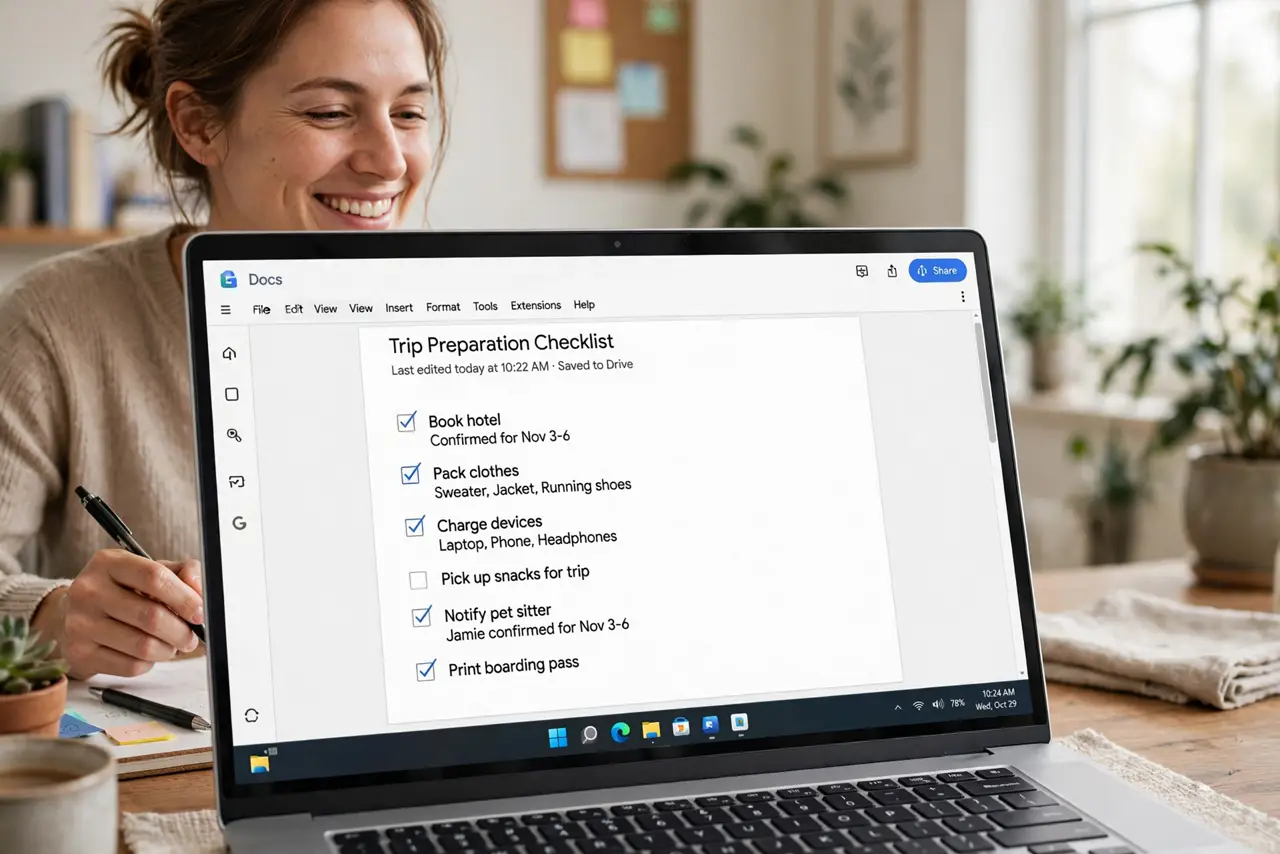
Quick fix: checklists in Google Docs turn bullets into clickable checkboxes you tick off as you go. Select your list and choose the checklist format from the toolbar, or type [] plus a space. Click a box to check it. Perfect for shared to-do lists inside a document.
Follow these steps
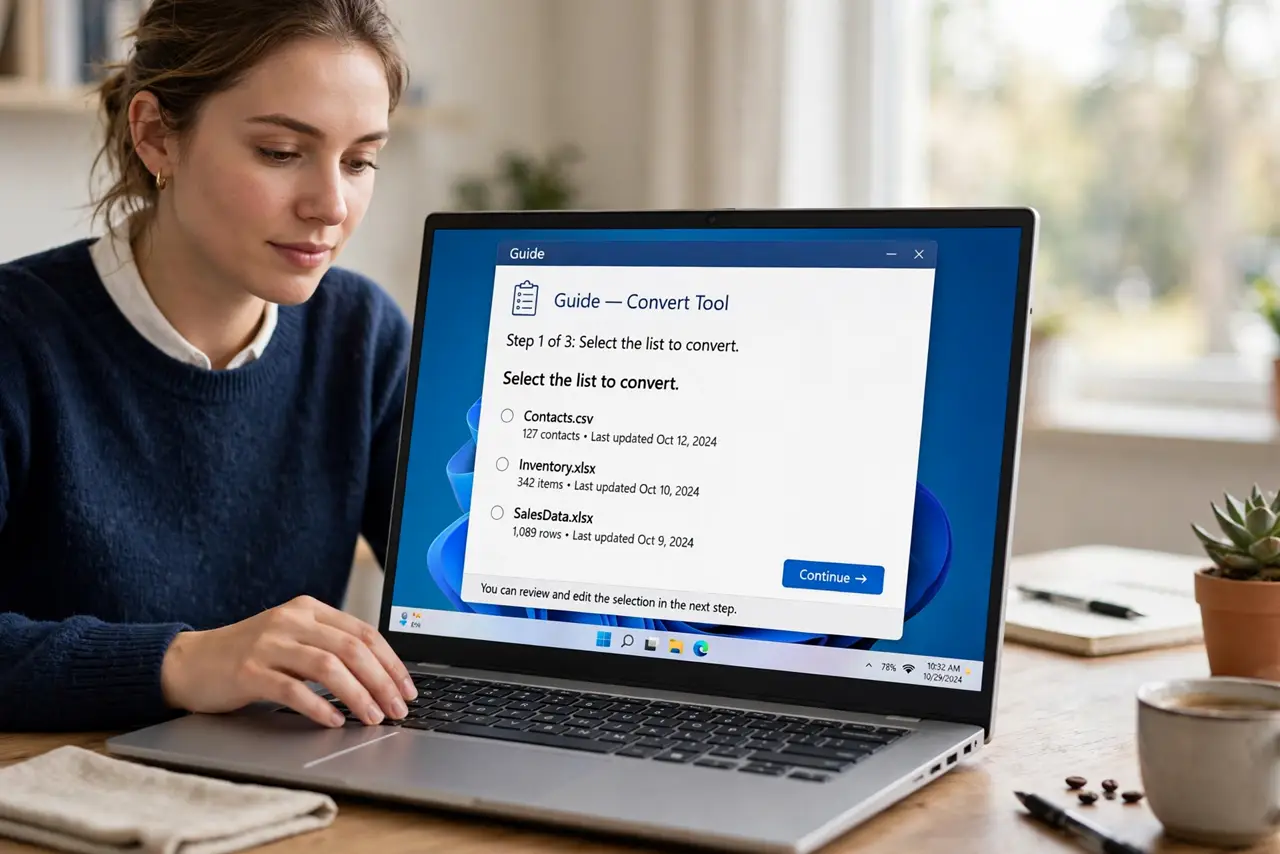
- Select the list to convert. Highlight your existing bullet list — or place the cursor where the new checklist should start.
- Apply the checklist format. In the toolbar, open the bulleted-list dropdown and choose the checklist style. Your bullets become empty checkboxes instantly.
- Or type [] and space. Typing an opening and closing bracket followed by a space converts the line to a checklist item automatically — the fastest method.
- Click boxes to check them off. Clicking a checkbox toggles it. Checked items show a checkmark and subtle strikethrough — progress you can see.
- Nest subtasks with indent. Press Tab on a checklist item to nest it under the one above. Complex tasks break into checkable steps beautifully.
- Use checklists for shared tracking. In a shared doc, everyone sees live checkmarks. It is the simplest shared to-do list ever — no app required.
What NOT to do
- Do not use checklists for non-action content. Meeting notes are not tasks — checkboxes on everything dilute the ones that matter.
- Do not delete checked items immediately. The checked history shows what got done — archive or move it instead of erasing.
- Do not mix checklist and bullet styles randomly. One list, one format — visual consistency keeps it scannable.
- Do not expect due dates or assignees. Checklists are delightfully simple — for assignments and deadlines, use action items instead.
Frequently asked questions
Can I convert a checklist back to bullets?
Yes — select the list and switch the format back to bullets or numbers in the toolbar dropdown.
Do checklists work on the mobile app?
Yes, you can check and uncheck boxes on mobile. Creating and nesting them is easier on desktop.
Can I assign a checklist item to someone?
Not directly — checklists have no assignee field. Mention them with an @-tag or convert the item to an action item.