Two Columns in Google Docs? How To
Newsletters, brochures, and comparison sheets read better in two columns — and Docs does it natively, no text boxes required. Here is how to split the page and the settings that keep columns behaving.
TL;DR / Quick Fix
Quick fix: in Google Docs go to Format > Columns and pick two — your selection flows into columns. Add a column break via Insert > Break > Column break to push text onward. Keep columns readable; narrow columns with long words turn ugly fast.
Follow these steps
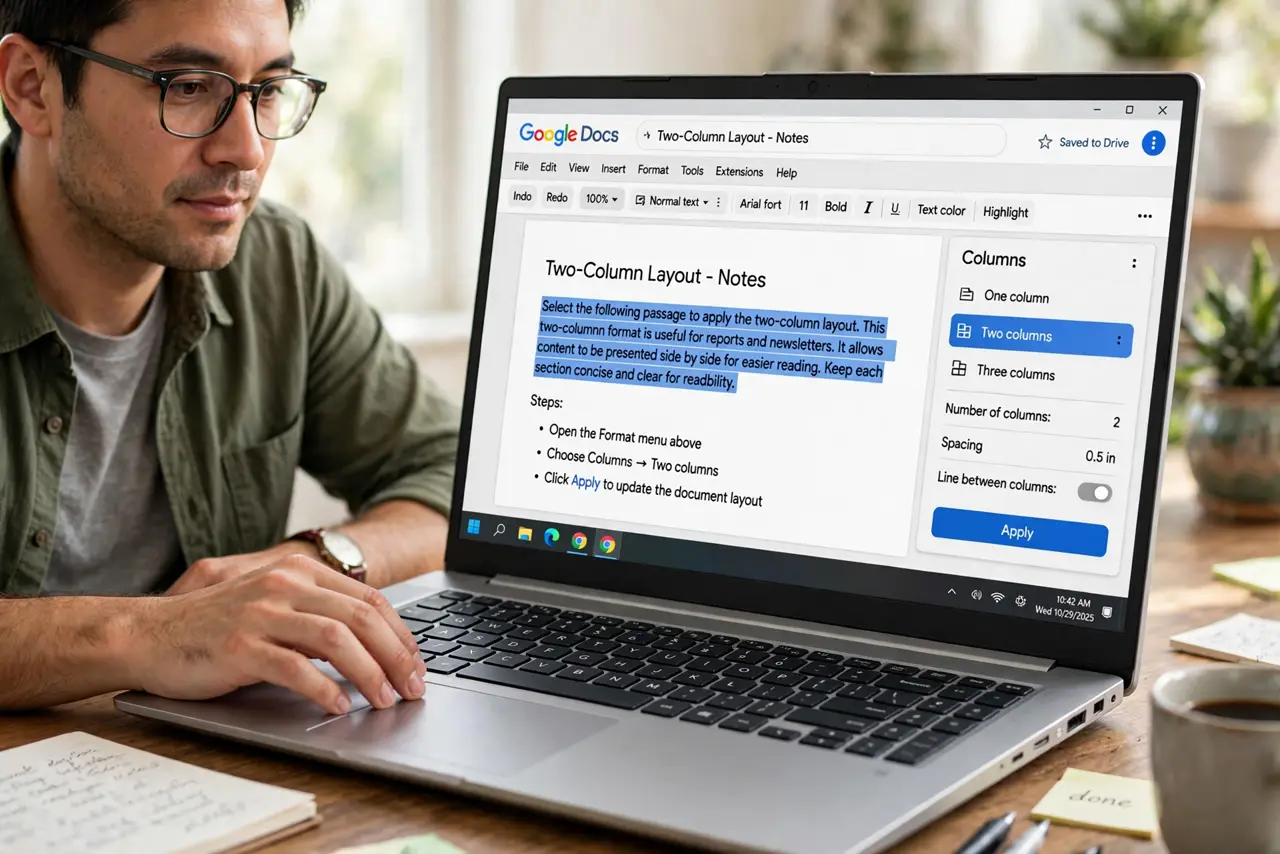
- Select the text — or not. Select the passage for partial columns, or nothing for the whole document. Selection-first is the precise method.
- Apply two columns. Format > Columns > choose the two-column icon. Text reflows immediately — watch it happen.
- Tune spacing. Format > Columns > More options adjusts the gap between columns. A touch more space beats cramped.
- Use column breaks. Insert > Break > Column break pushes following text to the next column — for balancing or starting a section at a column top.
- Mind images and tables. Wide images and tables fight narrow columns. Shrink them or let them span — test both and pick the calmer page.
- Revert cleanly. Select the text, Format > Columns > one column. No leftover formatting ghosts — the toggle is clean.
What NOT to do
- Do not column-ize a whole report. Columns suit newsletters and comparisons, not 40-page reports.
- Do not ignore narrow-column typography. Long words and narrow columns create ugly gaps — shorten or hyphenate.
- Do not fake columns with tables. Real columns reflow; tables trap text.
- Do not forget mobile readers. Columns collapse to one on small screens — check the reading order still makes sense.
Frequently asked questions
Can I have different column counts on different pages?
Yes — select each section text and apply columns per selection. Section breaks make it cleaner.
Why is my text unbalanced between columns?
Docs balances automatically at section ends; mid-document, add a column break to force the push.
Do columns work when printing?
Yes — columns print exactly as shown. Preview first; narrow margins plus columns can squeeze text hard.