Comments in Docs? Basics
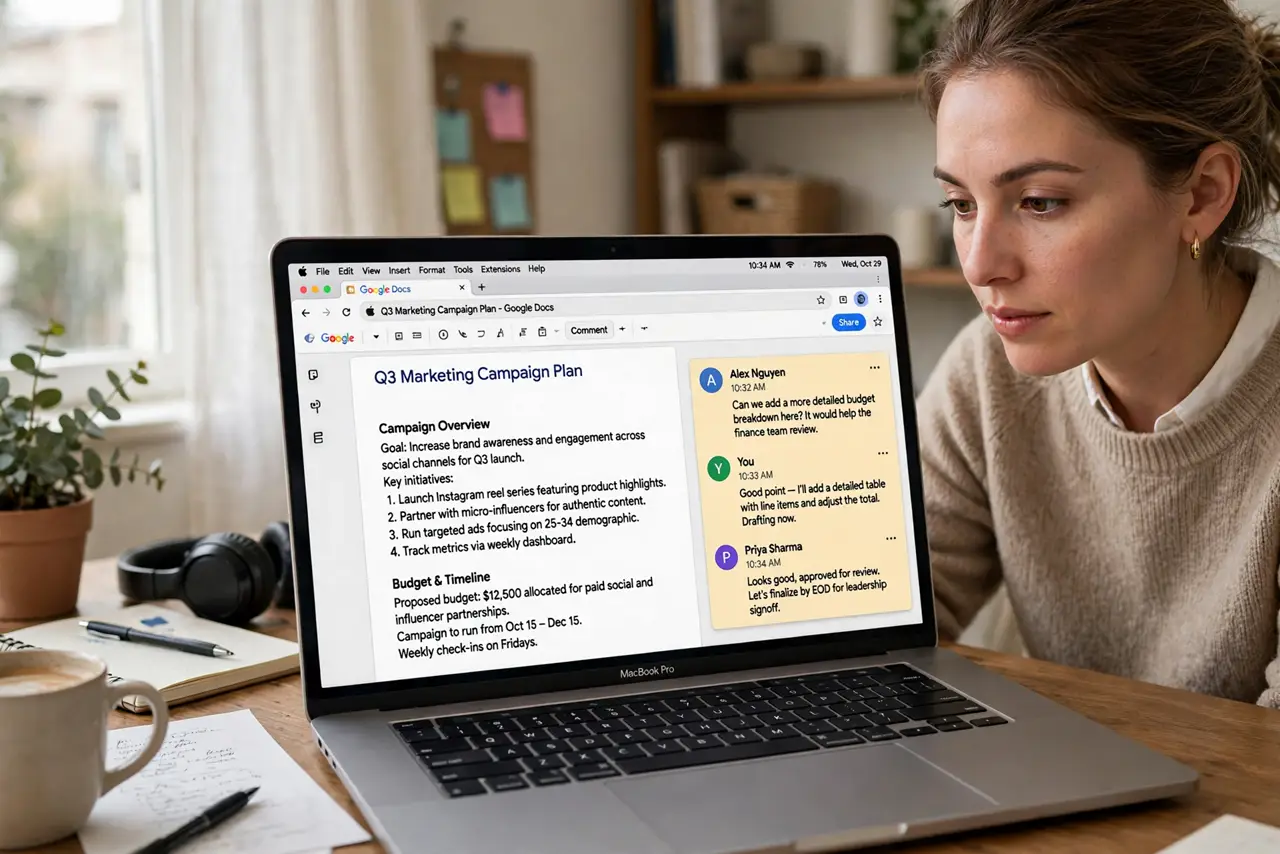
Comments are how Google Docs handles feedback — margin notes on specific text that people can reply to, assign, and resolve without touching the document itself. They are the difference between chaotic email threads and clean collaboration. This guide covers adding, assigning, replying, and resolving comments like a pro.
TL;DR / Quick Fix
Quick fix: to comment in Google Docs, highlight text and press Ctrl+Alt+M — type your note and assign it with the + menu. Others reply in the thread. Click Resolve when done; resolved comments hide but stay in history. Use Suggesting mode when you want to propose edits, not notes.
Follow these steps
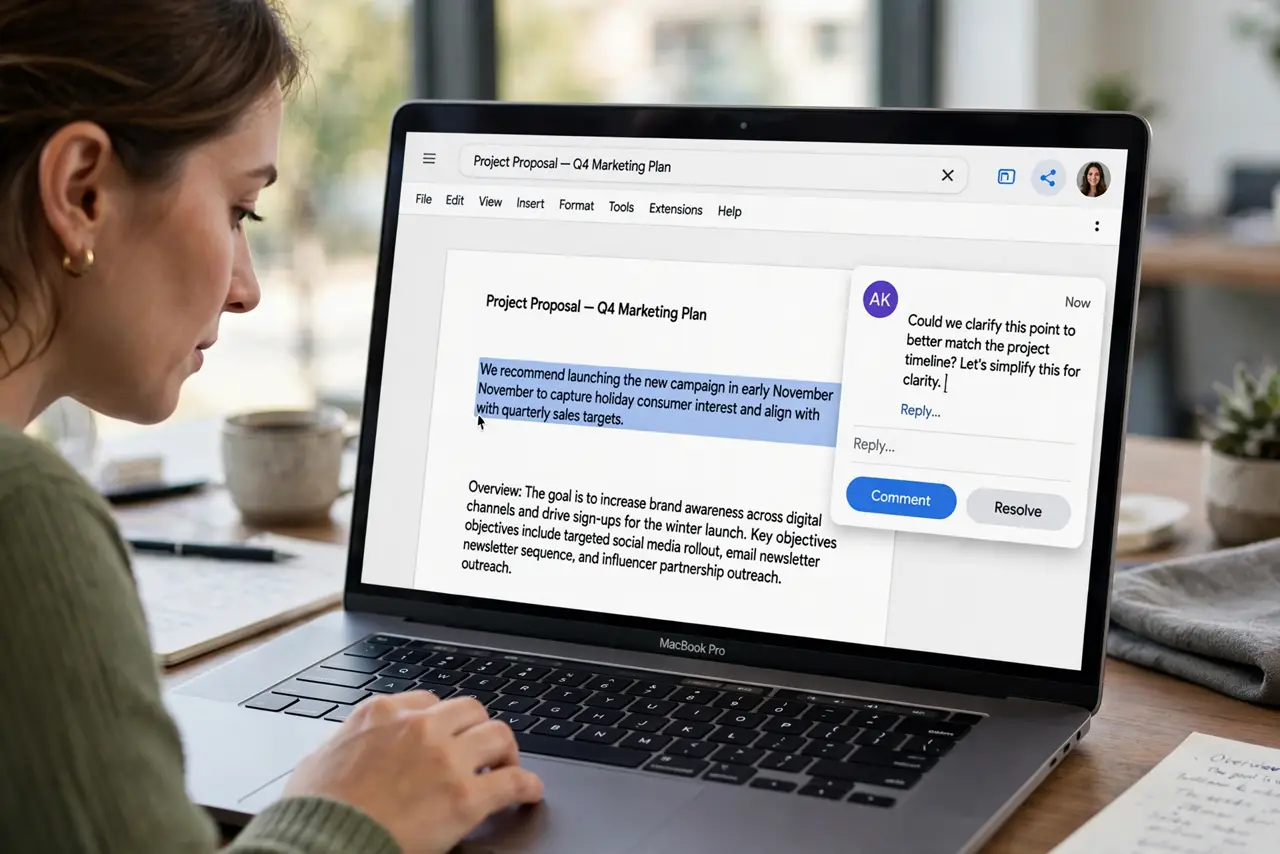
- Select text and add a comment. Highlight the words your note is about, then press Ctrl+Alt+M (Cmd+Option+M on Mac) or click the comment icon. Typing first and selecting second loses the anchor — select, then comment.
- Assign it to someone. Type + and their email or name to assign the comment. They get a notification and the comment shows as assigned — far more effective than hoping they notice.
- Reply in the thread. Click a comment to open its thread and reply underneath. Keep discussion in the thread, not in the document body — the document stays clean while the debate lives in the margin.
- Resolve when done. Click Resolve to close a finished comment. It vanishes from the margin but stays in the comment history — nothing is truly deleted, and you can reopen resolved comments if needed.
- Use Suggesting mode for edits. Comments are for discussion; Suggesting mode is for proposed text changes the owner can accept or reject. Pick the right tool — a comment saying 'change this word' is a suggestion wearing a disguise.
- Mention with @ for attention. Type @ plus a name anywhere in a comment to notify that person specifically. In a busy shared doc, the @ is what gets your note read.
What NOT to do
- Do not put feedback in the document body. Colored 'notes to self' inside the text confuse every reader — that is exactly what comments are for.
- Do not resolve someone else's comment without answering. Resolving is the 'done' stamp — stamping it on an unanswered question is how feedback dies silently.
- Do not comment on the whole document. Anchor comments to specific text; a floating 'this section is confusing' with no selection helps no one find the problem.
- Do not use comments for chat. Long back-and-forth debates belong in a call or chat app — resolve the comment with the decision, not the argument.
Frequently asked questions
What is the difference between comments and suggestions?
Comments discuss the text without changing it; suggestions propose actual edits the owner accepts or rejects. Use comments for questions, suggestions for wording changes.
Can I comment on the mobile app?
Yes — select text, tap the + icon, and choose Comment. Assigning and resolving work on mobile too, though the desktop is roomier for long threads.
Who can see my comments?
Anyone with at least commenter access to the document. Viewers cannot see comments; editors and commenters can — check sharing settings for sensitive notes.