One Landscape Page? How To
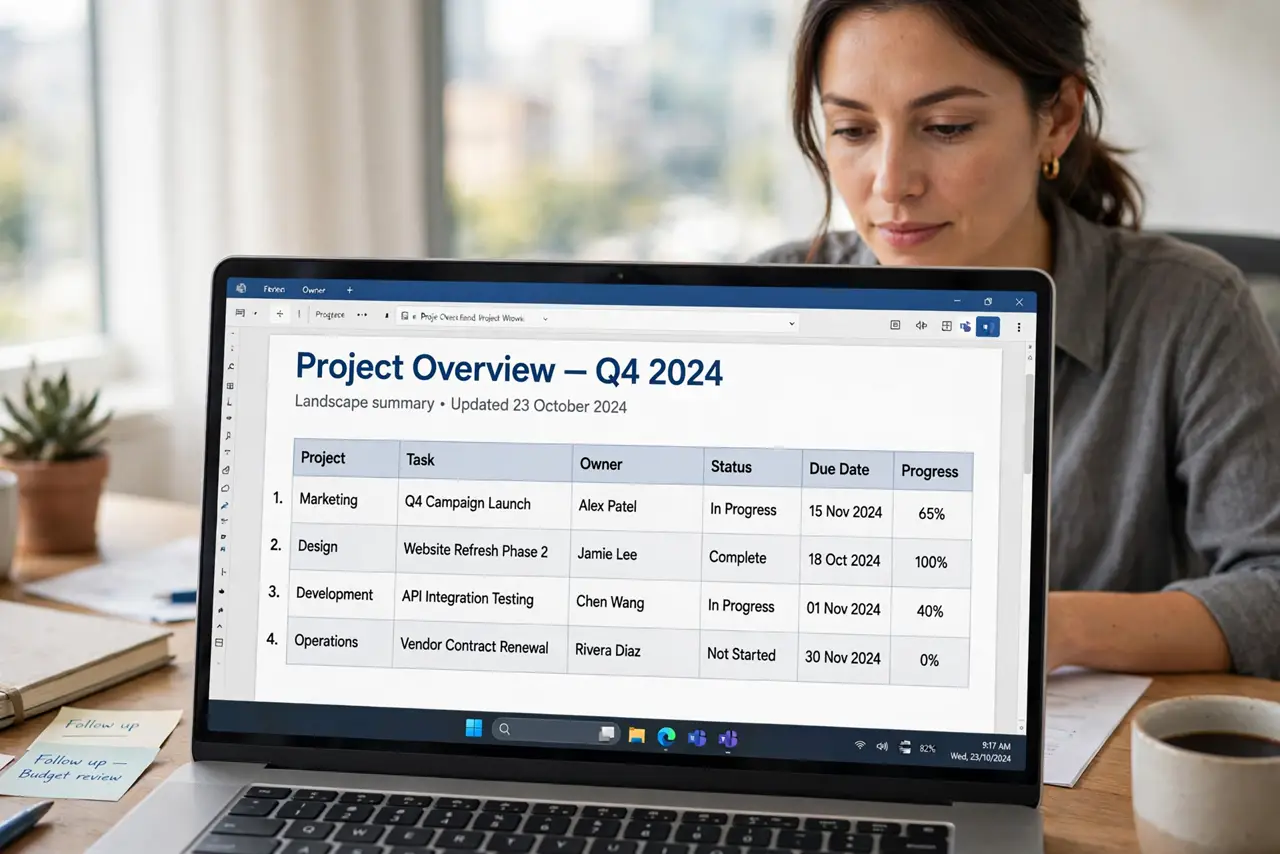
You need one wide table or chart to fit, but the whole document is portrait — and changing orientation flips every page. The trick is a section break: it lets a single section go landscape while the rest stays portrait. Here is the two-minute way to do it in Google Docs.
TL;DR / Quick Fix
Quick fix: click where the landscape page should start, then Insert, Break, Section break (next page). Open File, Page setup, choose Landscape, and Apply to This section. Repeat the break after the page and set the next section back to Portrait. Only the page between the breaks turns sideways.
Follow these steps
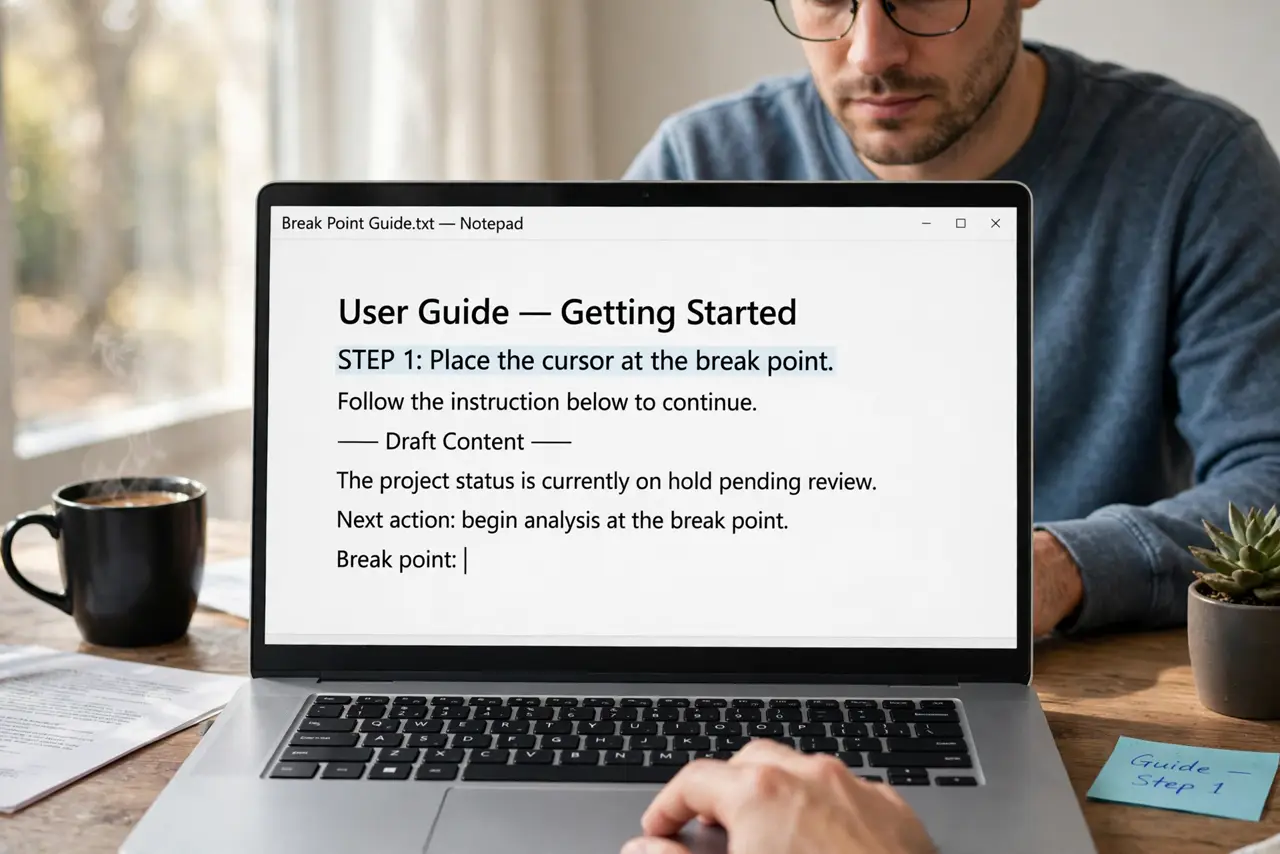
- Place the cursor at the break point. Click exactly where the landscape page should begin — usually just before the wide table or chart. The section break splits the document at this spot.
- Insert a next-page section break. Go to Insert > Break > Section break (next page). A plain page break will not work here — only a section break can carry a different orientation.
- Open Page setup. Go to File > Page setup. This is where orientation lives; the toolbar has no orientation button.
- Choose Landscape, applied to this section only. Select Landscape, then in the 'Apply to' dropdown choose 'This section.' Click OK. Only the new section flips — the earlier pages stay portrait.
- Add a closing section break. Click at the end of the landscape page and insert another next-page section break. Without this, every page after it stays landscape too.
- Set the following section back to Portrait. With the cursor in the new section, open File > Page setup again, choose Portrait, and apply to this section. Scroll through — the flip should be confined to one page.
What NOT to do
- Do not use a plain page break (Insert > Break > Page break). It starts a new page but cannot carry a different orientation — only a section break can.
- Do not apply Landscape to the 'Whole document.' That dropdown choice is the classic way to flip thirty pages when you wanted one.
- Do not delete the section breaks to 'clean up.' Removing a break merges the sections and the landscape page snaps back to portrait.
- Do not skip the preview. Wide tables sometimes need their column widths adjusted after the flip — check before you download the PDF.
Frequently asked questions
Can I make just one page landscape in Google Docs?
Yes — with section breaks. One break before the page, one after, and Page setup applied to 'This section' only. The rest of the document stays portrait.
Why did all my pages turn landscape?
The orientation was applied to the whole document instead of one section. Undo it, add the section breaks first, then reapply Landscape with 'Apply to: This section.'
Will the landscape page stay landscape when I share the file?
Yes. Orientation is part of the document, so it survives sharing, printing, and downloading as PDF.