Navigate Long Docs With the Outline
A forty-page document without a map is a scroll marathon. The outline pane turns your headings into a clickable table of contents docked at the side — jump to any section instantly. Here is how to show it and make it useful.
TL;DR / Quick Fix
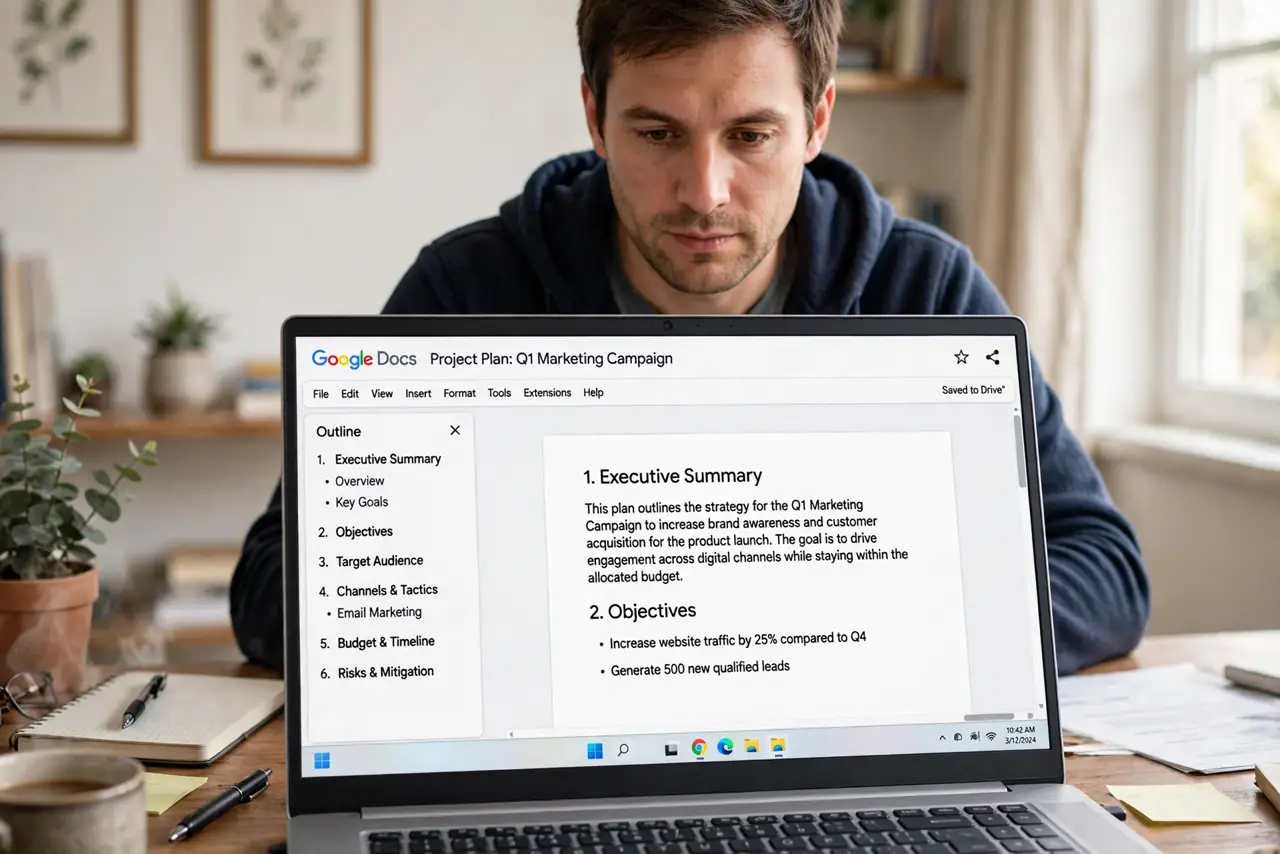
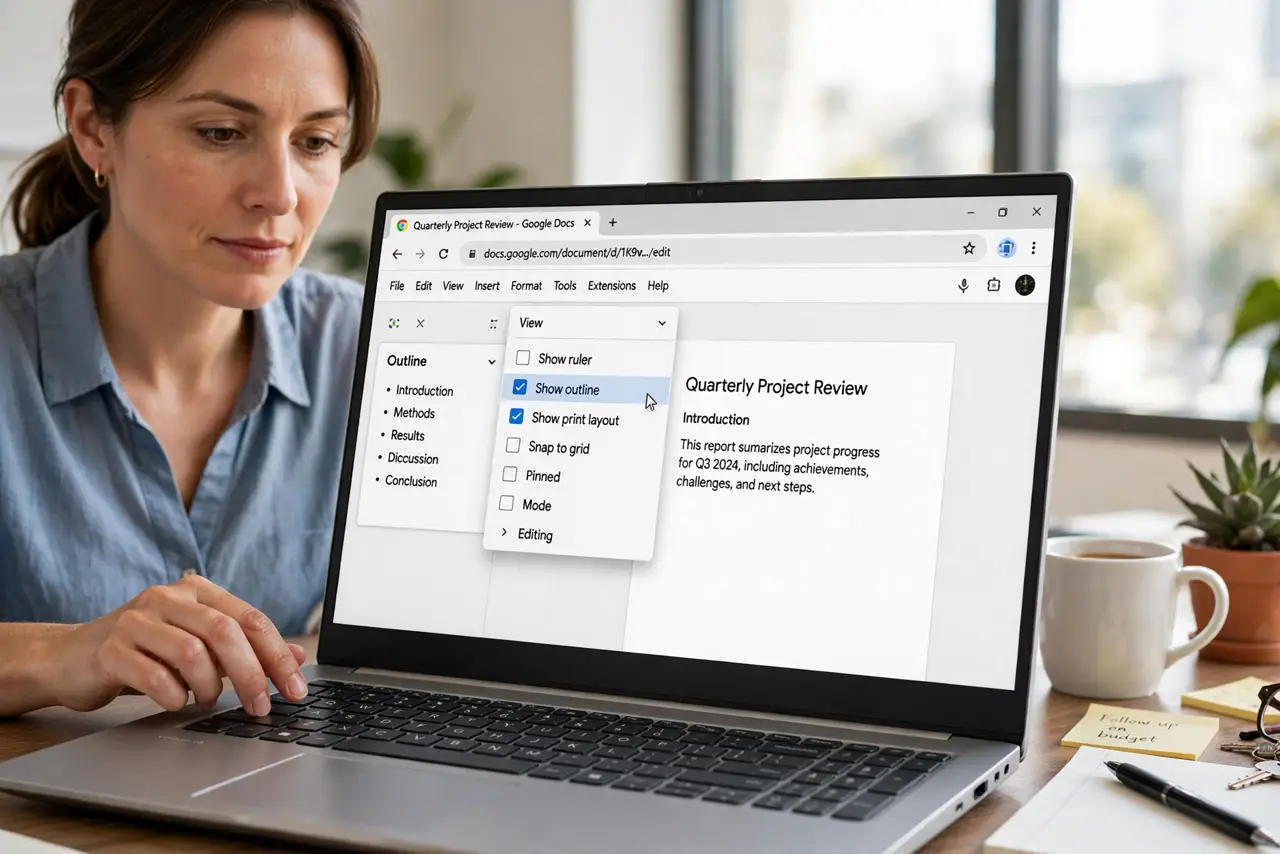
Quick fix: in Google Docs go to View > Show outline — your headings appear as a clickable map on the left. The outline only shows real headings (Heading 1/2/3 styles), so apply heading styles instead of just bolding big text. Click any heading to jump there instantly.
Follow these steps
- Show the outline. View > Show outline. The pane docks on the left with every heading listed — or a gentle no-headings-yet hint.
- Use real heading styles. Select section titles and apply Heading 1, 2, or 3 from the styles menu. Bold big text is invisible to the outline — styles are the signal.
- Nest with heading levels. Heading 1 for chapters, Heading 2 for sections, Heading 3 for subsections. The outline indents accordingly — instant hierarchy.
- Click to jump. Click any outline entry to leap to that section. Long-document navigation becomes a one-click affair.
- Drag to reorganize. Drag outline entries to move whole sections. Faster and safer than cut-and-paste across forty pages.
- Pair with the table of contents. For shared or printed docs, insert a real table of contents too — the outline is your private map, the TOC is the public one.
What NOT to do
- Do not fake headings with bold text. The outline, the TOC, and accessibility all need real styles.
- Do not use Heading 1 forty times. One H1 per document — the title; sections get H2.
- Do not skip levels — H1 straight to H3. Skipped levels confuse the outline and screen readers alike.
- Do not ignore the outline when restructuring. Drag sections in the pane instead of scrolling with scissors.
Frequently asked questions
Why is my outline empty?
Your titles are bolded text, not heading styles. Apply Heading 1, 2, or 3 and the outline fills instantly.
Can I hide the outline?
Yes — View > Show outline toggles it. It stays per-document, so set it where you need it.
Does the outline print?
No — it is a navigation aid only. For a printed map, insert a table of contents.