Translate a Doc Without Losing Formatting
Google Docs can translate a whole document in one click, but the translated copy sometimes arrives with mangled tables, shifted images, and lost styles. The trick is preparing the original and checking the copy. This guide shows how to get a clean translated document.
TL;DR / Quick Fix
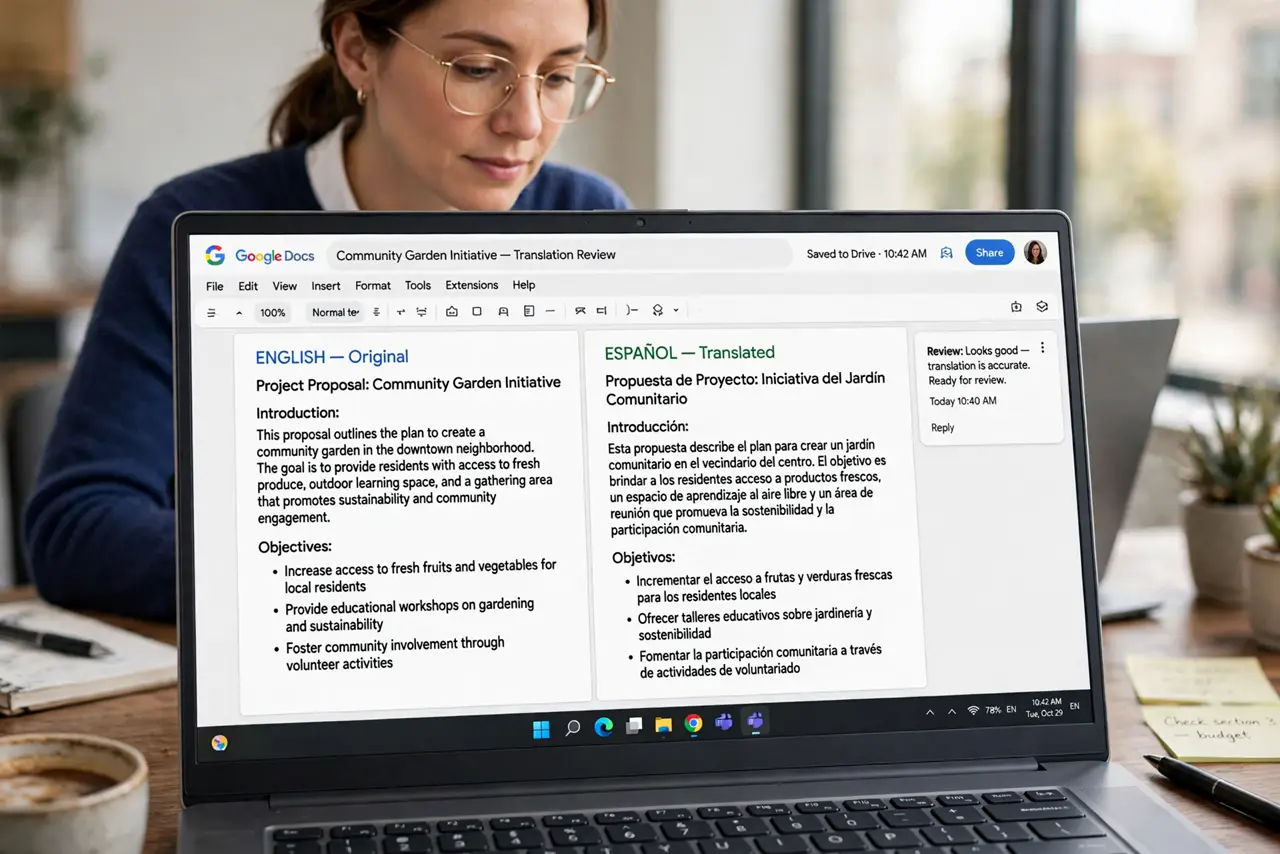
Use Tools, Translate document to create a translated copy, keeping the original untouched. Before translating, clean up complex tables and floating images. Afterward, have a native speaker review the copy in suggesting mode, since machine translation always needs human eyes.
Follow these steps
- Clean up the original first. Simplify merged table cells, anchor floating images inline, and fix broken formatting. Messy originals produce messy translations.
- Translate to a new copy. Open Tools, then Translate document, pick the language, and confirm. Docs creates a separate translated copy and leaves your original exactly as it was.
- Check tables and images first. Scroll the translated copy and look at every table and image before reading a word. Layout damage is easiest to spot and fix right away.
- Share it in suggesting mode for review. Give the translated copy to a native speaker with suggesting access. Machine translation of idioms and tone always needs a human pass.
- Fix untranslated leftovers. Search the copy for words that stayed in the original language — names are fine, but stray untranslated sentences are not. Translate those bits by hand.
- Keep both versions linked. Put a link to the original at the top of the translated copy and vice versa. When the original gets updated, the translation needs the same update.
What NOT to do
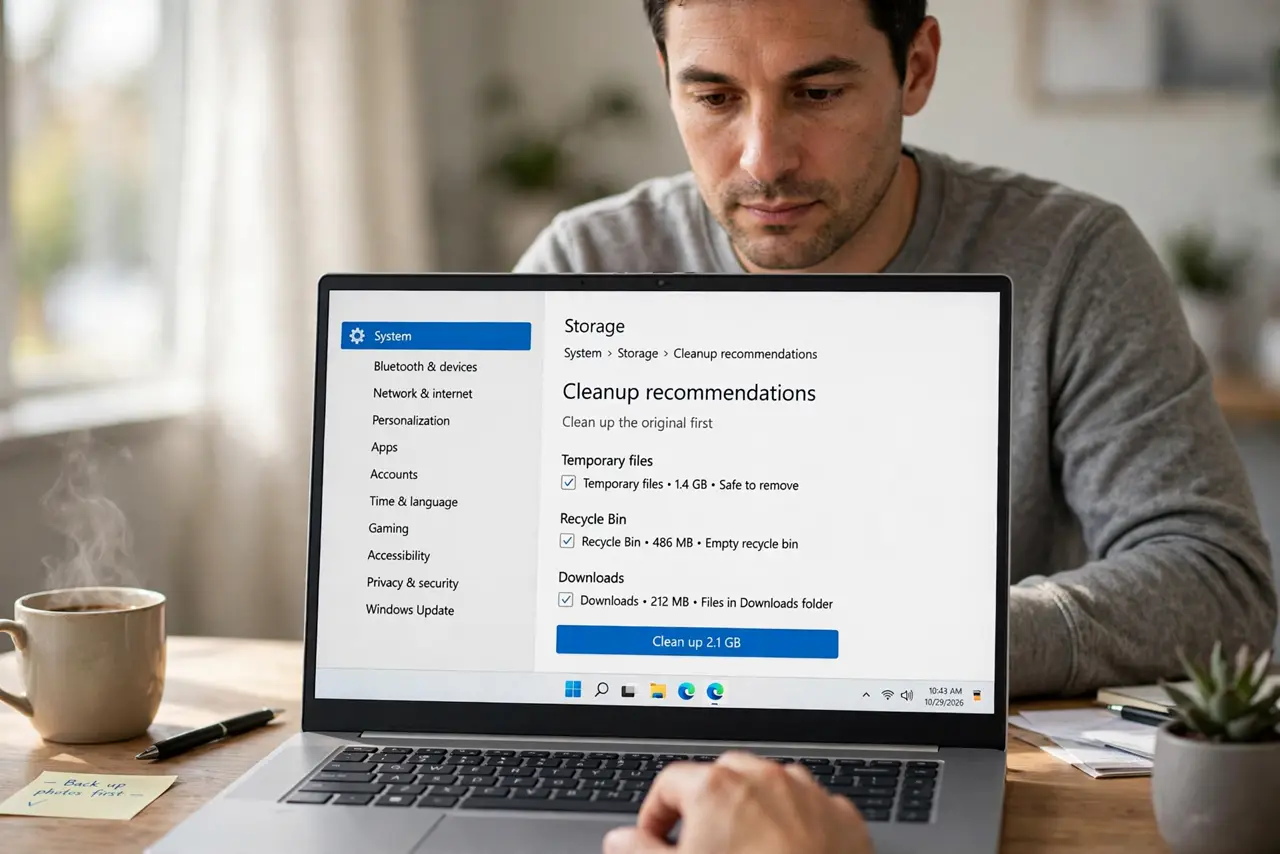
- Do not translate the original in place. Always translate to a copy, or you will lose the source text.
- Do not publish a machine translation without review. Idioms, jokes, and formal tone regularly come out wrong.
- Do not translate a document full of screenshots with text. The text inside images never translates.
- Do not assume formatting survived. Check every page of the copy before sharing it.
Frequently asked questions
Does Google Docs translate the whole document?
Yes, Tools then Translate document creates a full translated copy. The original stays untouched.
Why are my tables broken after translating?
Complex merged cells and floating images confuse the translation copy. Simplify the original's layout first.
Can I translate back to the original language?
Yes, but round-trip translation degrades quality each time. Keep the original and translate from it directly.