Compare Two Document Versions Side by Side
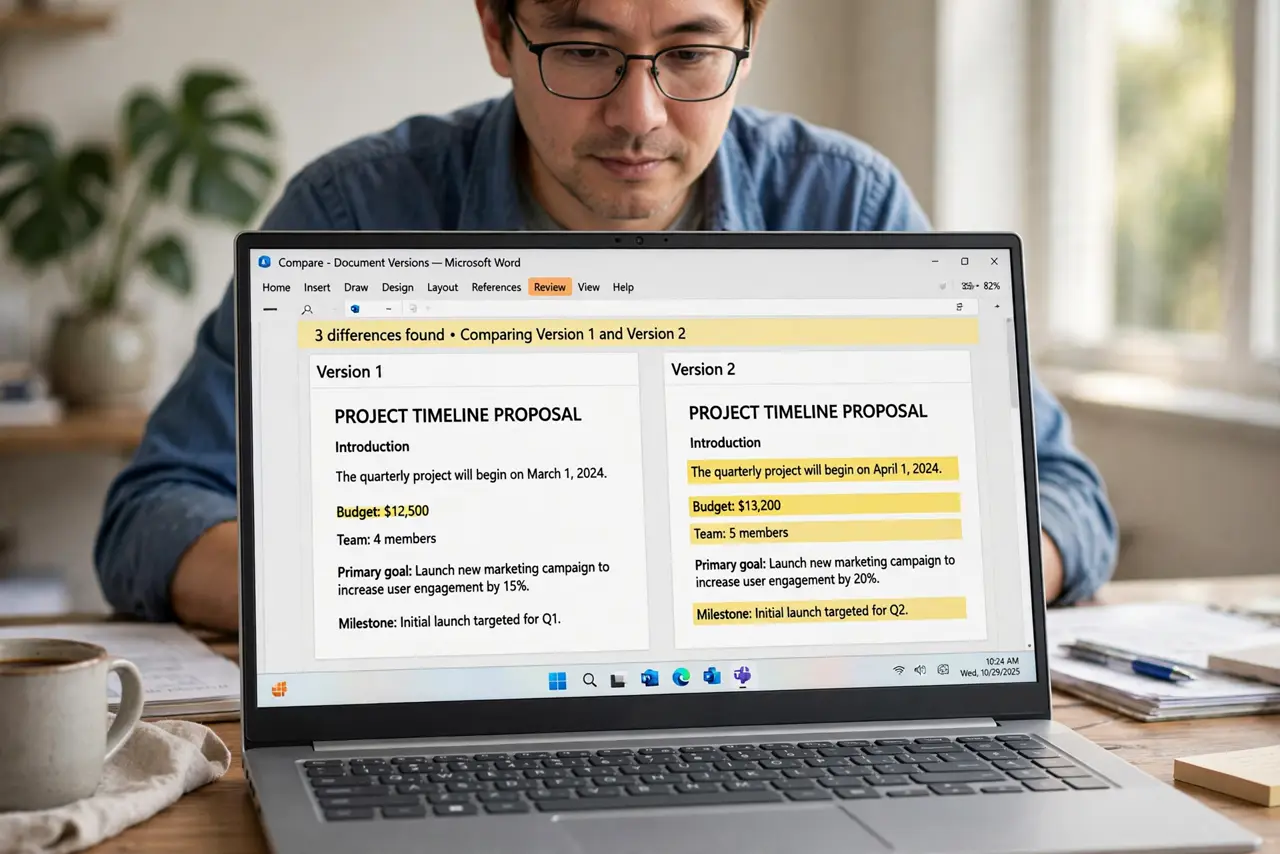
Two versions of a document exist, and you need to see exactly what changed. The compare feature lines them up and highlights every difference, which beats reading both by eye.
TL;DR / Quick Fix
Quick fix: open the compare feature in your word processor, choose the original and the revised file, and run the comparison. Then scroll through the highlighted changes and save the comparison as a new file and share the comparison instead of guessing.
Follow these steps
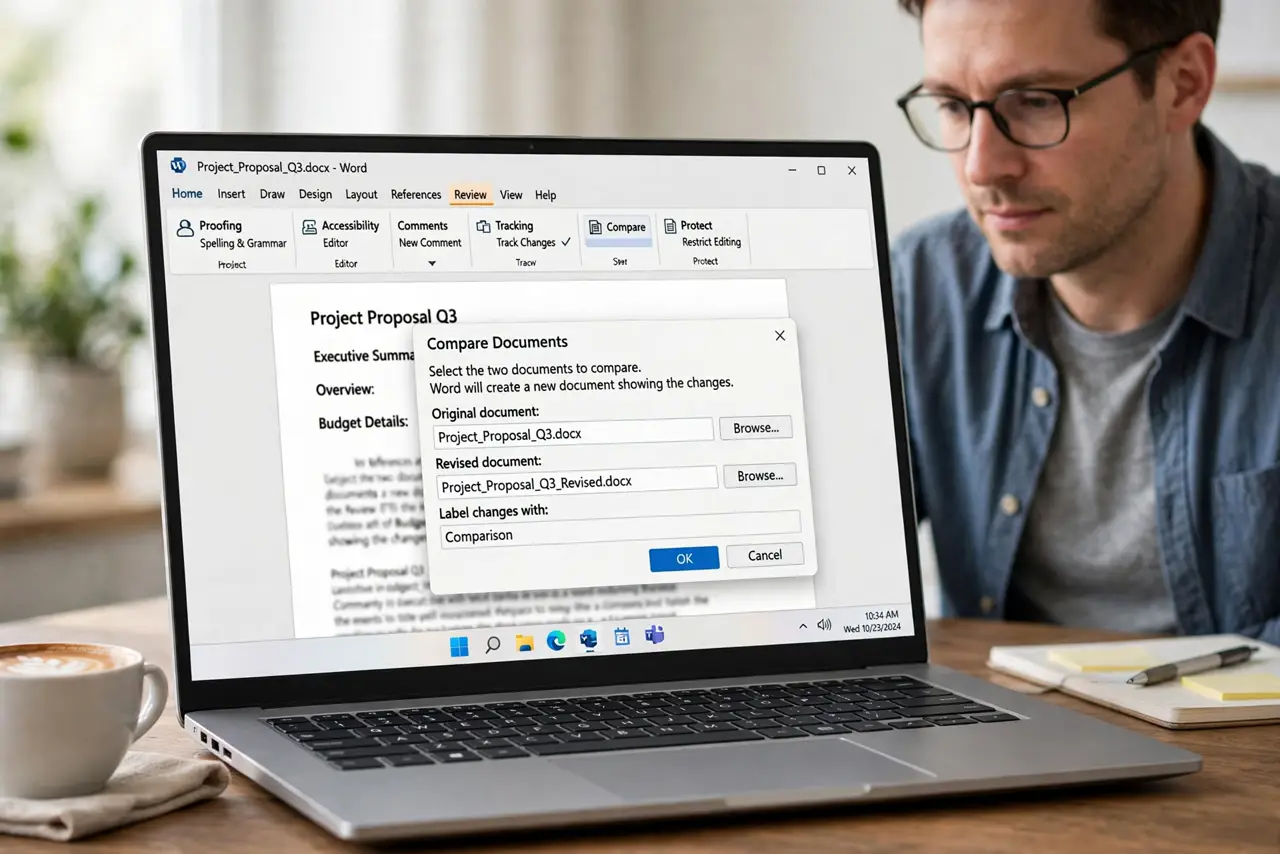
- Open the compare feature. Find Compare in the review or tools menu of your word processor. It asks for two files, not one.
- Choose the original first. Select the older version as the original. Order matters, since the comparison shows changes from the original to the revised.
- Choose the revised second. Select the newer version as the revised document. The tool then highlights everything that differs between the two.
- Run and review the comparison. Start the compare and scroll through the marked changes. Each highlight is one difference, which is far faster than reading both files.
- Save the comparison as a new file. Save the result under a new name, like comparison-date. The comparison file preserves the markup without altering either original.
- Share the comparison, not the guesswork. Send the comparison file to anyone who needs to see the changes. Marked differences end debates about what actually changed.
What NOT to do
- Do not compare by reading both files. Human eyes miss small changes, while the compare tool catches every one.
- Do not overwrite an original with the comparison. Save the comparison as a new file, so both originals stay intact.
- Do not pick the files in the wrong order. Original first and revised second keeps the change direction clear.
- Do not trust memory about what changed. Run the compare even when you think you remember, since memory skips details.
Frequently asked questions
How do I see what changed between two documents?
Use the compare feature with the original and revised files, which highlights every difference.
Does comparing change my original files?
No, when you save the comparison as a new file. The originals stay untouched.
What if I only have one file?
Check the version history for an older snapshot, then compare the snapshot with the current file.