Footnote Numbering Restarts Mid-Document
Your footnotes run 1, 2, 3, then jump back to 1 on the next page. A section break with its own numbering, or a restart setting on one footnote, usually causes the reset.
TL;DR / Quick Fix
Quick fix: open the footnote settings and set numbering to continuous through the whole document. Then check for section breaks that restart numbering, and remove or fix the one that causes the reset and scroll the whole document to confirm the fix.
Follow these steps
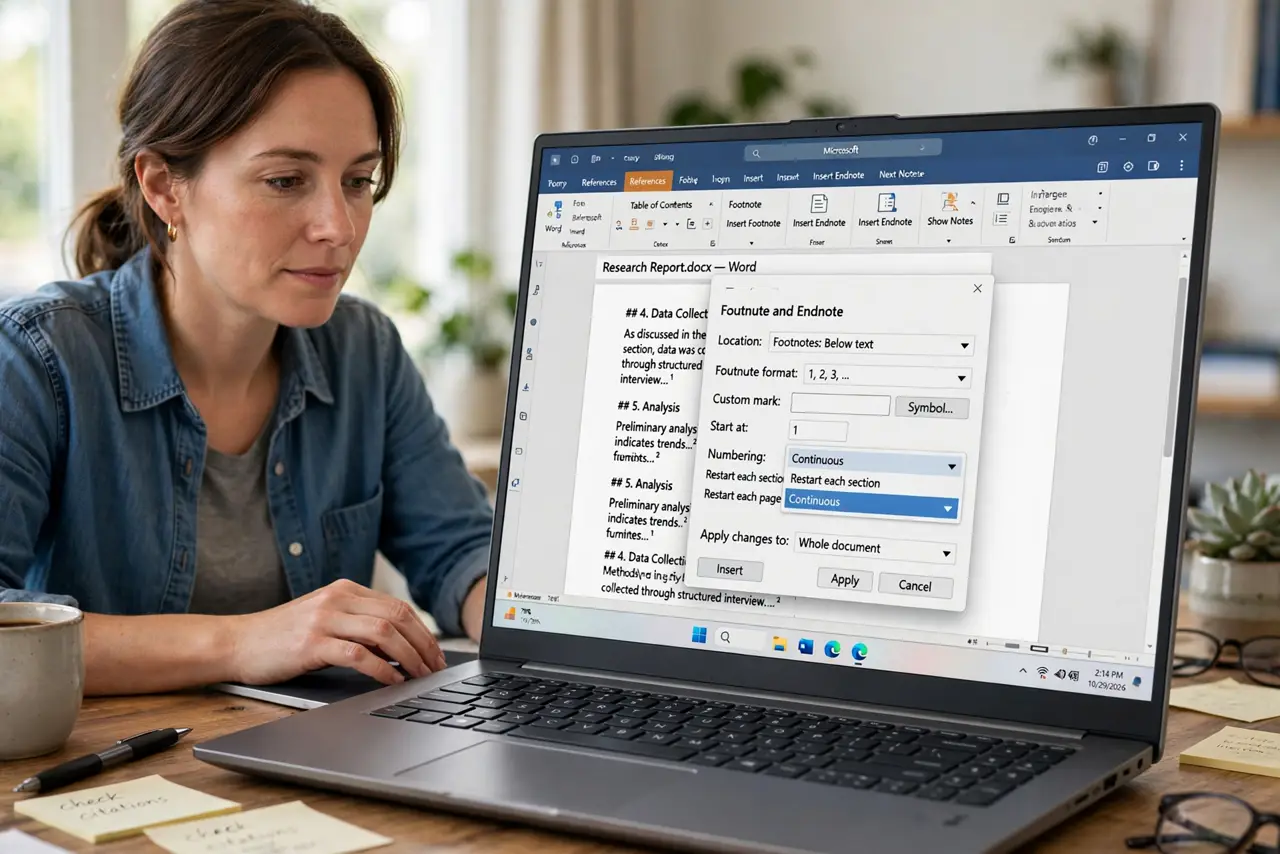
- Open the footnote settings. Find the footnote options dialog in your word processor. The numbering choice, continuous or restart, lives there.
- Set numbering to continuous. Choose continuous numbering for the whole document. That one setting stops the numbering from resetting at each section.
- Look for section breaks. Turn on hidden formatting marks and scan for section breaks. A break can carry its own restart rule that overrides the document setting.
- Fix the break's own setting. Select the section after the break and check its footnote options. Set it to continue from the previous section instead of restarting.
- Check for manually restarted footnotes. One footnote set to restart manually can reset the count from that point on. Find it and return it to automatic numbering.
- Scroll the whole document after the fix. Page through from start to finish and confirm the numbers run straight through. One missed break can hide near the end.
What NOT to do
- Do not renumber footnotes by hand. Manual numbers break the moment you add or remove a footnote.
- Do not ignore section breaks. They are the most common cause of a mid-document restart.
- Do not mix restart rules across sections. One consistent continuous setting beats a patchwork of per-section rules.
- Do not leave the fix half done. Scroll the whole document, since a second restart can hide pages after the first.
Frequently asked questions
Why do my footnotes restart at 1?
Because a section break or a footnote setting told the numbering to restart, instead of continuing through the document.
How do I make footnotes run continuously?
Set footnote numbering to continuous in the footnote options, and clear any section-level restart.
Can one footnote restart the whole sequence?
Yes. A single manually restarted footnote resets the count from that point, so return it to automatic.