Different Headers on the First Page Only
You want a title page with no header, but every page shows the same header. The different first page option exists exactly for this, and it takes one checkbox to turn on.
TL;DR / Quick Fix
Quick fix: open the header area or page setup and turn on different first page. Then check that page one shows no header while page two keeps it, and adjust the first page freely while keeping the header on every other page.
Follow these steps
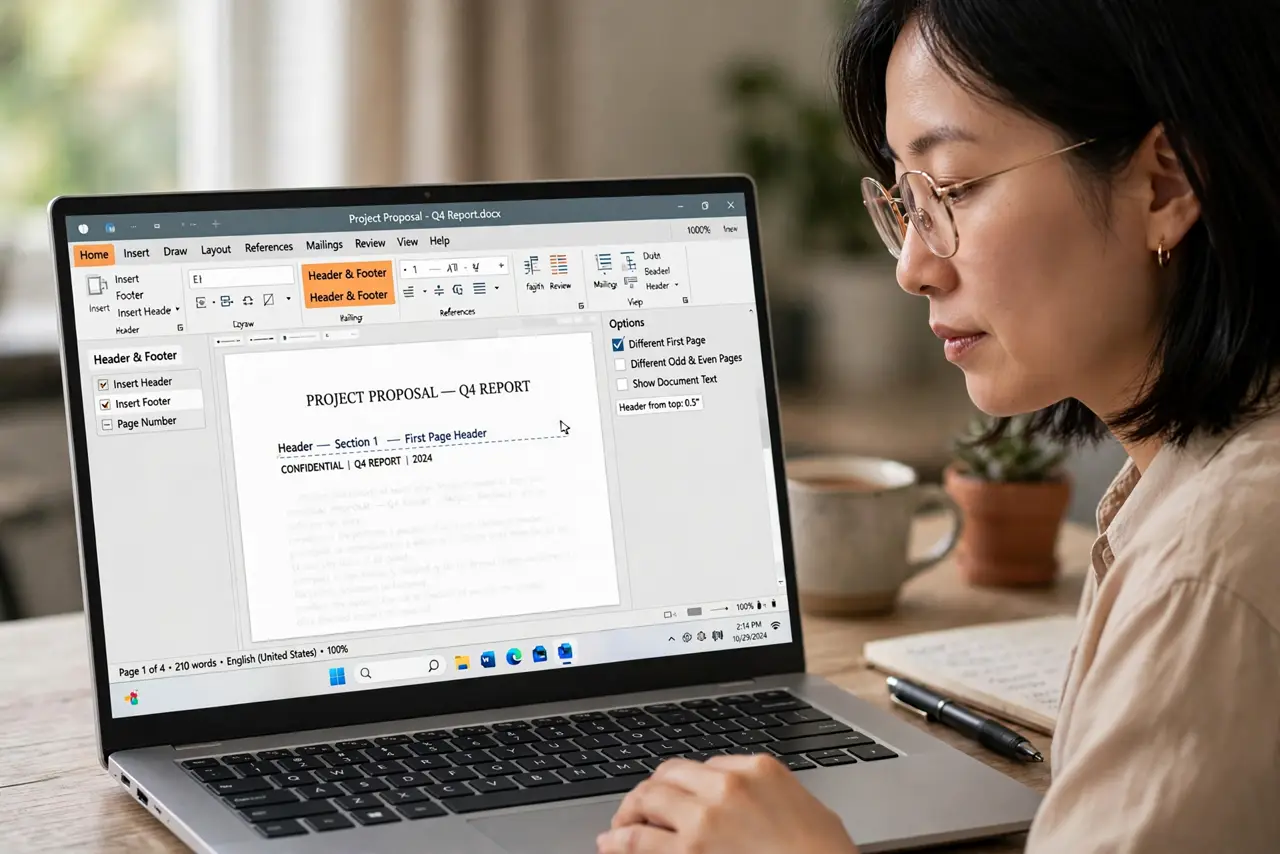
- Open the header settings. Double-click the header area or open page setup. The different first page checkbox lives in the header options.
- Turn on different first page. Check the box. The first page's header becomes independent, so you can clear it without touching the rest.
- Clear the first page header. Delete the header content on page one only. Pages two onward keep their header exactly as before.
- Check page two still has its header. Scroll to the second page and confirm the header is intact. The change should affect only the first page.
- Add first-page content freely. With the header gone, the title page can hold its own layout. A clean first page no longer fights a header it does not need.
- Turn it off the same way if needed. If you later want one header everywhere, uncheck the box. The first page rejoins the common header.
What NOT to do
- Do not delete the header to fix page one. Deleting removes it everywhere, while different first page removes it only there.
- Do not fake it with blank lines. Pushing the header down with spacing breaks the layout on every page.
- Do not confuse this with section headers. Different first page handles the title page, while sections handle chapters.
- Do not forget to check page two. The fix is only right when the first page is clean and the rest keep their header.
Frequently asked questions
How do I remove the header from just the first page?
Turn on the different first page option in the header settings, then clear the header on page one only.
Will this affect the other pages?
No. Pages two onward keep their shared header, since only the first page becomes independent.
What if I want it back later?
Uncheck the option, and the first page rejoins the common header used by the rest.