An Image Anchor Moves All Your Text Around
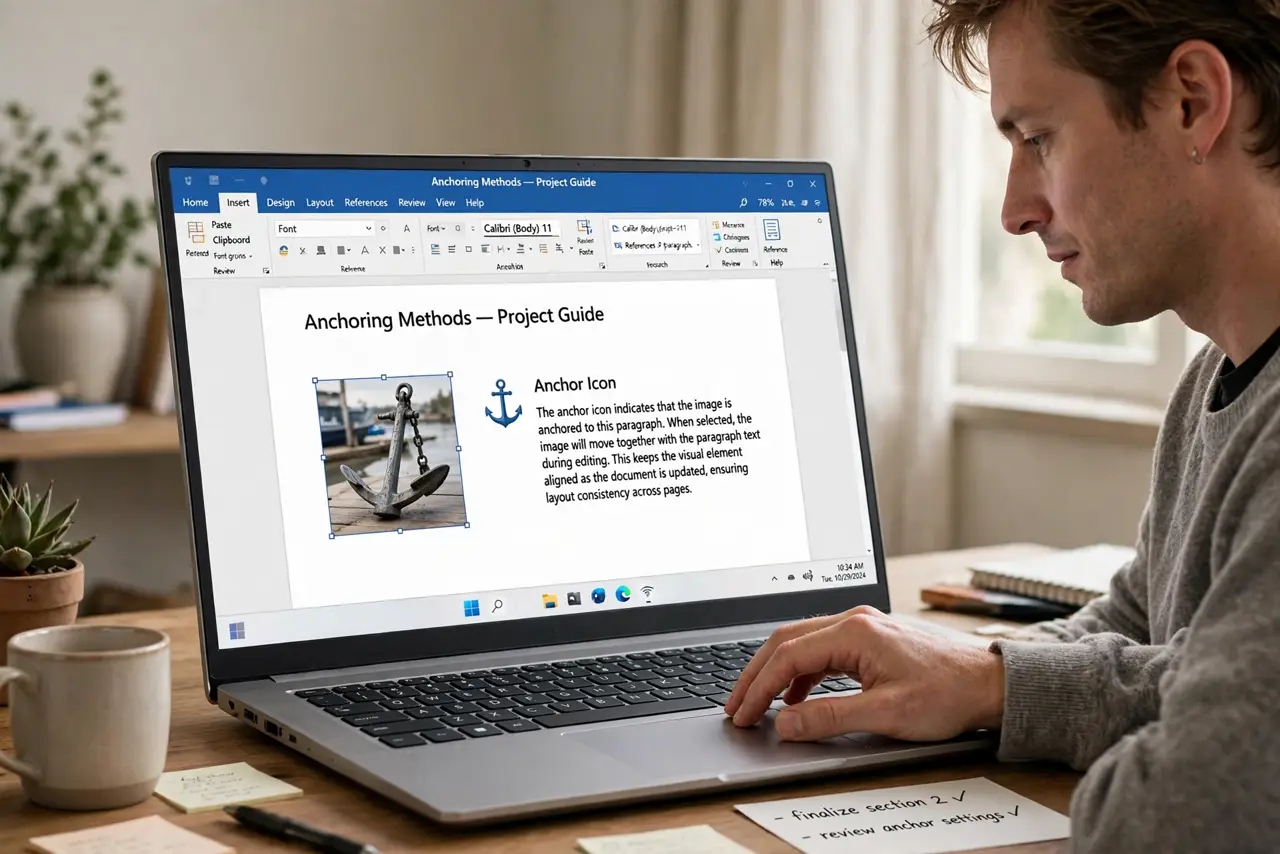
You nudge an image and paragraphs jump across the page. The image's anchor ties it to a paragraph, so moving the image drags the text flow with it.
TL;DR / Quick Fix
Quick fix: click the image and check its text wrapping option, then change it to in line with text if you want it to behave like a character. Or keep it floating and drag its anchor to the paragraph it should follow.
Follow these steps
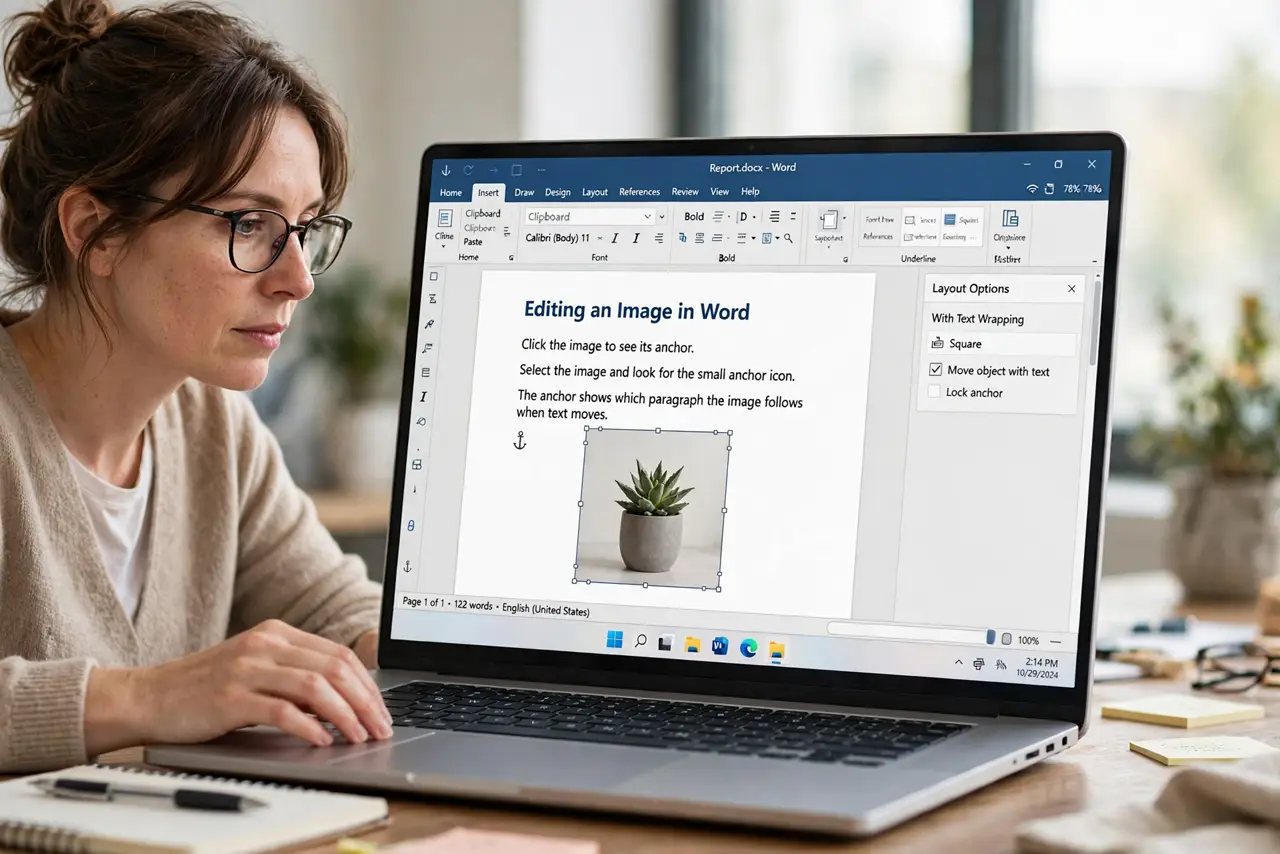
- Click the image to see its anchor. Select the image and look for the small anchor icon. The anchor shows which paragraph the image follows when text moves.
- Understand floating vs inline. A floating image sits over the page and follows its anchor paragraph. An inline image behaves like a text character and moves with the line.
- Switch to inline for simple documents. Choose in line with text in the wrapping options. The image then stays exactly where you put it, and paragraphs stop jumping.
- Drag the anchor to the right paragraph. If you keep the image floating, drag its anchor to the paragraph it belongs with. The image then follows that paragraph through edits.
- Lock the anchor if offered. Some processors let you lock the anchor in place. A locked anchor stops the image from drifting when nearby text changes.
- Test by adding a paragraph above. Insert a paragraph near the image and watch what moves. A correct anchor setup keeps the image with its paragraph and the rest calm.
What NOT to do
- Do not drag images around hoping text settles. Fix the wrapping and anchor first, since dragging fights the layout instead of fixing it.
- Do not use floating images in simple documents. Inline images behave predictably, while floating ones need anchor care.
- Do not ignore the anchor icon. It explains every mysterious text jump, and moving it fixes the jump.
- Do not place images before the text is final. Heavy edits move anchors, so add images once the nearby text is stable.
Frequently asked questions
Why does my text jump when I move an image?
Because the image is anchored to a paragraph, and moving the image reshapes the text flow around it.
What is the simplest image setting?
In line with text. The image acts like a character, and nothing jumps unexpectedly.
How do I keep a floating image with its paragraph?
Drag its anchor to that paragraph, so the image follows it through edits.