Document Spellcheck Language Wrong? Fix It
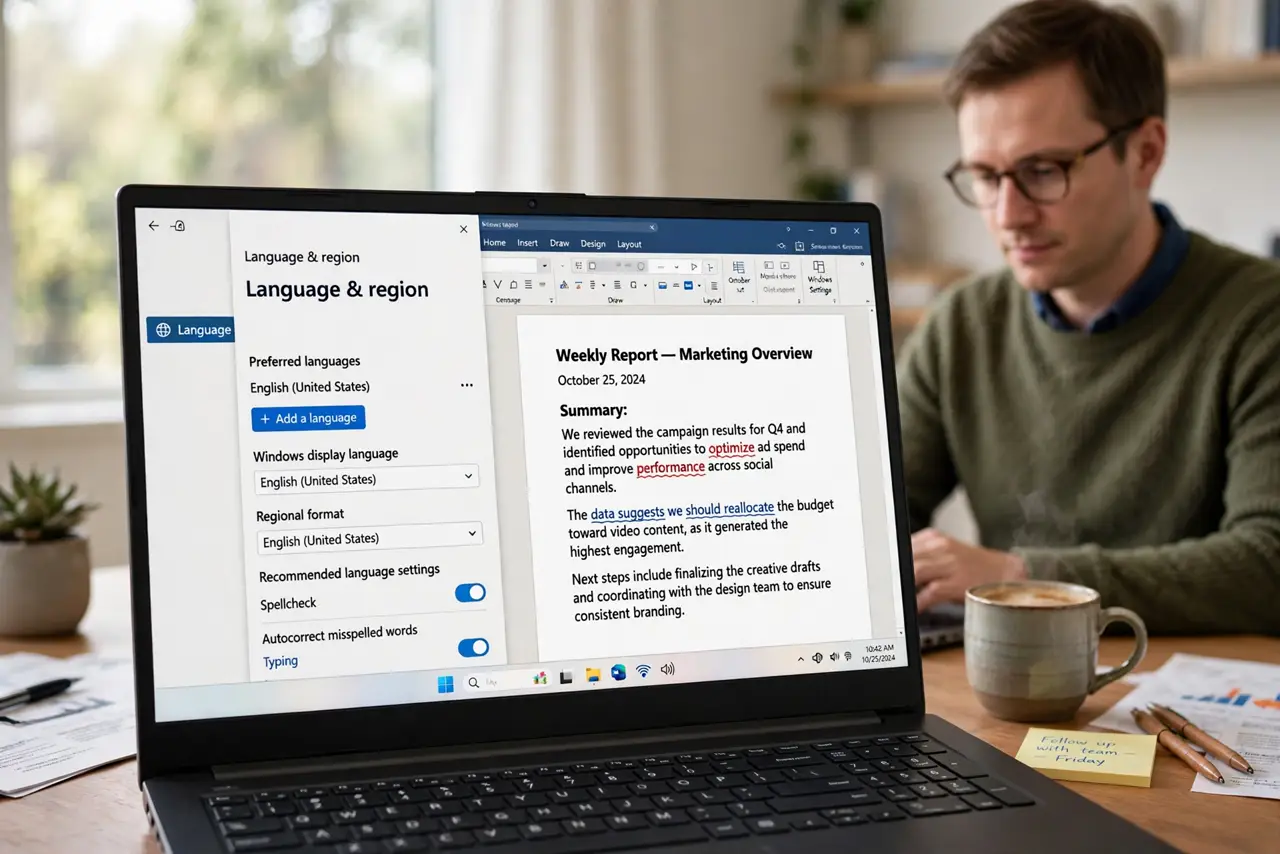
Spellcheck that flags every correct word, or accepts words from another language, is almost always checking in the wrong language. The language is a property of the selected text, so it can differ between paragraphs in the same document.
TL;DR / Quick Fix
Quick fix: Select all the text first. Set the proofing language explicitly. Check pasted text separately. Stop automatic language detection fighting you. Re-run spellcheck after the change. Check the comments and headings too. Work in order, and verify each step before moving on.
Follow these steps
- Select all the text first. Select the whole document, or at least the affected section, before changing the language. Changing it for one paragraph leaves the rest checked in the wrong language.
- Set the proofing language explicitly. Open the language settings for the selection and choose the language you are actually writing in. Confirm it applies to the selection, not just the cursor position.
- Check pasted text separately. Text pasted from elsewhere often carries its original language with it. Select pasted passages and set their language too, even if the rest of the document is correct.
- Stop automatic language detection fighting you. If the app keeps guessing the language from your words, turn automatic detection off for the document. Guessing is helpful until it guesses wrong on every other paragraph.
- Re-run spellcheck after the change. Run a fresh spellcheck pass once the language is set. Old underlines can linger on screen until the check runs again.
- Check the comments and headings too. Comments and headings can carry their own language settings. A quick pass over them stops stray underlines in places you forgot to check.
What NOT to do
- Do not add every flagged word to the dictionary. That teaches spellcheck to accept mistakes in the wrong language.
- Do not change only the language at the cursor. Language is per-selection, so partial fixes leave mixed results.
- Do not ignore pasted sections. They are the most common source of a language that seems to switch by itself.
- Do not disable spellcheck entirely because it annoys you. Fix the language once and it becomes useful again.
Frequently asked questions
Why does spellcheck flag correct words?
Because it is checking them against another language's dictionary, where those words do not exist.
Why does the language keep changing back?
Pasted text and automatic detection can reset it. Set it for the full selection and turn detection off if needed.
Does language affect anything besides spellcheck?
Yes, it can affect grammar suggestions and sorting, so setting it correctly improves more than underlines.