Suggestion Mode vs Edit Mode in Documents
Someone's edits appear as colored suggestions you must accept, while your own edits change the text directly. The document is in suggestion mode for them and edit mode for you, and the mode switch explains the difference.

TL;DR / Quick Fix
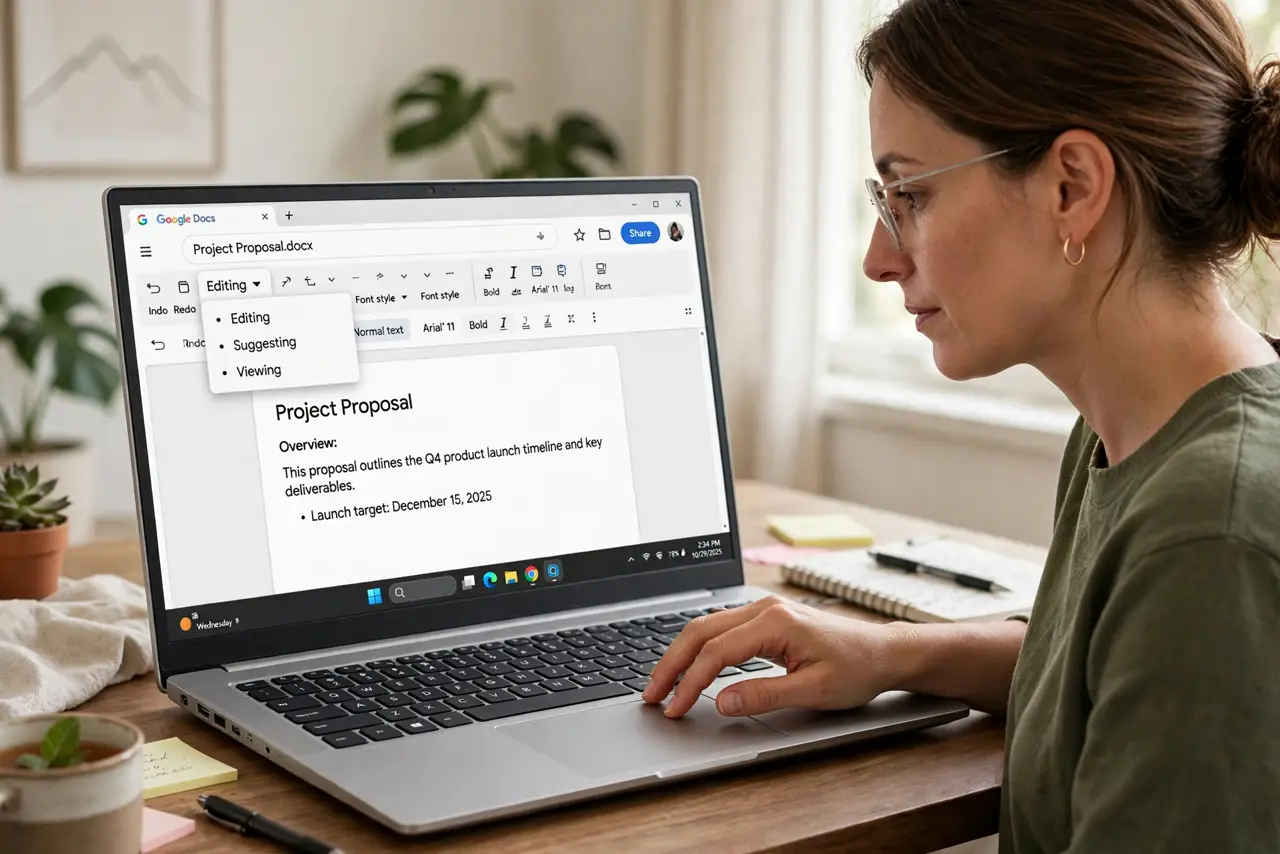
Quick fix: look at the editing mode dropdown in the toolbar and switch it to Editing when you want direct changes, or Suggesting when you want your edits proposed. Then review any pending suggestions and accept or reject them one by one.
Follow these steps
- Find the mode dropdown. Look in the toolbar for a dropdown that says Editing, Suggesting, or Viewing. That one control decides what your keystrokes do.
- Understand Editing mode. In Editing mode, your changes apply directly to the text. Use it when the document is yours or when the team agreed on direct edits.
- Understand Suggesting mode. In Suggesting mode, your changes appear as colored proposals. Use it when reviewing someone else's work, so they approve each change.
- Understand Viewing mode. In Viewing mode, you can read but not change anything. It is the safe mode for reading a document you should not alter.
- Accept or reject pending suggestions. Work through the suggestion list and accept the good ones, rejecting the rest. Pending suggestions left hanging confuse the next reader.
- Tell collaborators which mode to use. Agree on one mode per review round. Mixed modes in one round create a mess of direct edits and proposals.
What NOT to do
- Do not edit directly in someone's draft without asking. Suggesting mode exists for that case, and direct edits can feel like overwriting.
- Do not leave dozens of suggestions pending. Accept or reject them, since a document full of proposals is not a finished document.
- Do not confuse Viewing with Suggesting. Viewing blocks all changes, while Suggesting records them as proposals.
- Do not switch modes mid-sentence without noticing. Check the dropdown when your edits start looking like colored suggestions unexpectedly.
Frequently asked questions
What is the difference between suggesting and editing?
Editing changes the text directly, while suggesting records your changes as colored proposals someone must accept.
Why are my edits showing as suggestions?
Because the document is in Suggesting mode. Switch the mode dropdown to Editing for direct changes.
When should I use suggesting mode?
When reviewing someone else's document, so they keep control and approve each proposed change.