Downloads Folder a Mess? Tidy It Fast
A Downloads folder full of installers, PDFs, and duplicates makes finding anything slow. A short sort, a keep pile, and a simple weekly habit turn it into a folder you can actually use.
TL;DR / Quick Fix
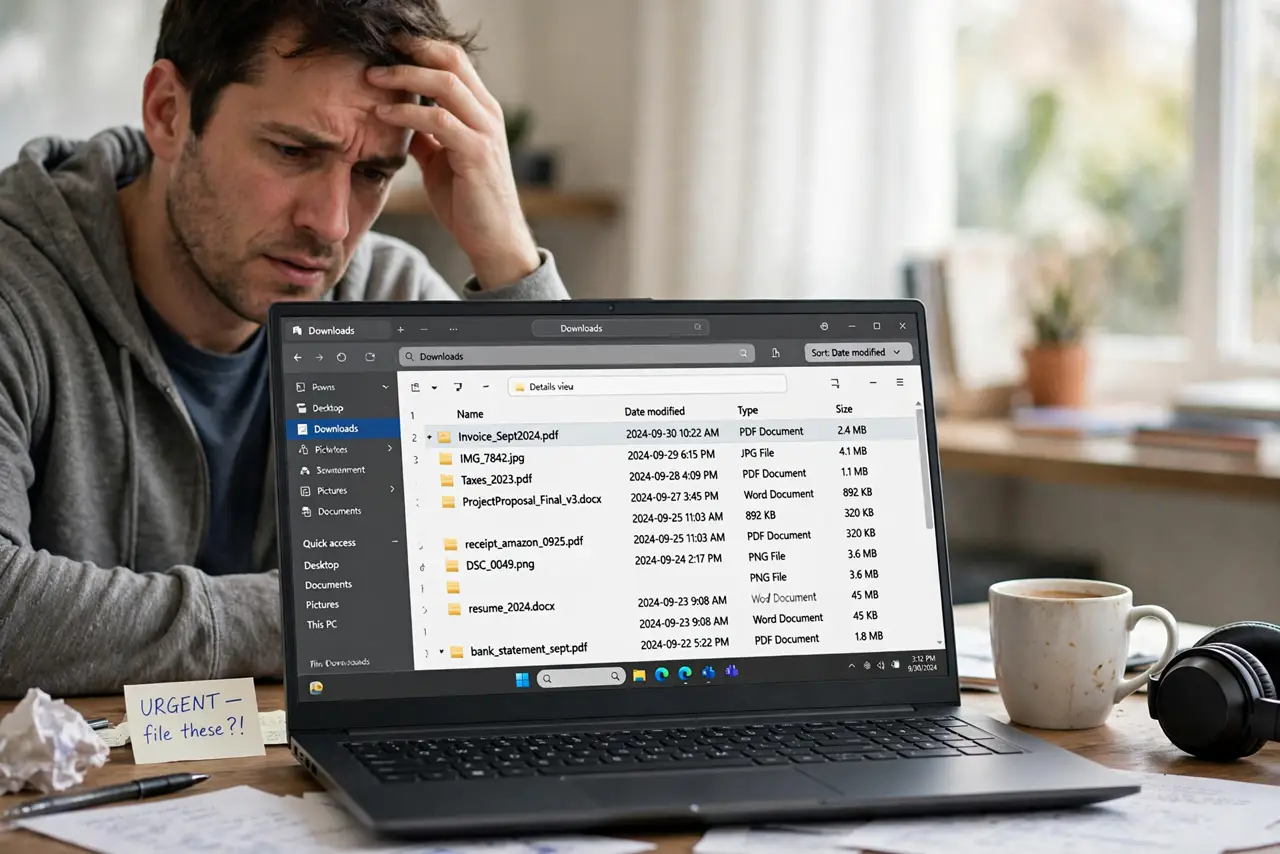
Quick fix: open Downloads, sort by date, and delete installers and duplicates you no longer need. Move the files you want to keep into Documents, Pictures, or a named folder. Then set a weekly five-minute tidy so the pile never grows back.
Follow these steps
- Sort Downloads by date first. Open Downloads in File Explorer and sort by date, newest first. Recent files are the ones you most likely still need, and old installers are the easiest to spot.
- Delete installers you already used. Delete installer files for apps already installed. You can download an installer again if needed, and keeping every one only adds clutter.
- Remove obvious duplicates. Sort by name and look for copies with numbers in brackets. Keep one copy of each file, and delete the rest after checking they really match.
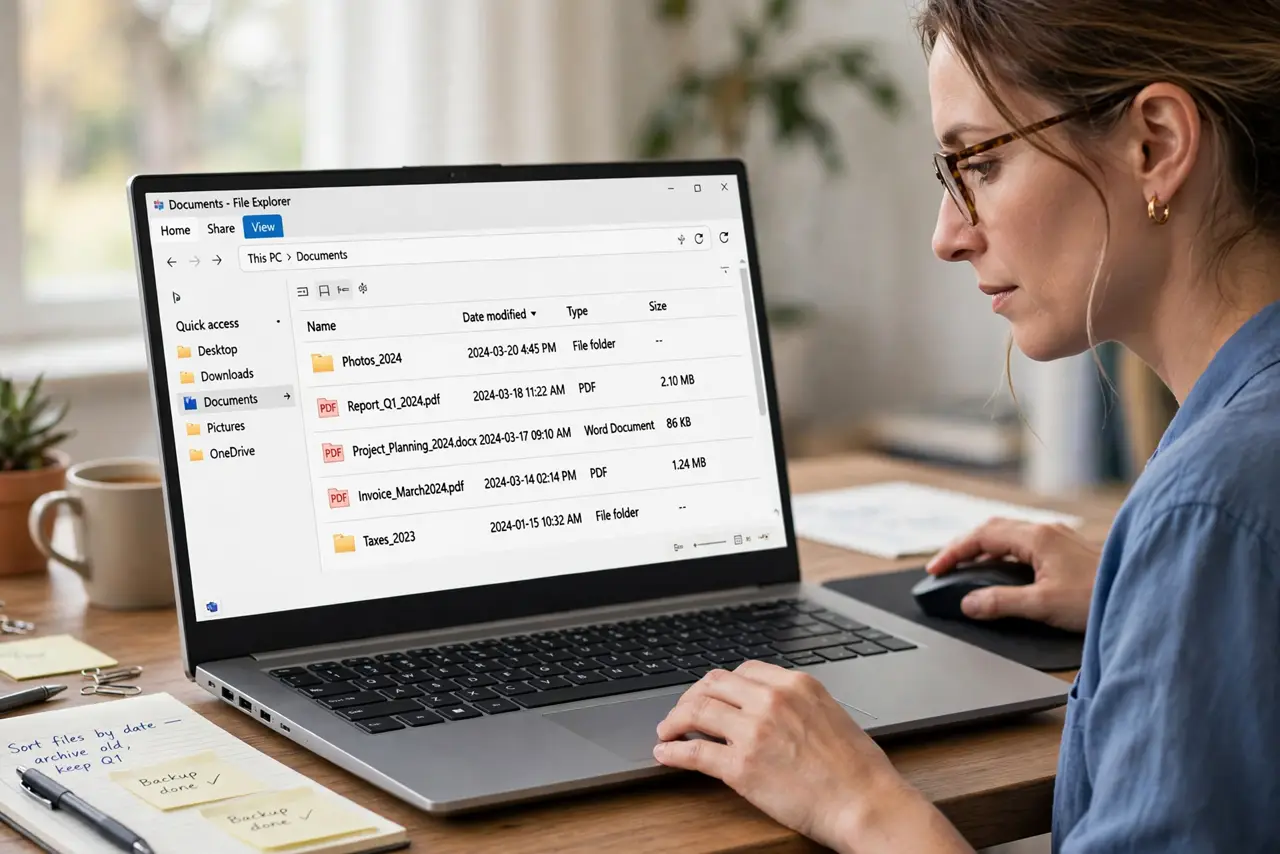
- Move keepers to the right folder. Move documents to Documents, pictures to Pictures, and work files to a named project folder. A file in the right folder is a file you can find again.
- Create one Inbox folder for unsorted items. If you cannot decide, move the item to a folder named To Sort, not back to Downloads. That keeps Downloads clean while you decide later.
- Set a weekly five-minute tidy. Once a week, open Downloads, delete what you no longer need, and move the rest. Five minutes weekly beats an hour-long cleanup every year.
What NOT to do
- Do not delete everything in Downloads in one go. It often holds forms, tickets, and work files mixed in with clutter, so check before deleting.
- Do not move system files into Downloads. Downloads is for files you downloaded, and mixing system files in only creates confusion.
- Do not rename files vaguely while tidying. A clear name today saves a search tomorrow, so keep names descriptive as you move files.
- Do not rely on search to excuse a messy folder. Search helps, but a tidy folder is faster, and it prevents accidental deletion of the wrong copy.
Frequently asked questions
Should I keep installer files just in case?
No, unless the app is hard to download again. Installed apps do not need their installers, and you can download them again later.
What about files I might need someday?
Move them to a named folder with a clear name. A someday file in Downloads is a someday file you will never find.
How often should I tidy Downloads?
Weekly, for five minutes. That is enough to stop the pile growing, without turning tidying into a chore.