Pen Pressure Not Working? Fix It
Your drawing tablet draws, but every line has the same thickness — pressure sensitivity is gone. The tablet, the driver, or the app each have a pressure switch, and one of them is off. This guide turns the right one back on.
TL;DR / Quick Fix
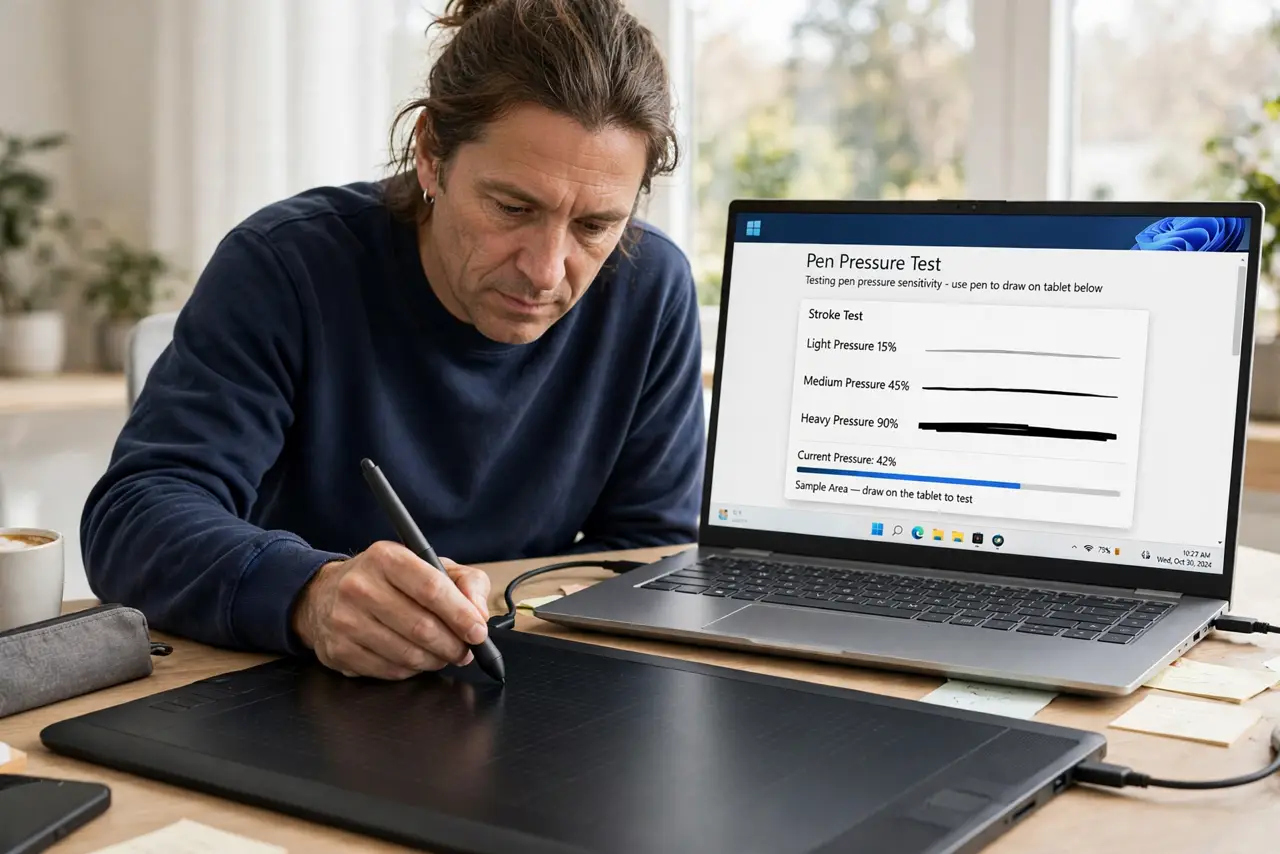
Quick fix: open the tablet driver's pen test panel and confirm pressure registers there. If it does, the app is the problem — enable pressure or Windows Ink in its settings. If the driver shows no pressure, reinstall the driver and check the pen tip.
Follow these steps
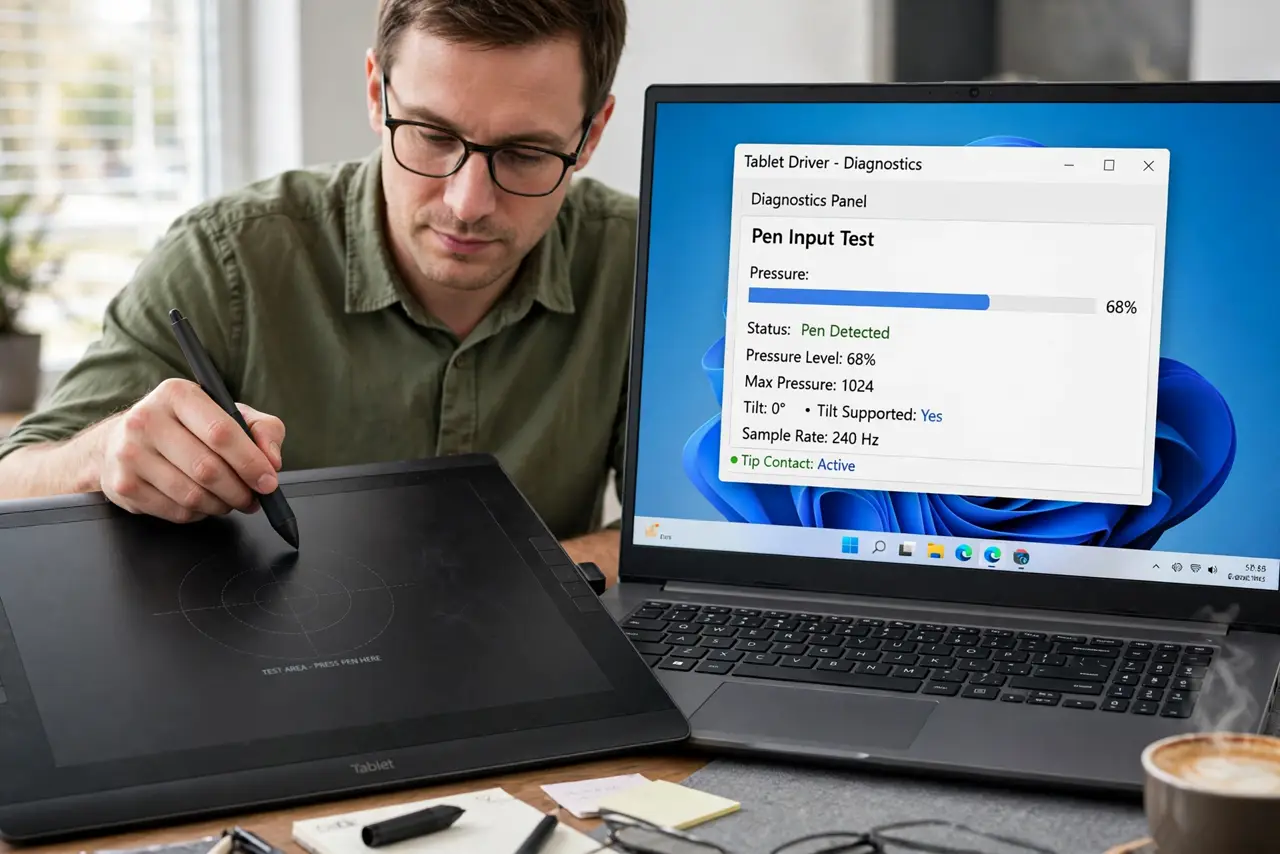
- Test pressure in the driver panel. Open the tablet driver's diagnostics and press the pen on the test area. A pressure bar that moves means the hardware works and the app is misconfigured.
- Enable pressure in the app. In your drawing app, confirm the brush uses pressure for size or opacity, and enable Windows Ink or tablet support in its preferences if offered.
- Reinstall the tablet driver. Corrupted drivers silently drop pressure data. Uninstall fully, reboot, and install the latest driver from the manufacturer — not from a random download site.
- Check the pen tip seating. Remove and reseat the pen nib. A nib pushed in too far or jammed with debris can wedge the pressure sensor at a fixed value.
- Try a different USB port. Plug the tablet directly into the computer, not a hub. Underpowered or flaky hub ports cause exactly these partial-failure symptoms — the USB port lesson applies here too.
- Test on another computer. If pressure fails everywhere, the pen or tablet hardware is at fault. Testing on a second machine separates a broken pen from a broken system.
What NOT to do
- Do not reinstall the app before testing the driver. The driver panel test takes ten seconds and tells you which half of the chain is broken.
- Do not download drivers from unofficial sites. Fake 'driver updater' sites bundle malware — get drivers from the manufacturer only.
- Do not press the pen brutally to 'wake up' pressure. Force does not fix a configuration problem and can damage the sensor.
- Do not assume the tablet is dead. Pressure loss is a software or setting issue far more often than hardware failure.
Frequently asked questions
Why did pen pressure stop working suddenly?
Usually a driver update, an app update that reset tablet settings, or a dislodged pen nib. Work backward from what changed.
Does my app support pressure sensitivity?
Most drawing apps do, but it must be enabled per brush. Check the brush settings and the app's tablet preferences.
Can a worn nib break pressure?
A badly worn or jammed nib can, by wedging the sensor. Fresh nibs are cheap — rule them out early.