Drive for Desktop? Basics
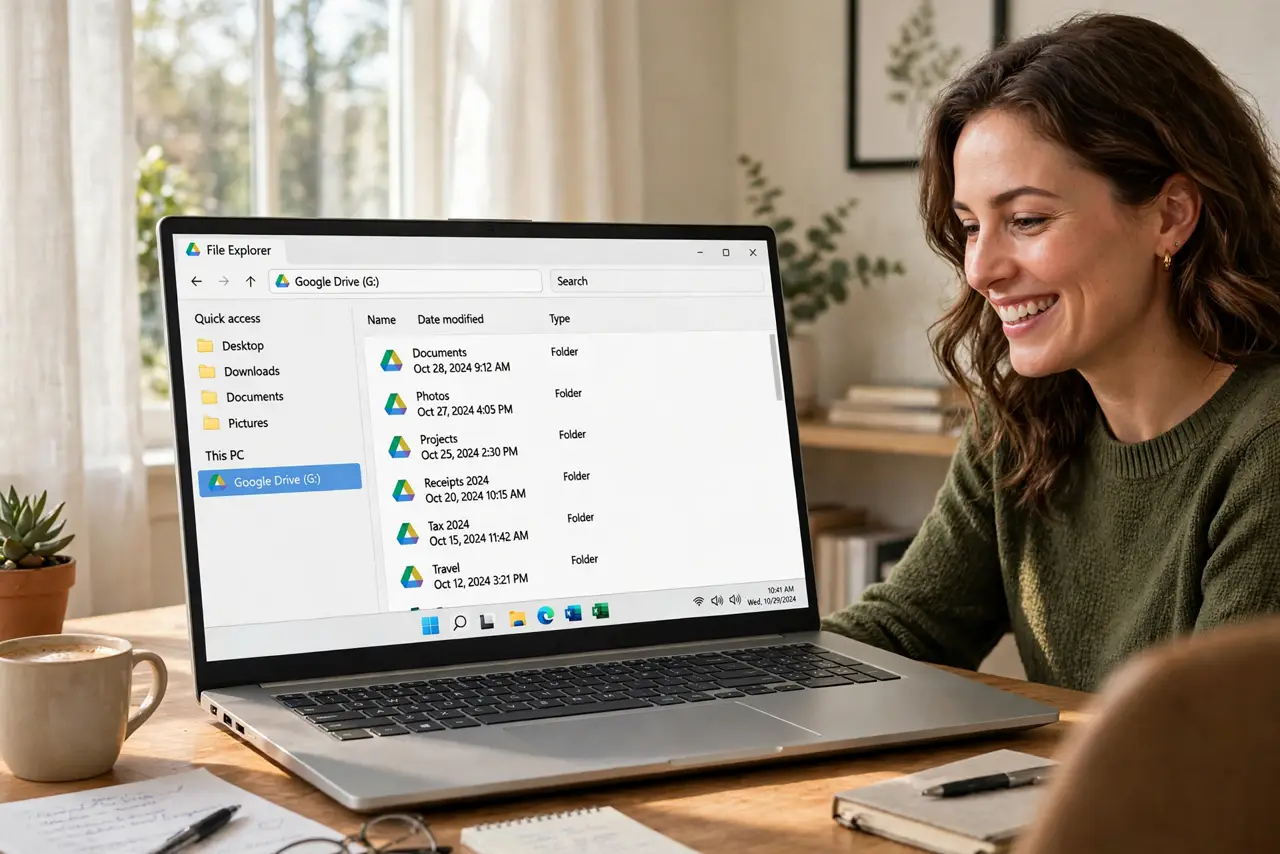
Drive for Desktop puts your entire Google Drive on your computer as a virtual drive — open, edit, and save files without touching a browser. It streams files on demand or mirrors them locally, and it can back up folders from your computer too. This guide covers setup and the choices that matter.
TL;DR / Quick Fix
Quick fix: Drive for Desktop puts your Google Drive on your computer as a virtual drive — no browser needed. Choose Stream to save disk space or Mirror for local copies. Right-click any file to make it available offline. It can also back up chosen computer folders.
Follow these steps
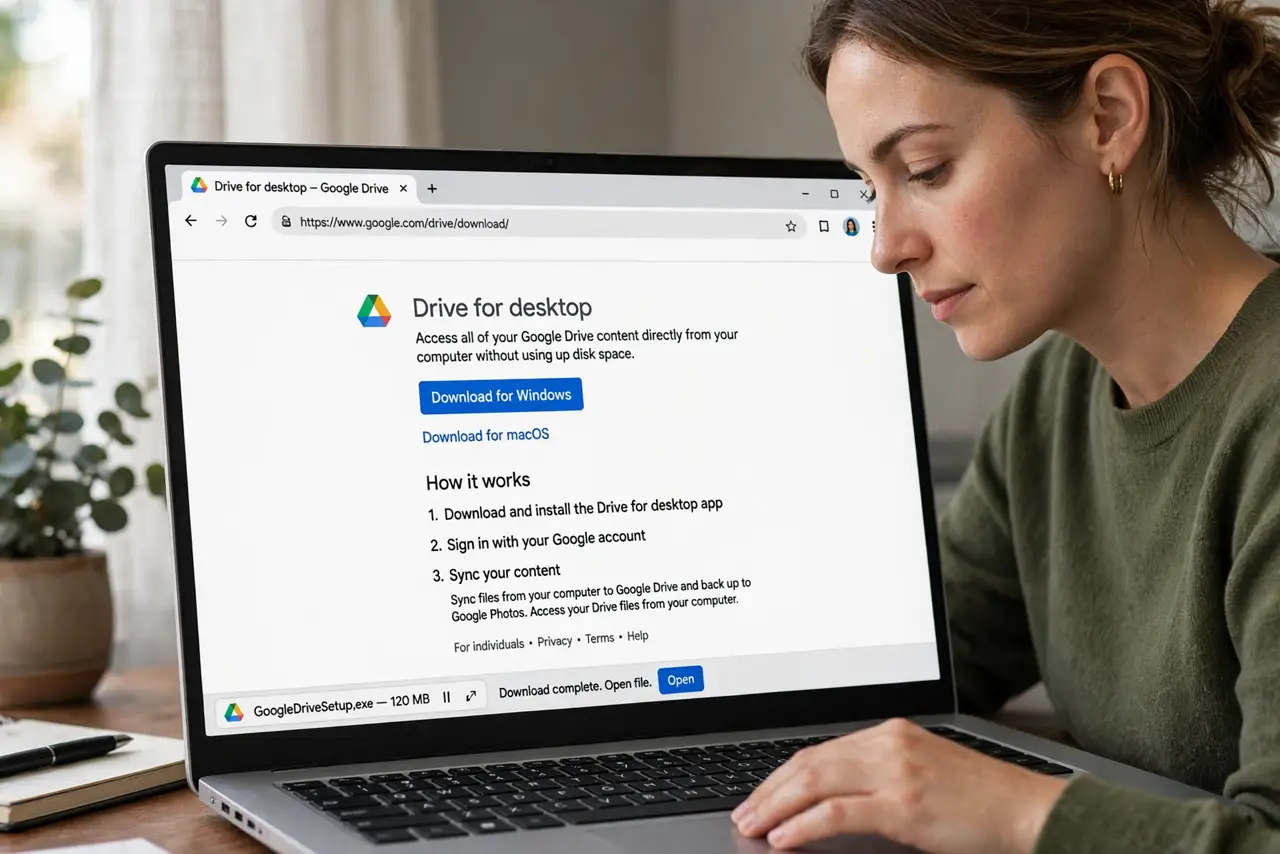
- Download it from Google. Get Drive for Desktop from Google's official site — not a third-party download page. Install it like any app, then sign in with the Google account holding your Drive.
- Choose Stream or Mirror. Stream keeps files in the cloud and downloads on demand — best for small disks. Mirror keeps full local copies — best for offline work and big disks. You can switch later in Preferences.
- Make key files available offline. Right-click any file or folder and choose 'Available offline.' Streamed files need internet; offline-marked ones open anywhere — mark the handful you need on planes and in dead zones.
- Let it back up computer folders. Drive for Desktop can sync Desktop, Documents, and other folders into Drive automatically. Handy as a backup — but check it is not duplicating folders you already sync another way.
- Know your starred files come along. Stars are account-level, so your Starred view looks the same on desktop and web. Star the daily files once and they are one click away everywhere.
- Pause sync when needed. Click the Drive icon in the menu bar to pause syncing — useful on metered connections or when you need full bandwidth. Resume the same way; nothing is lost while paused.
What NOT to do
- Do not mirror on a nearly-full disk. Mirror copies everything locally — on a 256 GB laptop with a huge Drive, Stream is the only sane choice.
- Do not treat it as a backup by itself. Sync mirrors deletions too — delete a file locally and it deletes in the cloud. Keep real backups for irreplaceable files.
- Do not sync the same folder two ways. Running Drive for Desktop plus another sync tool on the same folders creates conflicts and duplicates.
- Do not panic at the first sync. The initial scan of a big Drive takes a while and uses bandwidth — let it finish before judging speed.
Frequently asked questions
Stream or Mirror — which should I pick?
Stream for small disks and mostly-online work; Mirror for big disks, frequent offline work, or huge files you open constantly. Most laptop users want Stream.
Does it work on Mac and Windows?
Yes, both. The virtual drive appears in Finder on Mac and File Explorer on Windows, working the same way on each.
Can I use two Google accounts?
Yes — Drive for Desktop supports multiple accounts, each with its own virtual drive letter or mount point. Work and personal stay separate.