What Is eARC?
Your new soundbar sounds thin and flat, and the Dolby Atmos badge on the box feels like a lie. The likely culprit is the connection: standard ARC only carries compressed audio, so the rich formats your soundbar supports never reach it. eARC — Enhanced Audio Return Channel — is the upgraded HDMI connection that passes full-quality, uncompressed audio from your TV to your soundbar over a single cable. One port, one setting, one cable — that is the whole fix.
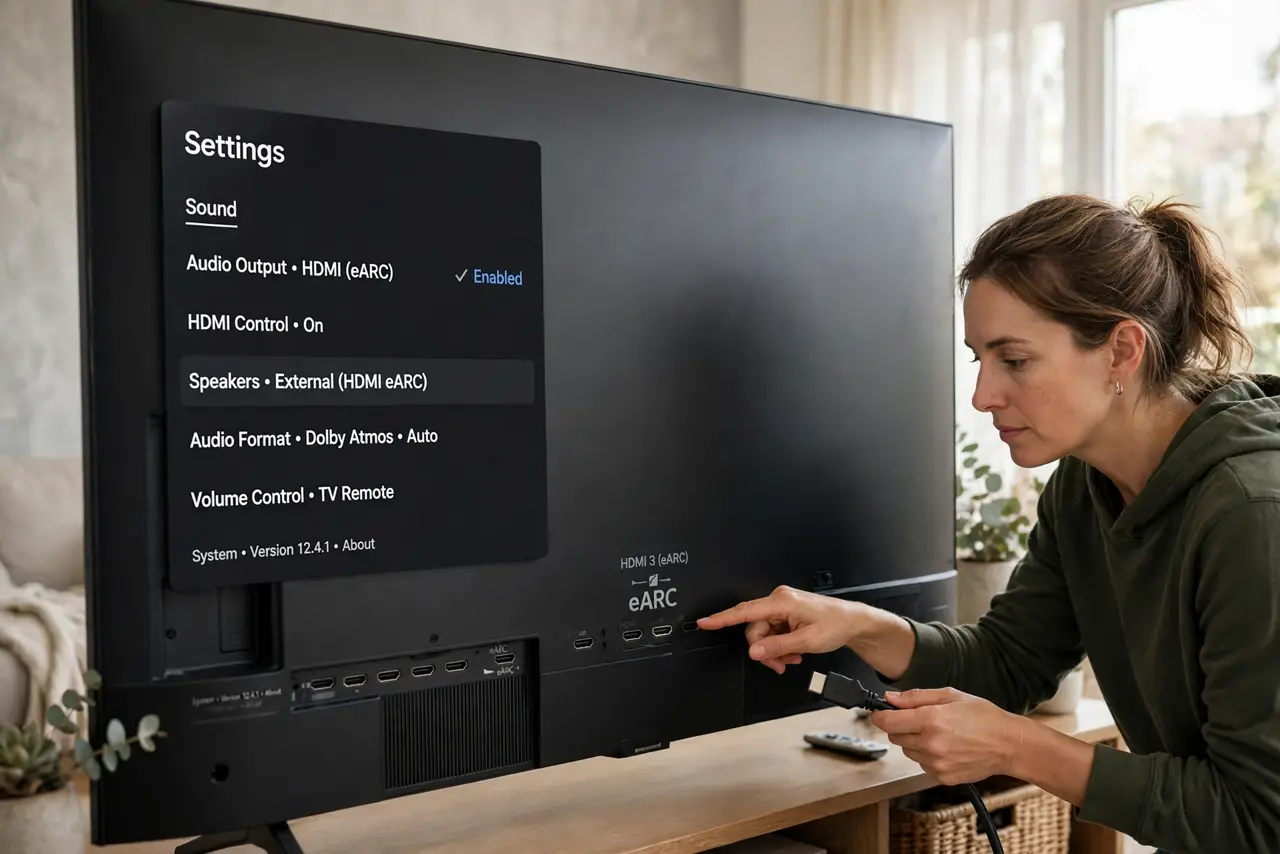
TL;DR / Quick Fix
Quick fix: eARC (Enhanced Audio Return Channel) sends full-quality TV audio to a soundbar over a single HDMI cable. Plug into the ports labeled eARC on both devices, enable it in the TV settings, and use a high-speed HDMI cable. Without eARC on both ends, you get compressed audio only.
Follow these steps
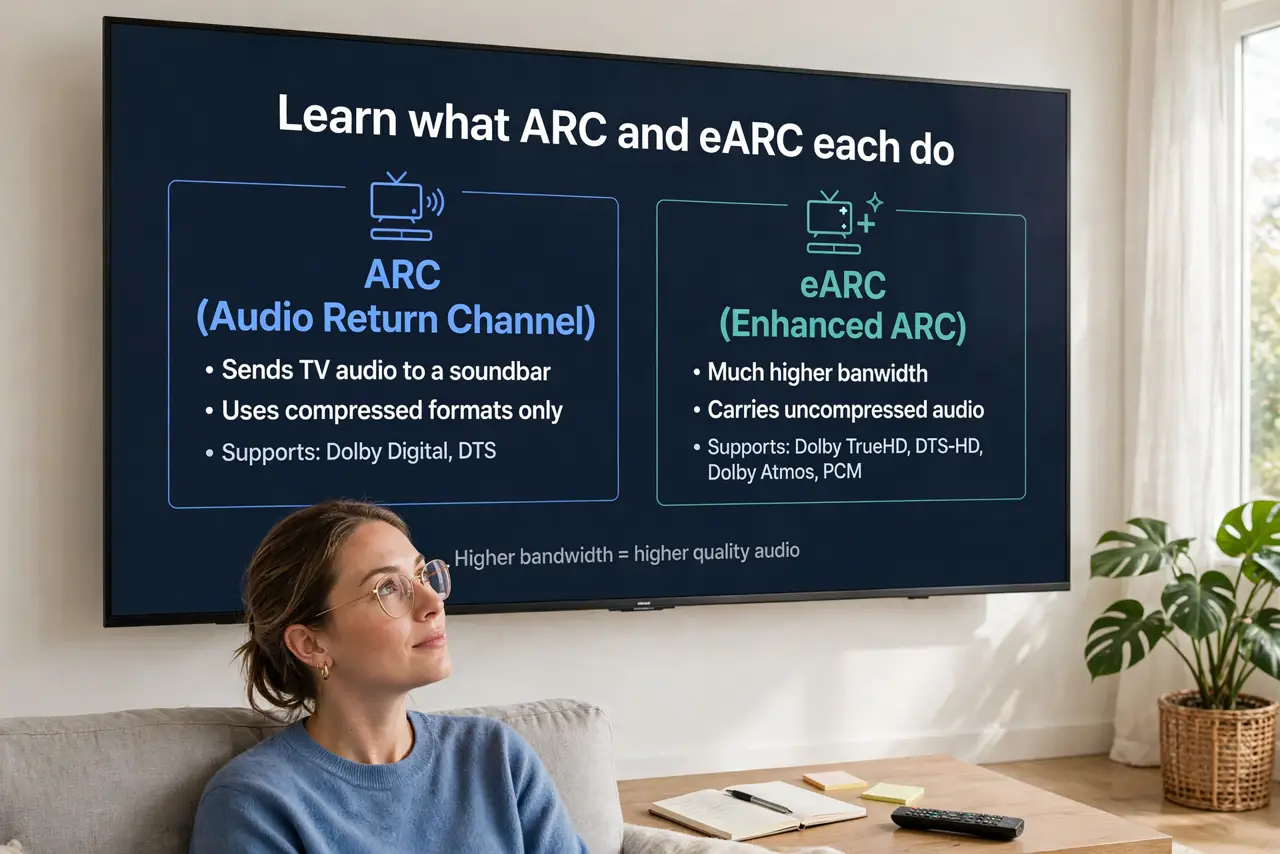
- Learn what ARC and eARC each do. ARC (the older version) sends TV audio to a soundbar but only in compressed formats. eARC has far more bandwidth, so it carries uncompressed surround and object-based formats like Dolby Atmos — the difference you paid for.
- Find the eARC port on both devices. Look for a port physically labeled eARC or ARC on the TV and the soundbar — usually HDMI 1 or 2 on the TV. Both ends must support eARC; one eARC port talking to a plain ARC port falls back to compressed audio.
- Use a high-speed HDMI cable. Any certified High Speed or Ultra High Speed cable works — you do not need an expensive boutique cable. But a very old or ultra-cheap cable can fail at eARC bandwidth, so swap in a known-good one when troubleshooting.
- Enable eARC in the TV settings. On most TVs it is off by default: open sound settings, set the audio output to the HDMI/ARC device, and switch eARC from Off to Auto. Until you flip this, the port behaves like plain ARC.
- Set the TV's digital audio format correctly. Choose Passthrough or Auto rather than PCM — PCM forces the TV to decode everything down to stereo first, throwing away the surround data eARC was meant to carry.
- Test with real surround content. Play a movie or show with a known Atmos or 5.1 track and check the soundbar's display or app for the format badge. If it still shows stereo, recheck the port, the cable, and the passthrough setting in that order.
What NOT to do
- Do not use an optical cable and expect Atmos. Optical maxes out at compressed 5.1 — object-based audio needs HDMI eARC, full stop.
- Do not plug into any random HDMI port. Only the labeled eARC/ARC port carries return audio; the others are inputs and will stay silent.
- Do not buy a premium cable expecting better sound. A certified High Speed cable performs identically to a luxury one — spend the difference on the soundbar itself. Still deciding on hardware? Read soundbar vs speakers before spending.
- Do not leave the TV speakers on alongside. Dual output causes echo and confusion — set the TV to external speakers only once eARC works.
Frequently asked questions
What is the difference between ARC and eARC?
Bandwidth: ARC handles compressed surround; eARC handles uncompressed and object-based audio like Dolby Atmos. Same cable shape, very different capacity.
My TV is old — can I add eARC?
No; eARC needs hardware support on the TV's HDMI port. With an older TV, connect sources directly to the soundbar's HDMI inputs instead, if it has them.
How long can the HDMI cable be?
Up to about 5 meters is safe for passive high-speed cables. Longer runs need an active or fiber HDMI cable to hold eARC bandwidth reliably.