Emoji Panel Won't Open on Windows? Fix It Fast
You press Windows key plus Period and nothing happens, right when you want an emoji. The panel is usually blocked by focus or a keyboard setting, not broken. These steps find the cause without changing anything risky.
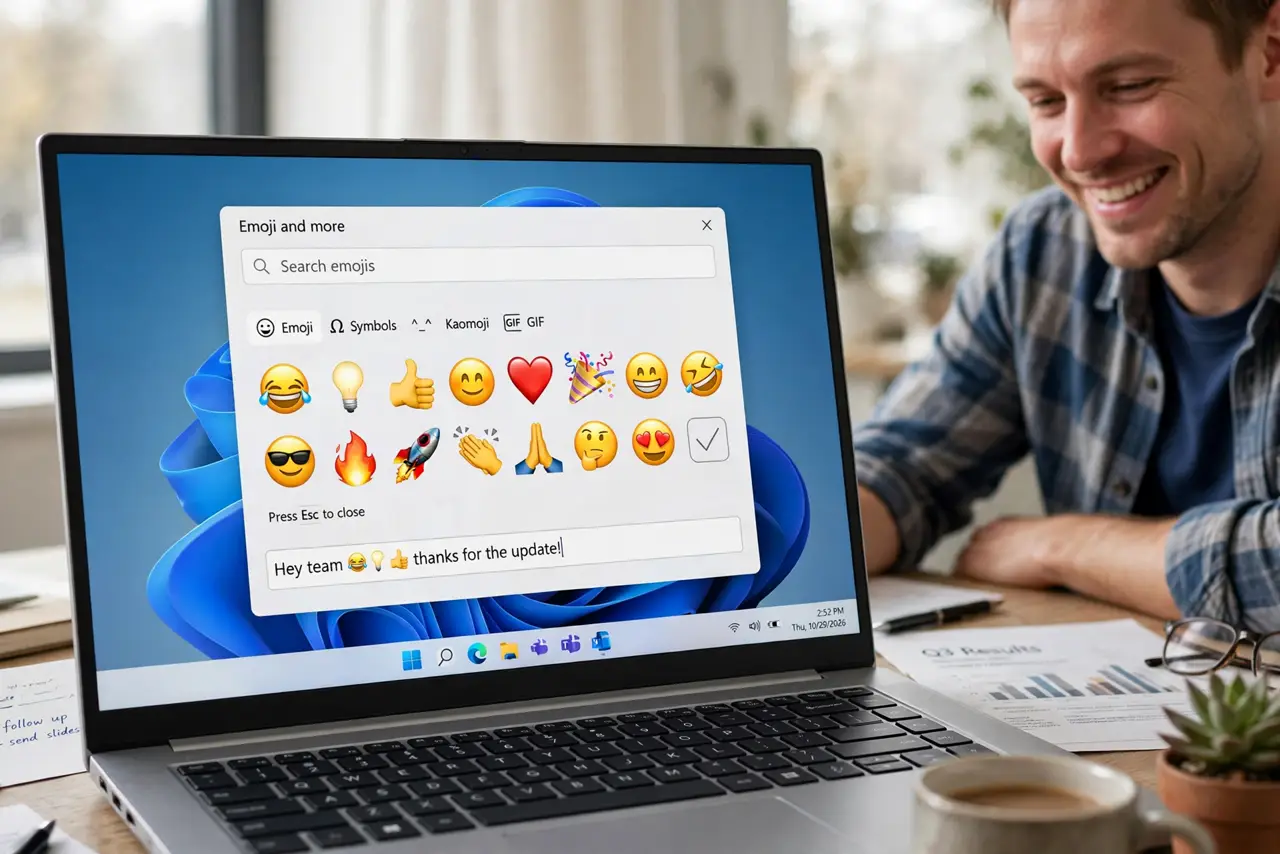
TL;DR / Quick Fix
Quick fix: click a text box first, then press Windows key plus Period. If nothing appears, try Windows key plus Semicolon, check your keyboard language, and restart Windows Explorer. Test the panel in Notepad before you change any other setting on your computer.
Follow these steps
- Click a text box first, then try the shortcut. Click inside a text box, a message box, or a document, then press Windows key plus Period. The panel only opens when Windows knows where to insert the emoji, so an empty desktop will not trigger it.
- Try the second shortcut. If Period does nothing, press Windows key plus Semicolon instead. Both shortcuts open the same panel on most Windows computers, so try each one once while the text box is still selected.
- Check your keyboard language. Open Settings, then Time and language, then Language and region, and confirm your keyboard layout matches the keyboard in front of you. A layout set to another language can change what the shortcut keys do.
- Test the panel in Notepad. Open Notepad, click in the blank page, and try the shortcut again. If it works there, the first app was blocking it. If it fails everywhere, the problem is system-wide and the next step applies.
- Restart Windows Explorer. Open Task Manager, find Windows Explorer in Processes, right-click it, and choose Restart. Your desktop will blink once. Try the shortcut again after the taskbar returns.
- Restart the computer if it still fails. Save your work, then restart the computer and test the shortcut in Notepad again. If it still fails after a restart, check for pending Windows updates before changing anything else.
What NOT to do
- Do not install a random emoji keyboard app to replace the panel. Extra apps can add pop-ups, change your keyboard, or ask for permissions they do not need.
- Do not keep pressing the shortcut in every app hoping it will work. Without a selected text box, repeated presses prove nothing and waste time.
- Do not change your system language or region at random. The panel depends on keyboard layout, not on changing your whole system to another language.
- Do not edit system files or settings you do not recognize. The emoji panel is a built-in feature, and it does not need a system-level change to work.
Frequently asked questions
Why does the shortcut do nothing on the desktop?
The panel needs a place to insert an emoji. Click a text box first, then press Windows key plus Period, and the panel should appear above the cursor.
Does the emoji panel need an internet connection?
No. The built-in panel works offline for standard emoji. A missing connection does not explain a panel that never opens.
What if the panel opens but looks blank?
Close the panel, restart Windows Explorer from Task Manager, and try again in Notepad. A blank panel after that points to a pending update or a restart.