External Keyboard Layout Is Wrong? Fix It
When an external keyboard types the wrong symbols, Windows is using a layout for a different region or keyboard type. Picking the correct layout, and removing the wrong one, fixes typing without buying a new keyboard.
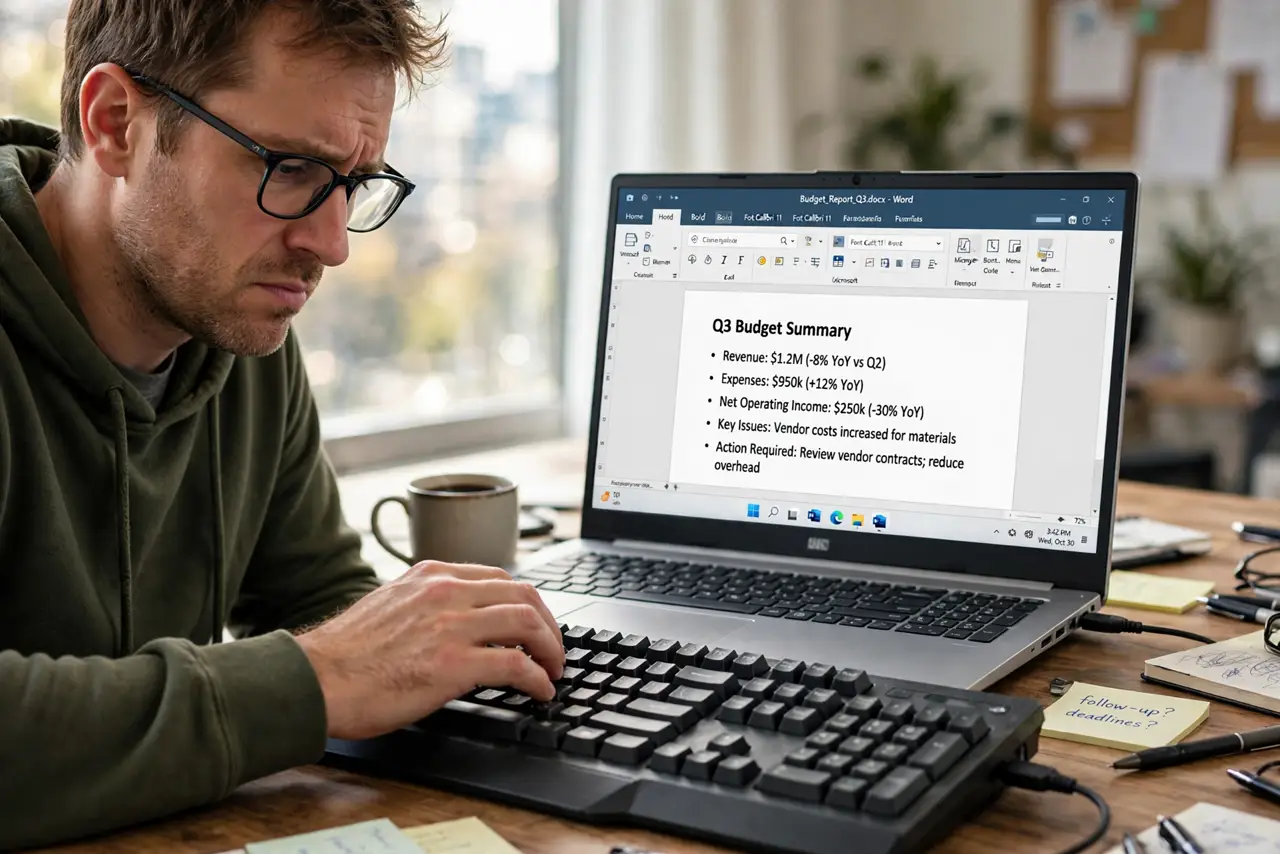
TL;DR / Quick Fix
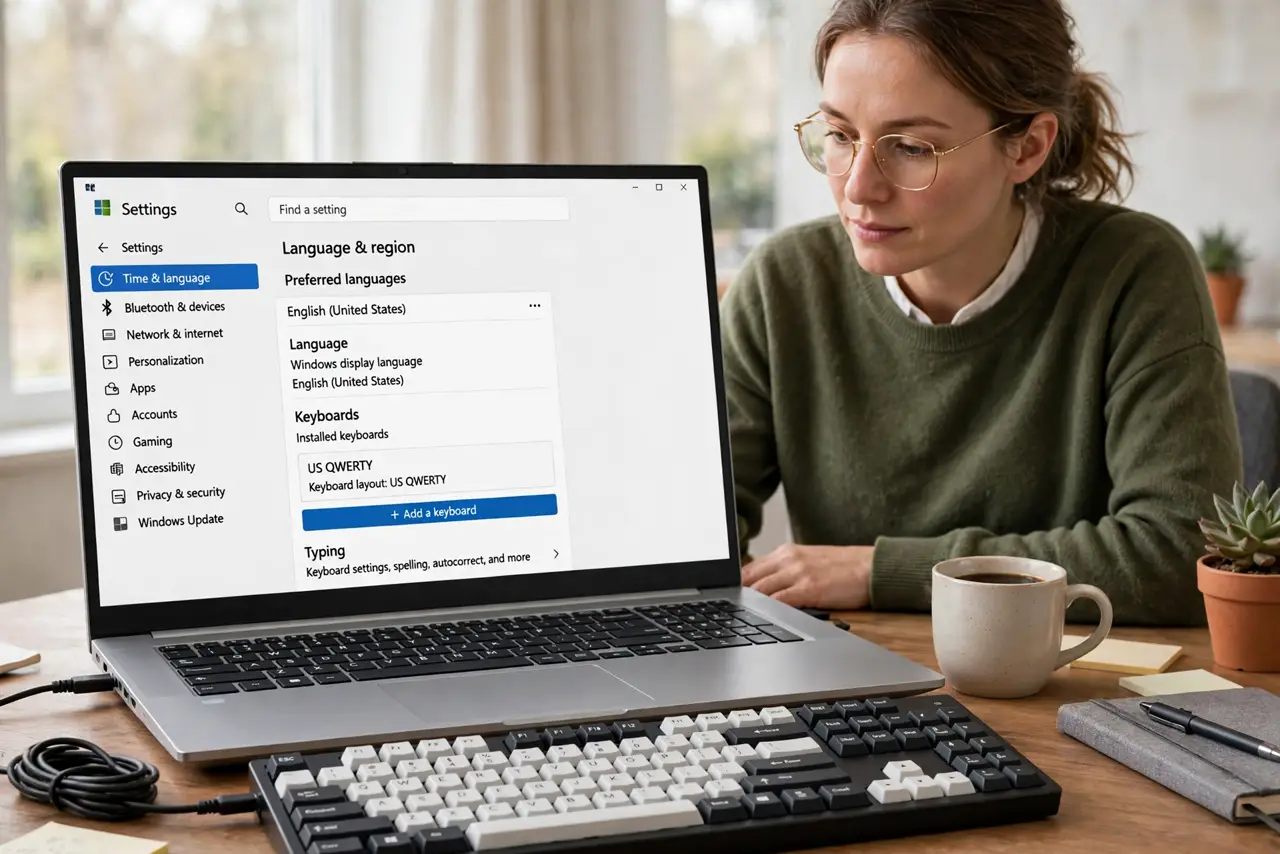
Quick fix: open Settings, then Time and language, then Language and region, and check the keyboard layout for your language. Set it to the layout that matches your physical keyboard, remove layouts you do not use, and test the symbol keys.
Follow these steps
- Check the layout in Language settings. Open Settings, then Time and language, then Language and region, and open the keyboard options for your language. Note which layout is currently selected.
- Set the layout that matches the keyboard. Choose the layout that matches the physical keyboard in front of you, such as US or UK, or the layout for your region. Test the symbol keys after changing it.
- Remove layouts you do not use. Remove extra layouts from the same page, so Windows cannot switch back to a wrong one by accident. Keep only the layouts you actually type with.
- Check the language bar choice. If a language bar shows in the taskbar, check which layout it shows. Click it and pick the correct layout, then test typing again.
- Test every symbol row. Type the symbol keys across the top row and near Enter, and compare them with the printed keys. If one symbol is still wrong, the layout is still not the right one.
- Restart and test after a change. Restart the computer and test typing again. If the layout flips back, a second layout is still installed, or a keyboard shortcut is switching it.
What NOT to do
- Do not buy a new keyboard for a layout problem. A layout is a software setting, and a new keyboard with the same setting will type the same wrong symbols.
- Do not change the whole system language to fix a keyboard. Language and keyboard layout are separate settings, and changing language changes menus too.
- Do not keep every layout installed just in case. Extra layouts invite accidental switching, so keep only the ones you use.
- Do not remap keys with a random tool as a first step. Picking the correct layout fixes the symbols, while remapping hides the real setting.
Frequently asked questions
Why do letters work but symbols are wrong?
Letters are similar across layouts, while symbols move. A wrong layout shows up first on symbols like quotes, at signs, and hashes.
The layout keeps switching back. Why?
Another layout is still installed, or a shortcut switches layouts. Remove extra layouts and check the switching shortcut.
US and UK keyboards look the same. Are they?
No. They differ on several symbol keys, so picking the layout that matches your physical keyboard matters even when the keyboards look alike.