Fit Sheet on One Page?
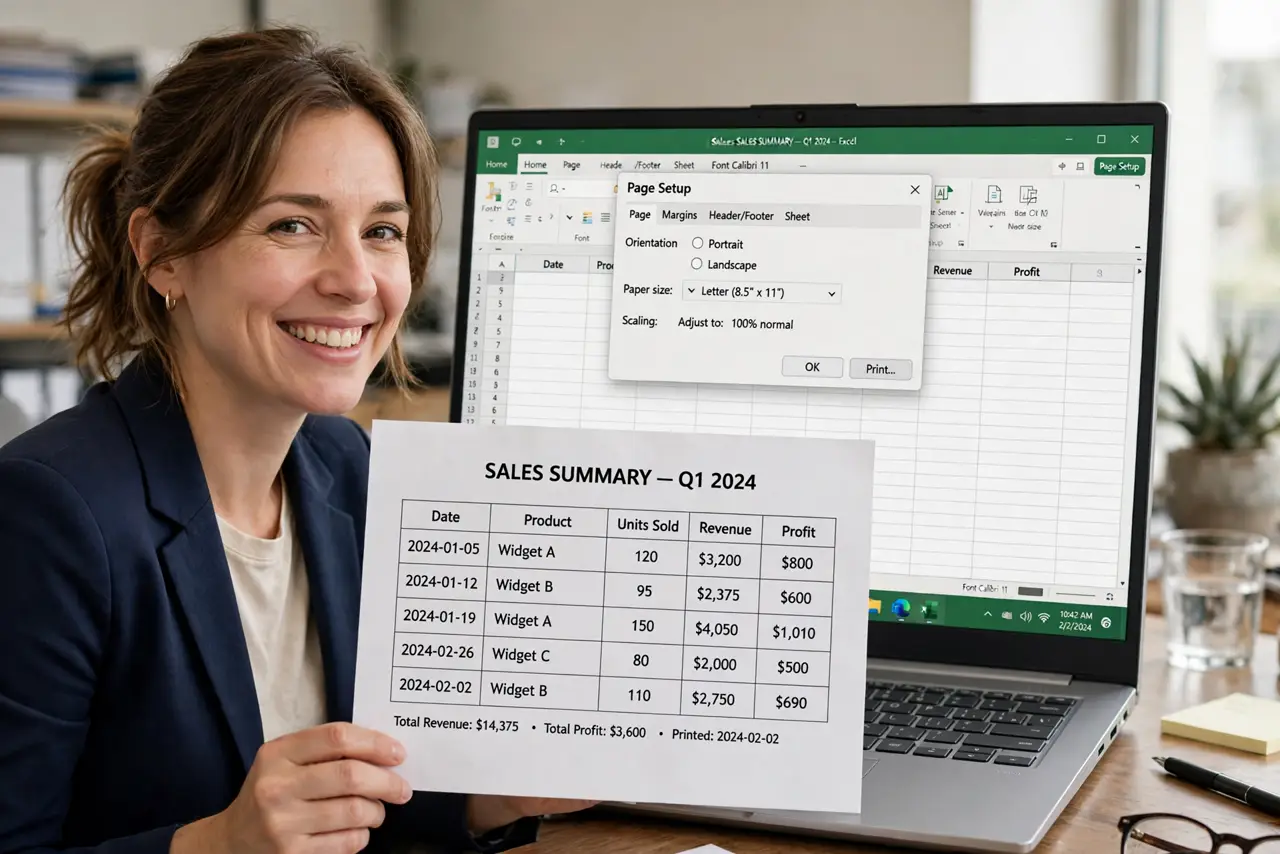
Your spreadsheet prints as one perfect page plus one sad page holding three lonely cells — the classic Excel printing embarrassment. Fit to One Page forces the sheet onto your chosen page count, but shrinking too far makes it unreadable. This guide fits it properly: everything visible, nothing microscopic.
TL;DR / Quick Fix
Quick fix: on Page Layout set Width to 1 page and Height to 1 page in Scale to Fit. Check Print Preview — if text is too small to read, the sheet is genuinely too big for one page. Set a print area first so only the real data shrinks.
Follow these steps
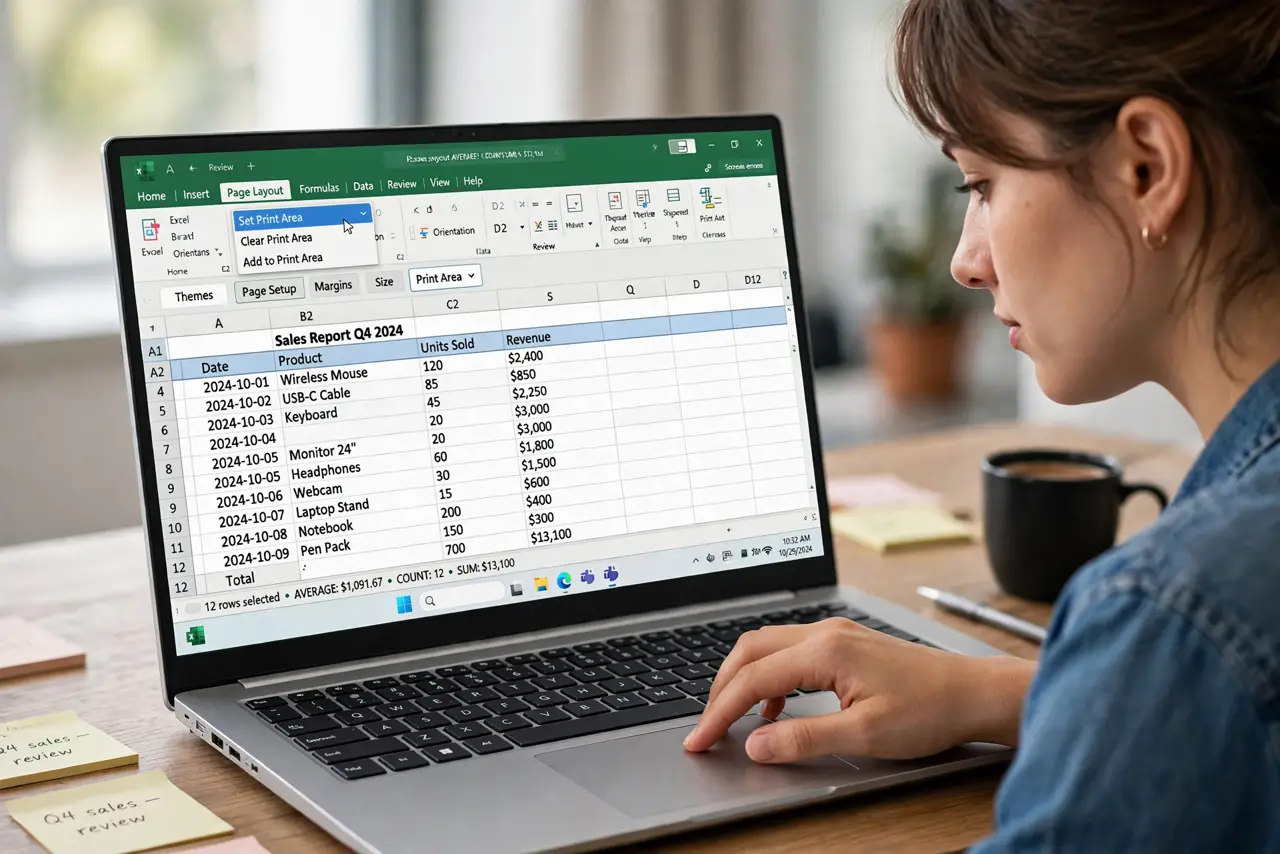
- Set a print area first. Select your data and set the print area — fitting works on the defined range. Without it, Excel tries to fit stray cells too and shrinks everything unnecessarily.
- Use Scale to Fit. On the Page Layout tab, set Width to 1 page and Height to 1 page (or 1 page wide by as tall as needed). This is the proper control — not dragging margins blindly.
- Check readability in preview. Open Print Preview and zoom in. If you cannot read it on screen, you cannot read it on paper — a fitted-but-illegible page helps nobody.
- Mind the cut-off columns trap. Columns sliced mid-page mean the fit is fighting your layout. Widen narrow columns or drop empty ones before fitting.
- Split instead when it is too small. If fitting makes 8-point text, the honest fix is two pages: set Width to 1 page and Height to Automatic. Readable beats cramped every time.
- Save it as the print default. Page setup saves with the workbook. Set it once and every future print comes out right — future-you says thanks.
What NOT to do
- Do not shrink to unreadable sizes. A one-page print nobody can read is worse than two clean pages — respect the 10-point floor.
- Do not fit without a print area. Stray cells hijack the scaling and shrink your real data for nothing.
- Do not forget landscape orientation. A wide table fits far better sideways — try landscape before blaming the fit.
- Do not skip the preview. Print Preview is the only honest view of pagination — the normal sheet view lies.
Frequently asked questions
Why is my print still two pages?
The print area includes stray cells, or the content genuinely needs two pages. Check the area first, then accept two readable pages.
Portrait or landscape for fitting?
Wide tables: landscape. Tall lists: portrait. Match orientation to the data shape before fitting.
Can I fit to exactly 2 pages?
Yes — set Width to 1 and Height to 2, or any combination. Excel distributes the content across exactly that grid.