Freeze Panes in Excel
You scroll down a thousand-row spreadsheet and the headers vanish — now every number is a mystery. Freeze Panes pins rows and columns in place so headers stay visible while the data scrolls beneath. This guide freezes the right panes the first time, including the wrong-row fix when it lands oddly.

TL;DR / Quick Fix
Quick fix: to freeze panes, select the cell below and right of where the freeze should start, then View, Freeze Panes, Freeze Panes. Headers stay visible while you scroll thousands of rows. To undo, use Unfreeze Panes from the same menu.
Follow these steps
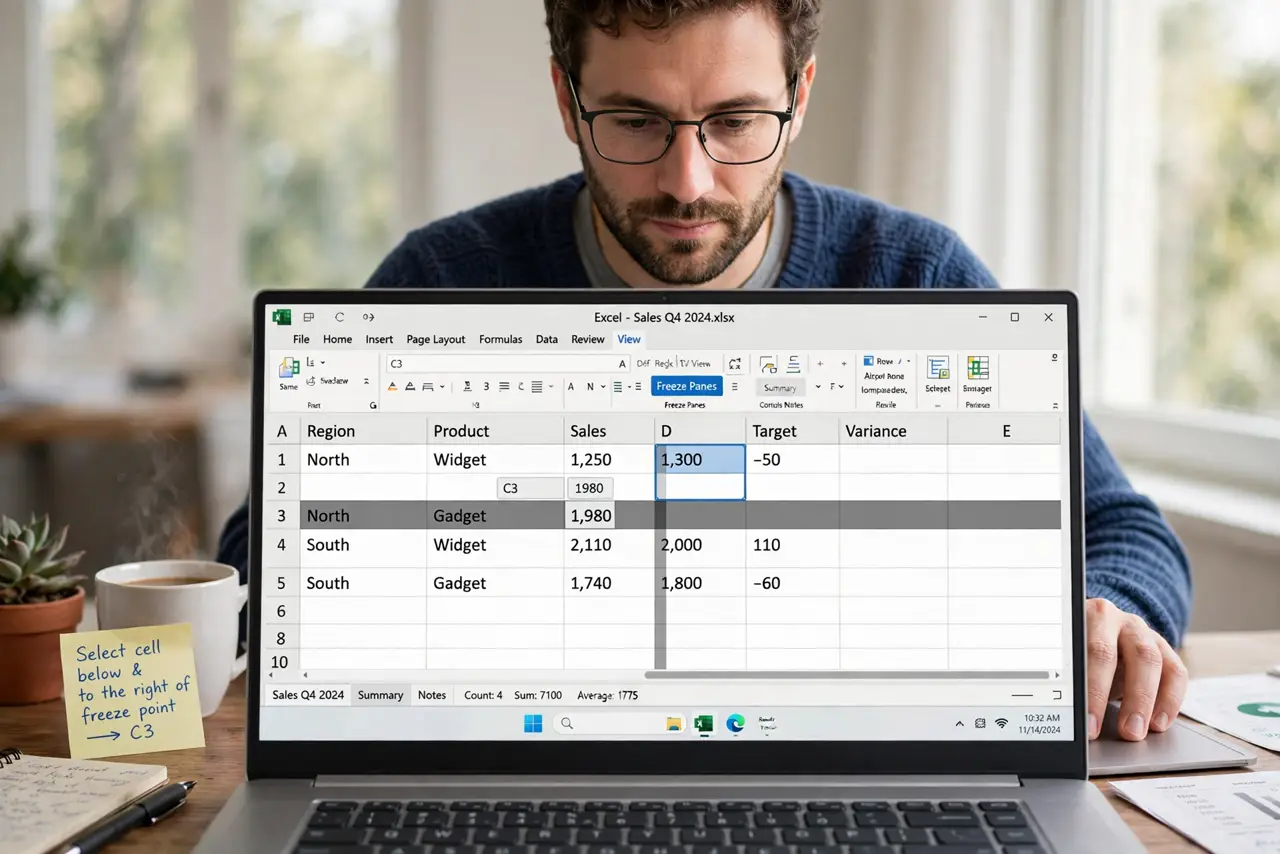
- Select the cell below and right of the freeze point. Click the cell just below the rows and just right of the columns to freeze. Everything above and left of your selection stays put.
- Go to View, Freeze Panes. On the View tab, click Freeze Panes. Choose Freeze Panes (not Top Row) for full control over the split point.
- Verify by scrolling. Scroll down and sideways — headers and label columns should stay glued while data moves. If the wrong area froze, you selected the wrong cell.
- Use the quick options for simple cases. Freeze Top Row or Freeze First Column handle the common cases in one click. The manual method is for everything else.
- Unfreeze to change. View, Freeze Panes, Unfreeze Panes removes the freeze. Re-select and re-freeze — adjusting means redoing, not nudging.
- Print with frozen logic too. Freezing is for the screen; for printing, set Print Titles to repeat headers on every page. Screen and paper need separate settings.
What NOT to do
- Do not freeze with the wrong cell selected. The freeze lands relative to your selection — one cell off ruins the layout.
- Do not forget to unfreeze before re-freezing. Stacked freeze attempts confuse Excel — clear, then set fresh.
- Do not rely on freeze for printing. Frozen panes do not print repeatedly — Print Titles does that job.
- Do not freeze panes in a shared workbook blindly. Tell collaborators what you froze, or your 'fix' looks like their bug.
Frequently asked questions
Why did it freeze the wrong rows?
Your selected cell was off. Unfreeze, select the cell below-right of the intended freeze line, and redo it.
Can I freeze non-adjacent rows?
No — freezing works from the top and left edges only. For middle sections, consider splitting the window instead.
Does freeze panes work in Google Sheets?
Yes — View, Freeze works the same way. The concept transfers across spreadsheet apps.