Excel Printout Cuts Off Columns? Fix It
The spreadsheet looks perfect on screen but the printout chops off the last columns — or shrinks everything to unreadable size. The fix lives in Page Setup, not in the cells. This guide shows how to fit the sheet on the page properly.
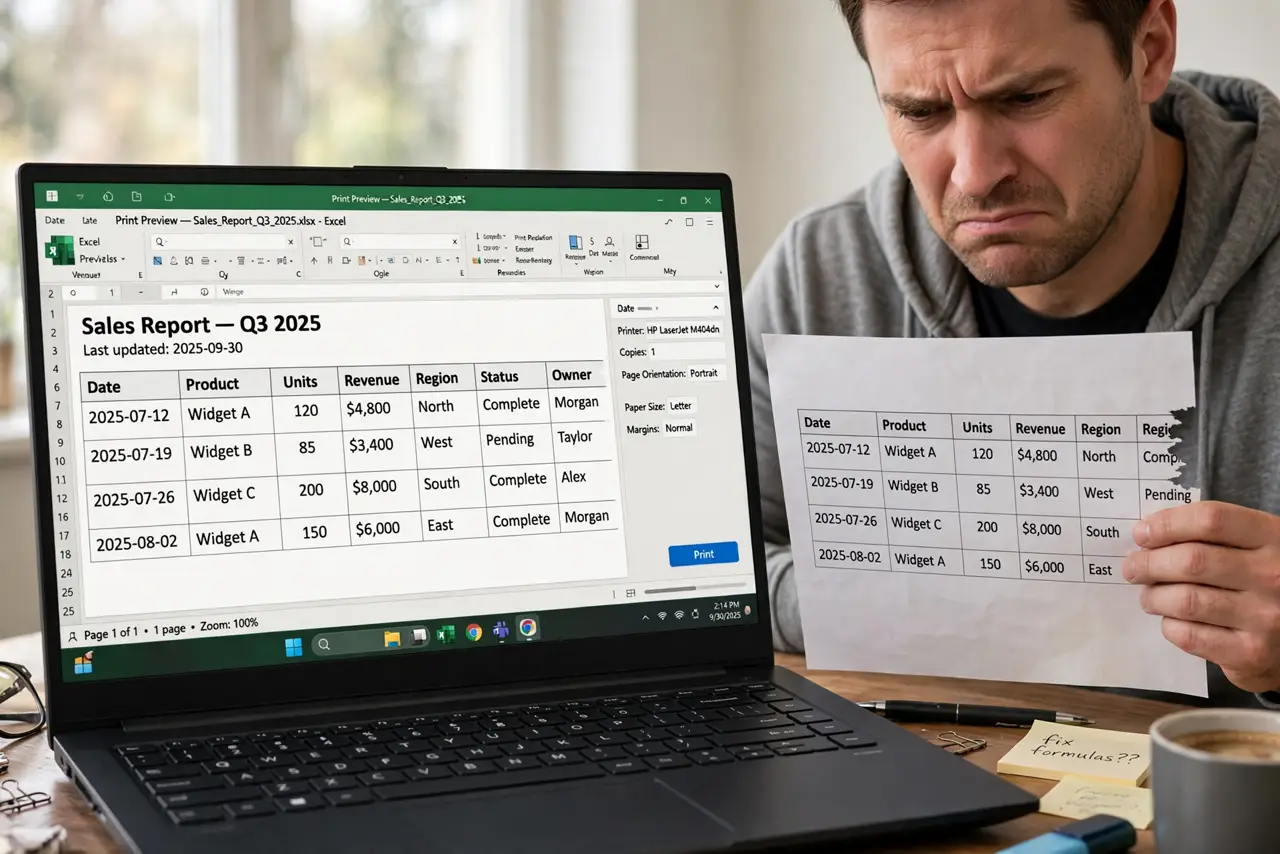
TL;DR / Quick Fix
Open Page Setup and set the print area, orientation, and Fit to one page wide. Preview with print to PDF before using paper. If columns still vanish, narrow column widths or trim margins instead of shrinking the font to nothing.
Follow these steps
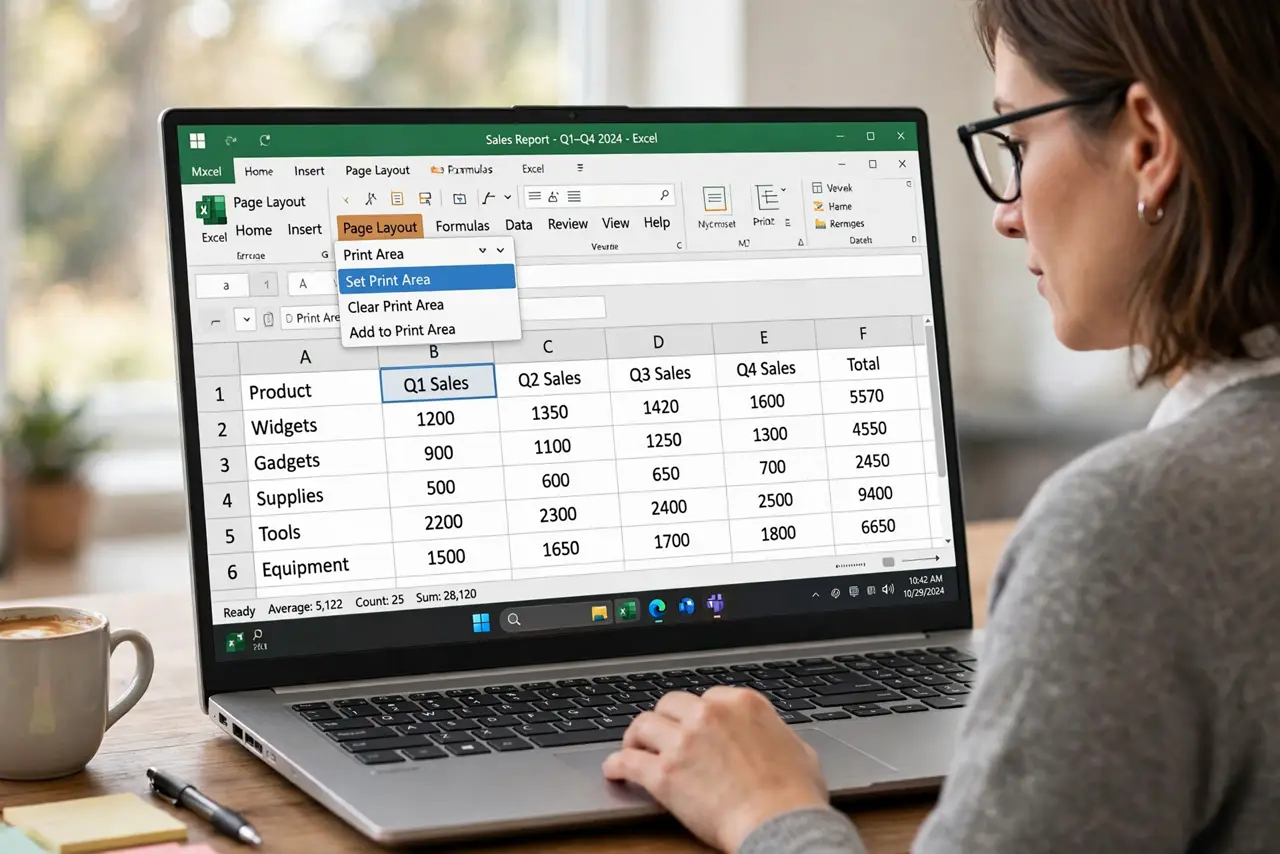
- Set the print area. Select the range to print, then set it as the print area. Without one, Excel guesses — and guesses cut columns.
- Choose the right orientation. Switch to Landscape for wide tables. Portrait fits tall lists; landscape fits wide ones, and the wrong choice wastes half the page.
- Fit to one page wide. In Page Setup, set Fit to 1 page wide by as many tall as needed. This scales columns onto the width without shrinking rows into unreadability.
- Preview with print to PDF. Print to PDF first and inspect the result — printing to PDF instead of paper costs nothing and shows exactly what paper would do.
- Adjust columns and margins. Narrow wide columns, wrap long text, and trim margins before touching the font size. Layout fixes beat font shrinking.
- Repeat headers on each page. Set the top rows to repeat at the top of every printed page. Multi-page printouts without headers are unreadable.
What NOT to do
- Do not shrink the font to 6pt to fit. If it needs a magnifier, the printout failed.
- Do not skip the preview. Printing blind wastes paper and patience.
- Do not fit to one page tall and wide for huge sheets. Forcing a giant table onto one page makes it microscopic.
- Do not forget the print area on shared sheets. Someone else's stray cell far to the right will wreck your pagination.
Frequently asked questions
Why does Excel cut off columns when printing?
No print area is set, or the sheet is wider than the page. Set the print area and fit to one page wide.
How do I fit an Excel sheet on one page?
In Page Setup, use Fit to 1 page wide. For very large sheets, allow multiple pages tall instead of shrinking everything.
Why do my printed headers only appear on page one?
Set the rows to repeat at top in Page Setup so every printed page carries the headers.