Remove Duplicates
A contact list with every name three times, an export full of repeated rows — duplicates make data untrustworthy and counts wrong. Excel's Remove Duplicates deletes repeats in seconds, but which row survives depends on your setup. This guide dedupes safely, and for splitting messy cells first, see Text to Columns.
TL;DR / Quick Fix
Quick fix: select your data, go to Data, Remove Duplicates, check the columns that define a duplicate, and click OK — Excel deletes repeats and reports the count. Work on a copy first; undo is your only safety net. Sort first to control which row survives.
Follow these steps
- Back up first. Copy the sheet or save a version before deduping. Removal is instant and bulk — undo exists, but a backup is calmer.
- Select your data range. Click anywhere in the data or select the full range. Excel guesses the range; verify it caught all columns before proceeding.
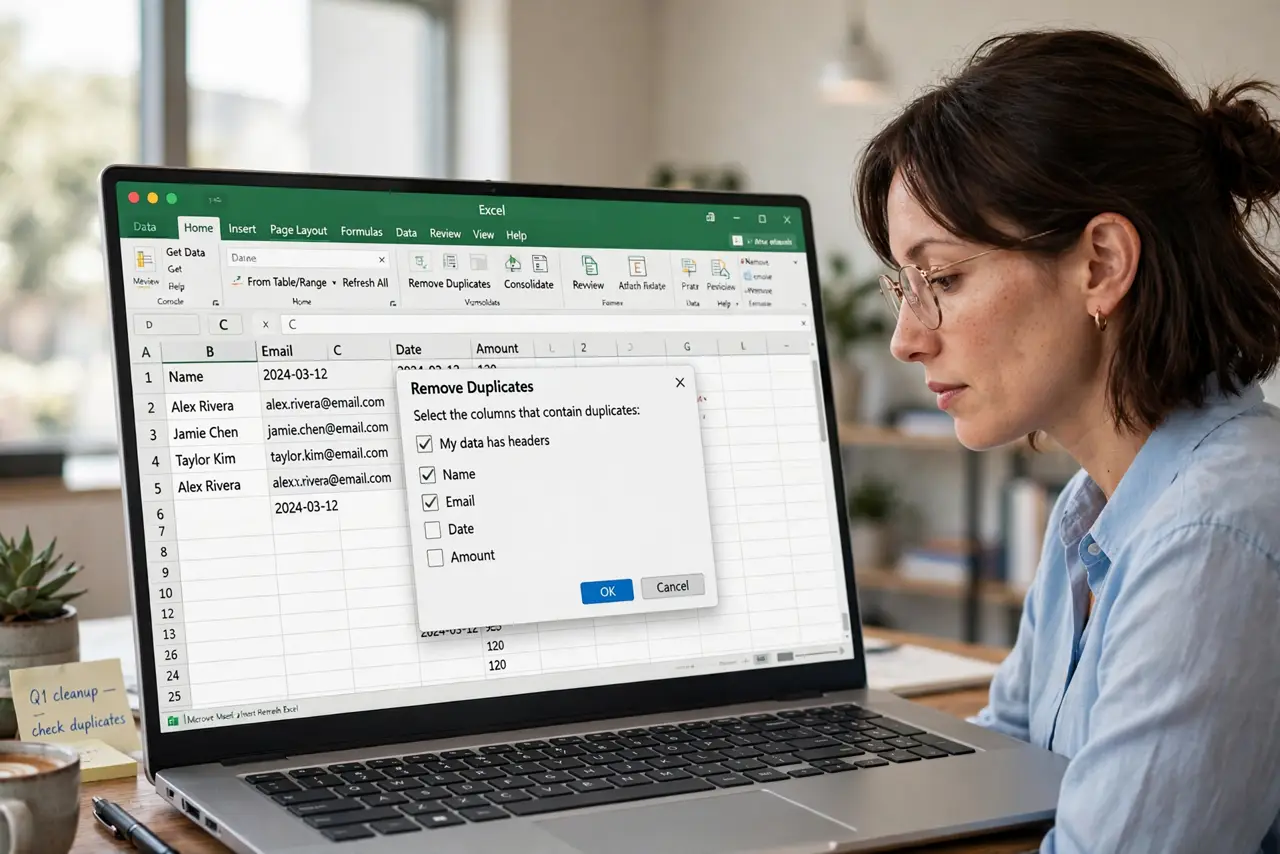
- Open Remove Duplicates. Data tab, Remove Duplicates. The dialog lists every column with checkboxes.
- Choose the defining columns. Check only the columns that define 'same' — email for contacts, order ID for orders. Checking every column means only fully identical rows count as dupes.
- Run it and read the report. Click OK — Excel reports how many duplicates were removed and how many unique rows remain. Sanity-check the counts against expectations.
- Sort first to control survivors. Excel keeps the FIRST occurrence of each duplicate. Sort so the row you want to keep sits first — newest date, most complete record, whichever matters.

What NOT to do
- Do not dedupe without a backup. Bulk deletion plus a wrong column choice equals data loss with no recourse.
- Do not check every column blindly. Over-checking misses real duplicates; under-checking deletes rows that differ meaningfully.
- Do not forget hidden rows and filters. Filtered-out rows still participate — clear filters or work on visible data deliberately.
- Do not trust dedupe on messy data. Trailing spaces and case differences ('Smith' vs 'smith ') fool the matcher — clean first.
Frequently asked questions
Can I undo Remove Duplicates?
Yes, immediately with Ctrl+Z. But once you save and close, it is permanent — hence the backup.
Why did it not find my duplicates?
Invisible differences: trailing spaces, different cases, number-vs-text formats. Clean the data first.
How do I find duplicates without deleting?
Use Conditional Formatting, Highlight Duplicates to review them visually before committing to removal.