Split First and Last Names
One column of full names — Jane Doe, John Smith — and you need first names in one column, last names in another. Doing it by hand for five hundred rows is a special kind of misery. Excel splits them in seconds, with tools for both one-time fixes and living formulas. For the related date chaos and pivot basics, see those guides.

TL;DR / Quick Fix
Quick fix: to split full names in Excel, use Text to Columns with space as the delimiter, or the newer TEXTSPLIT function for a live formula. Check for middle names and double surnames after splitting — they are the usual suspects. A quick eyeball pass catches the edge cases.
Follow these steps
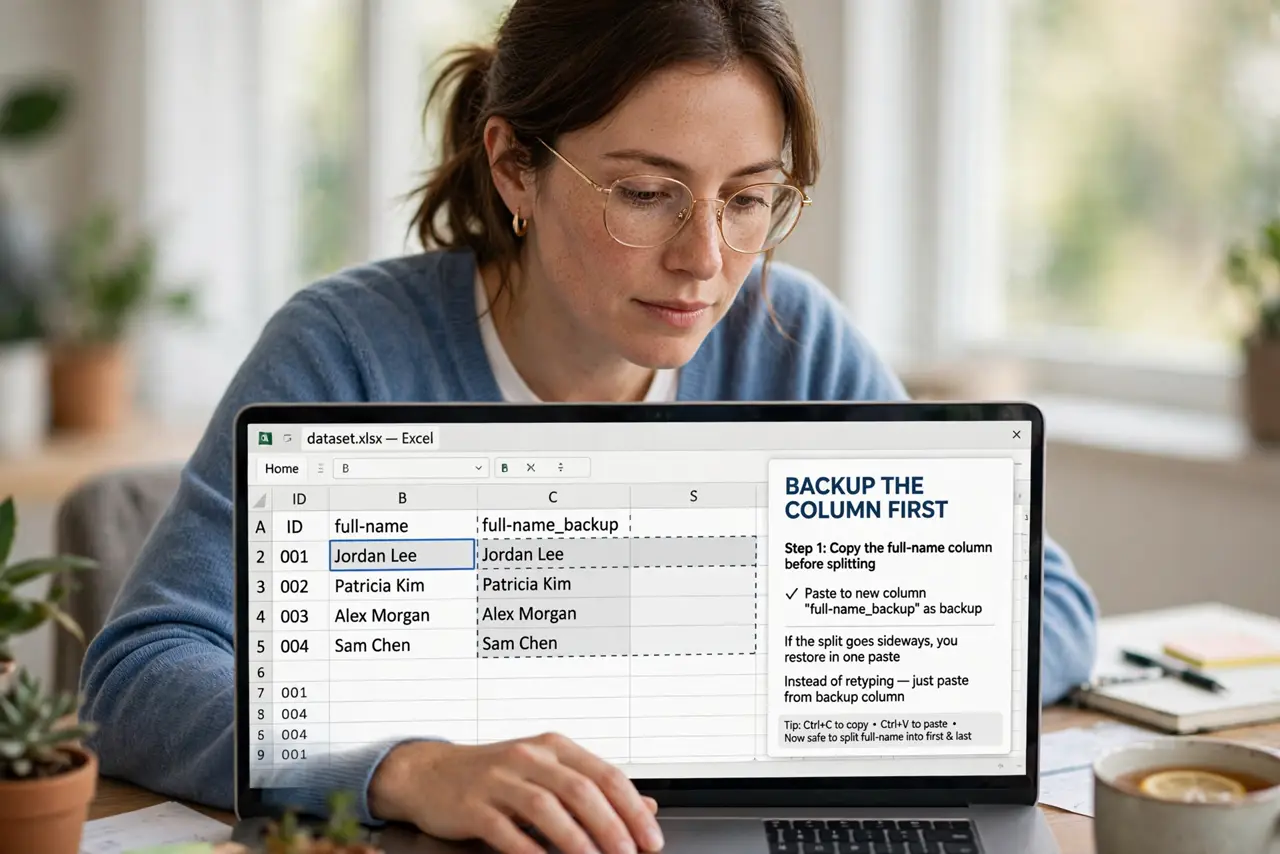
- Back up the column first. Copy the full-name column before splitting. If the split goes sideways, you restore in one paste instead of retyping.
- Use Text to Columns for a one-time split. Select the column, go to Data, Text to Columns, choose Delimited, and pick Space. First and last names land in separate columns instantly.
- Try TEXTSPLIT for a live formula. In newer Excel, TEXTSPLIT splits with a formula that updates when the source changes. Better for lists that keep growing.
- Handle middle names. Middle names create extra columns or get glued to firsts. Decide the rule — drop middles, or keep them — and apply it consistently.
- Watch for double surnames. Names like Mary Ann Smith or Jose de la Cruz break naive splits. Eyeball the results; these need human judgment, not formulas.
- Clean up the extras. Delete the helper columns and the original once you are happy. A tidy sheet is a trustworthy sheet.
What NOT to do
- Do not split without a backup. One wrong delimiter choice mangles the column — the copy is your undo button.
- Do not assume every name has two parts. Cultures vary wildly; build your process to flag exceptions, not silently mangle them.
- Do not forget trailing spaces. Invisible spaces create invisible errors — trim the column before splitting.
- Do not leave the original and the split side by side forever. Pick the winner and remove the duplicate to avoid confusion.
Frequently asked questions
What about names with titles like Dr.?
Strip titles and suffixes into their own columns first, or they pollute the first-name column. Handle them as a separate pass.
Can I split into more than two columns?
Yes — Text to Columns creates as many columns as there are delimiters. Middle names get their own column automatically.
Does this work in Google Sheets?
Yes — Sheets has Split text to columns under the Data menu, working the same way.