Split Cells Fast
First and last names jammed in one cell, addresses as an unusable blob, CSV pastes landing in a single column — stuck-together data is the spreadsheet's most common mess. Text to Columns splits it in seconds, and Flash Fill handles the one-offs. This guide un-sticks your cells.
TL;DR / Quick Fix
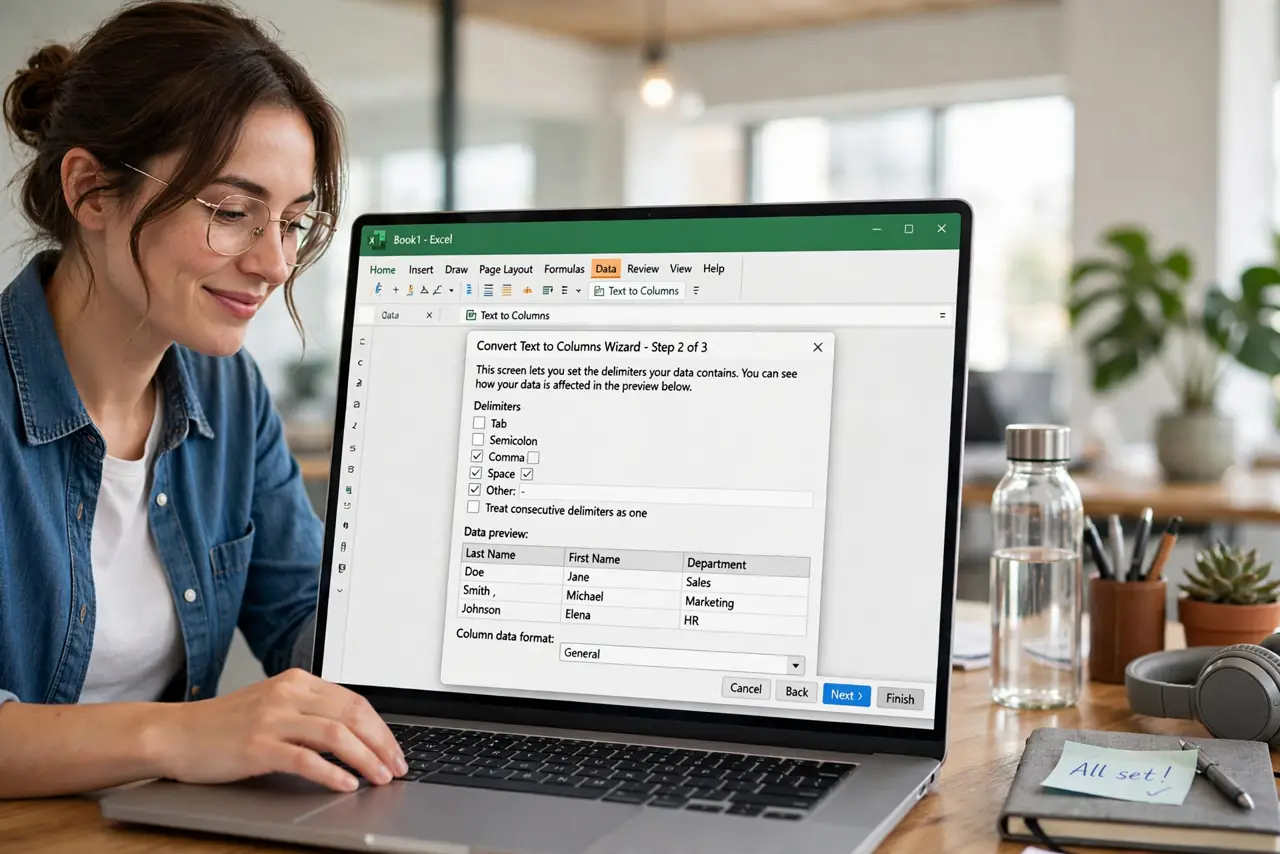
Quick fix: to split cells, select the column, go to Data, Text to Columns, choose Delimited or Fixed Width, and follow the wizard — first and last names separate in seconds. Use Flash Fill for one-off splits without the wizard. Always work on a copy; splitting overwrites neighboring cells.
Follow these steps
- Select the stuck column. Click the column header of the jammed data. Text to Columns works on one column at a time — select exactly the messy one.
- Open Text to Columns. Data tab, Text to Columns. The wizard offers Delimited (split by commas, spaces, tabs) or Fixed Width (split at positions).
- Pick Delimited for most cases. Names split by space, addresses by comma — Delimited handles the common messes. Preview shows the split live before you commit.
- Set the destination. Tell the wizard where to put the results — default overwrites to the right, which eats neighboring data. Point it at empty columns deliberately.
- Try Flash Fill for one-offs. Type the desired result for 2-3 rows and press Ctrl+E — Flash Fill detects the pattern and fills the rest. Magic for irregular splits the wizard cannot express.
- Work on a copy. Splitting is destructive to the original layout. Copy the sheet first — and when dupes appear after splitting, Remove Duplicates cleans up.

What NOT to do
- Do not split without checking the destination. The default overwrites cells to the right — including data you wanted.
- Do not use Fixed Width on variable data. Ragged text needs delimiters; fixed positions shred it.
- Do not forget Text format for codes. ZIP codes and IDs lose leading zeros unless the column is Text before splitting.
- Do not split what Flash Fill handles faster. Two examples plus Ctrl+E beats the wizard for simple patterns.
Frequently asked questions
Why did my data land in one column from CSV?
The file opened without parsing. Use Data, From Text/CSV to import properly instead of pasting raw.
Can I split by multiple delimiters?
Yes — the wizard accepts several at once (comma AND space, for example). Check all that apply.
How do I rejoin split cells?
TEXTJOIN or CONCAT with a delimiter — or Flash Fill in reverse. Splitting is reversible with the right function.