External SSD Slow? Check the USB Port
Your external SSD benchmarks at half the speed on the box. Before blaming the drive, check the port: an SSD plugged into an old USB 2.0 port is throttled to a fraction of its speed, no matter how fast the drive is. This guide matches drive, cable, and port so you get the speed you paid for.
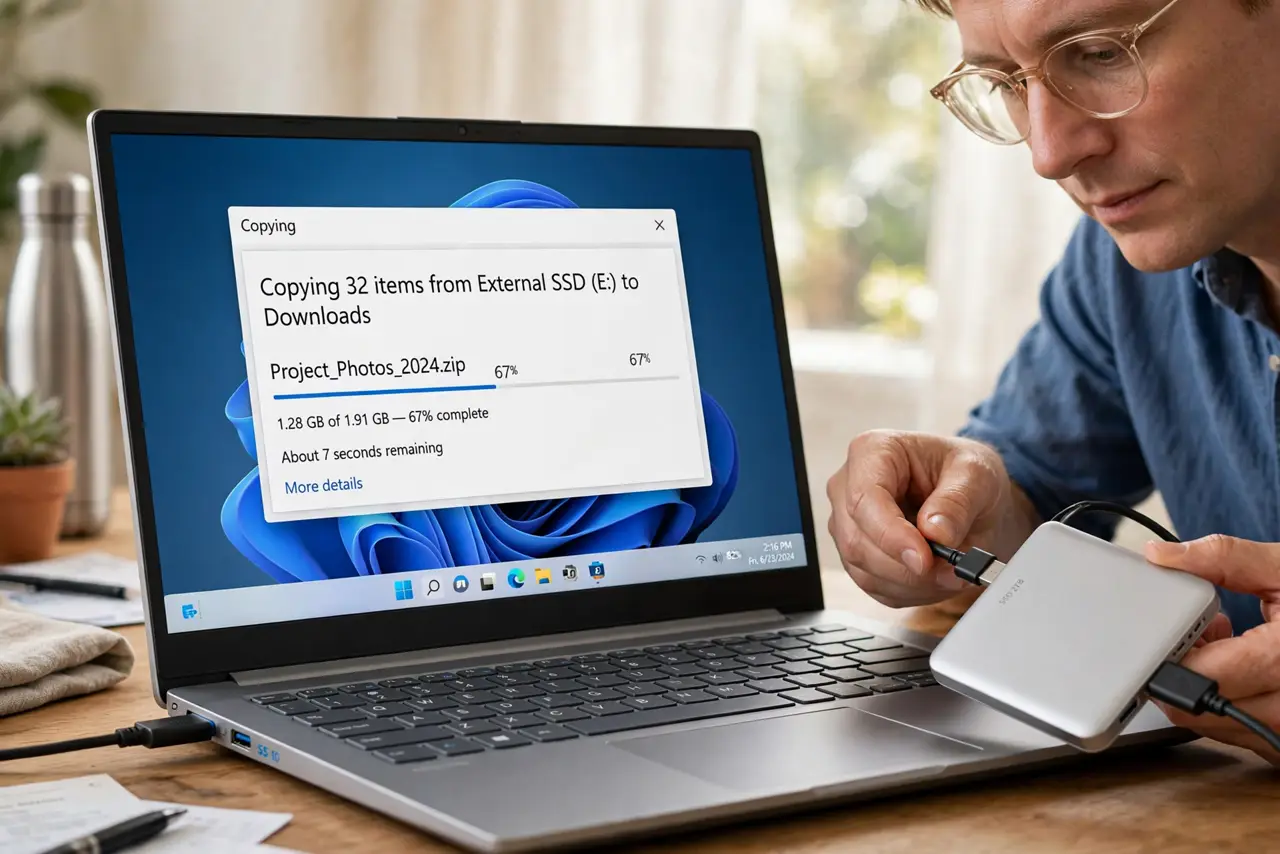
TL;DR / Quick Fix
Quick fix: plug the SSD into a blue USB 3 port or USB-C port, and use the cable that came with the drive — cheap cables throttle speed. Re-test. If it is still slow on a fast port with the original cable, the drive itself is the bottleneck.
Follow these steps
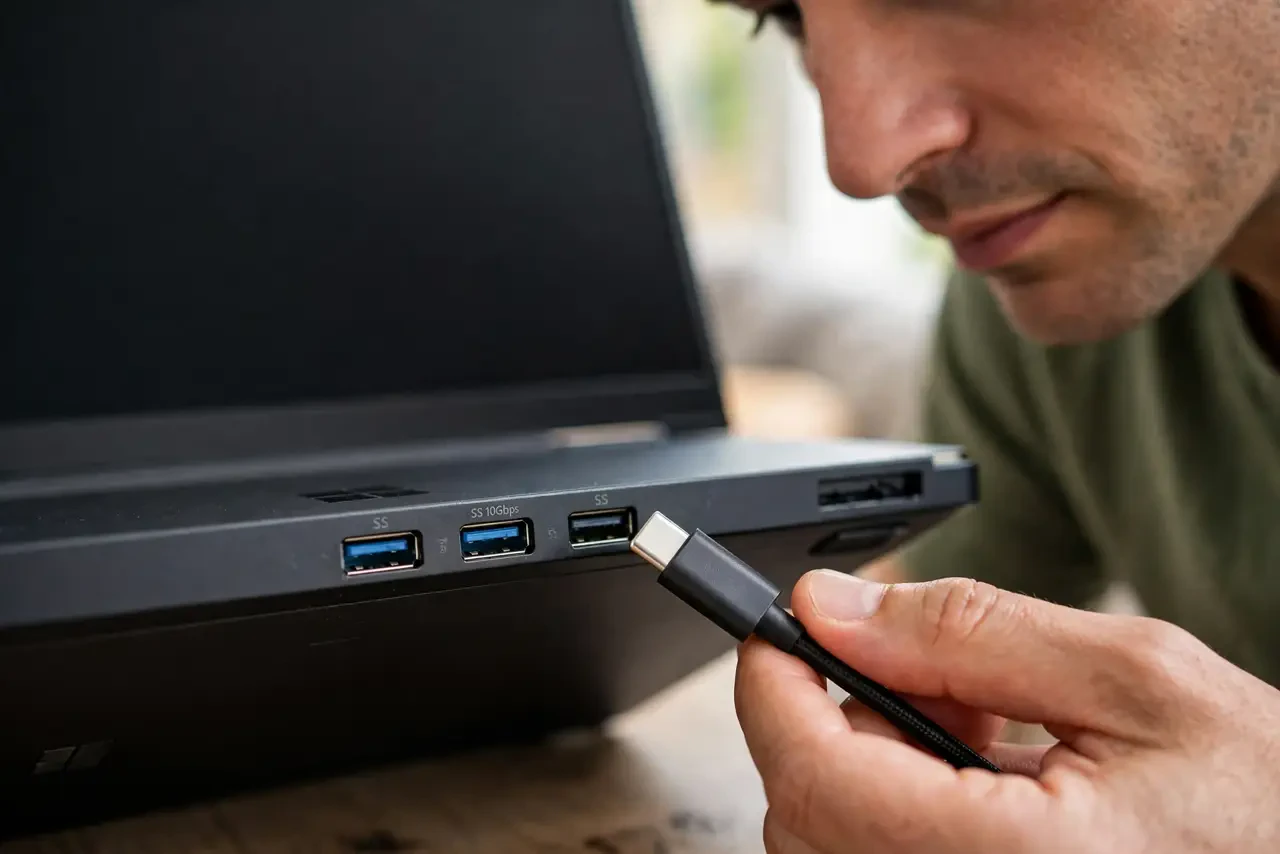
- Identify the port you are using. Look at the port: blue inserts or SS markings mean USB 3, black usually means USB 2. A fast SSD on a USB 2 port tops out around 40 MB/s — the port, not the drive, is the limit.
- Use the cable that came with the drive. Swap in the original short cable. Many thin third-party cables are USB 2 internally even with USB-C ends, silently throttling a fast drive.
- Try a rear port on desktops. On a desktop, use the motherboard's rear USB ports instead of the front panel. Front-panel headers are often wired at lower speeds or share bandwidth.
- Re-test with a real file copy. Copy a large file and watch the sustained speed, not the first-second burst. Cache makes the start look fast; the steady middle shows the true port speed.
- Check the drive's health if speed is erratic. Speed that swings wildly can signal a failing drive rather than a slow port — the same warning signs as a clicking hard drive. Back up before running any further tests.
- Match the enclosure to the drive. If the SSD sits in an aftermarket enclosure, confirm the enclosure's chipset supports the drive's speed. A slow bridge chip caps everything behind it — see enclosure vs ready drive.
What NOT to do
- Do not buy a faster SSD to fix a slow port. A new drive on USB 2 is exactly as slow as the old one — fix the connection first.
- Do not use a long cheap cable for speed tests. Long thin cables drop to USB 2 speeds or disconnect under load; test with the original short cable.
- Do not unplug the drive mid-benchmark. Interrupted writes during speed tests can corrupt the test data and, rarely, the file system.
- Do not ignore heat. An SSD that slows down after a few minutes may be thermally throttling — give it airflow and retest.
Frequently asked questions
Why is my external SSD so slow?
Almost always the port or the cable. USB 2 ports and cheap cables cap a modern SSD at a tenth of its rated speed.
Does the USB cable really matter?
Yes. The cable must carry the USB 3 signal pairs; many bundled or cheap cables are USB 2 inside and throttle everything silently.
What speed should I expect on USB 3?
Roughly 300 to 450 MB/s for a SATA SSD on USB 3, and much more on USB 3.2 Gen 2 — far above the roughly 40 MB/s ceiling of USB 2.