Do a Facebook Privacy Checkup
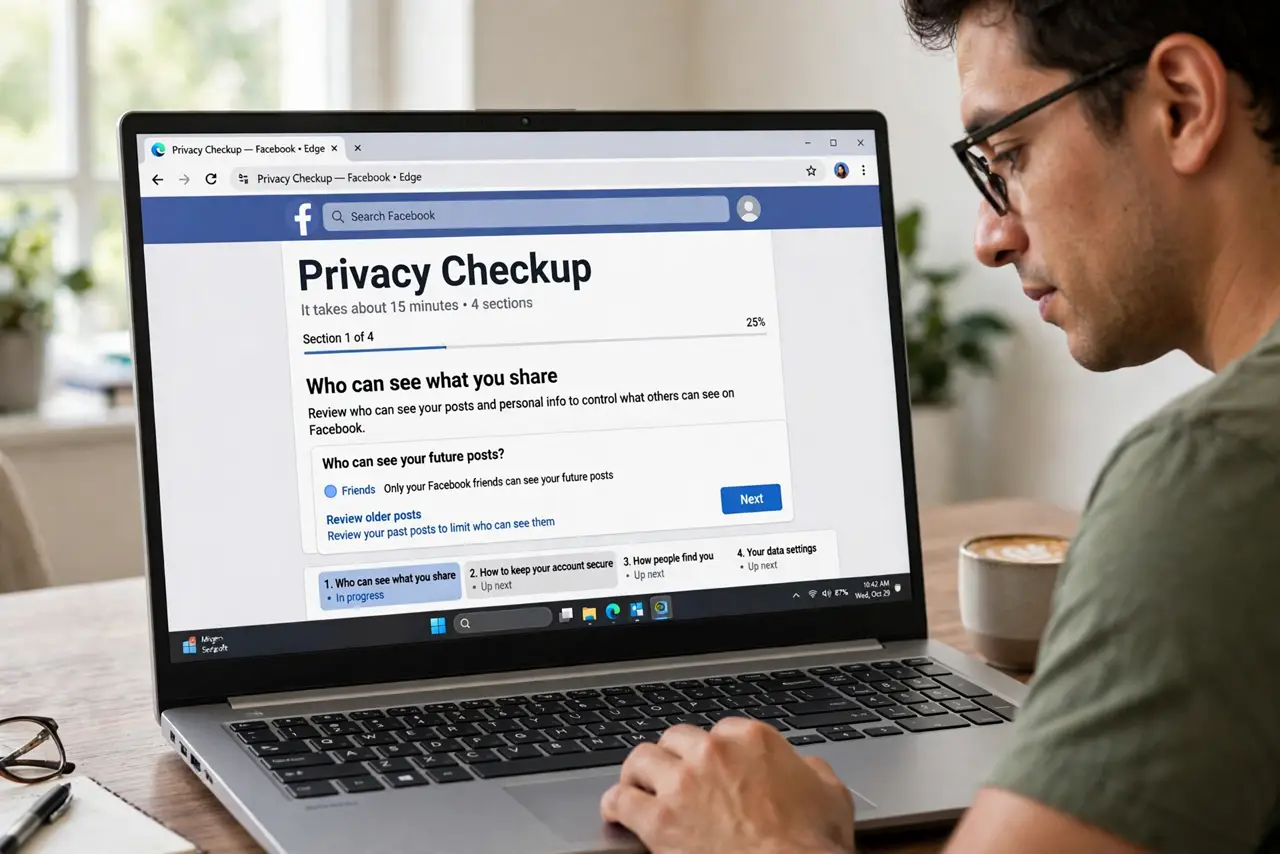
Your Facebook account is a decade of posts, photos, check-ins, and quiz apps — most of it visible to more people than you think. Facebook's own Privacy Checkup wizard walks you through the key settings in about fifteen minutes. Run it once a year and you close most of the oversharing without becoming a privacy hermit.
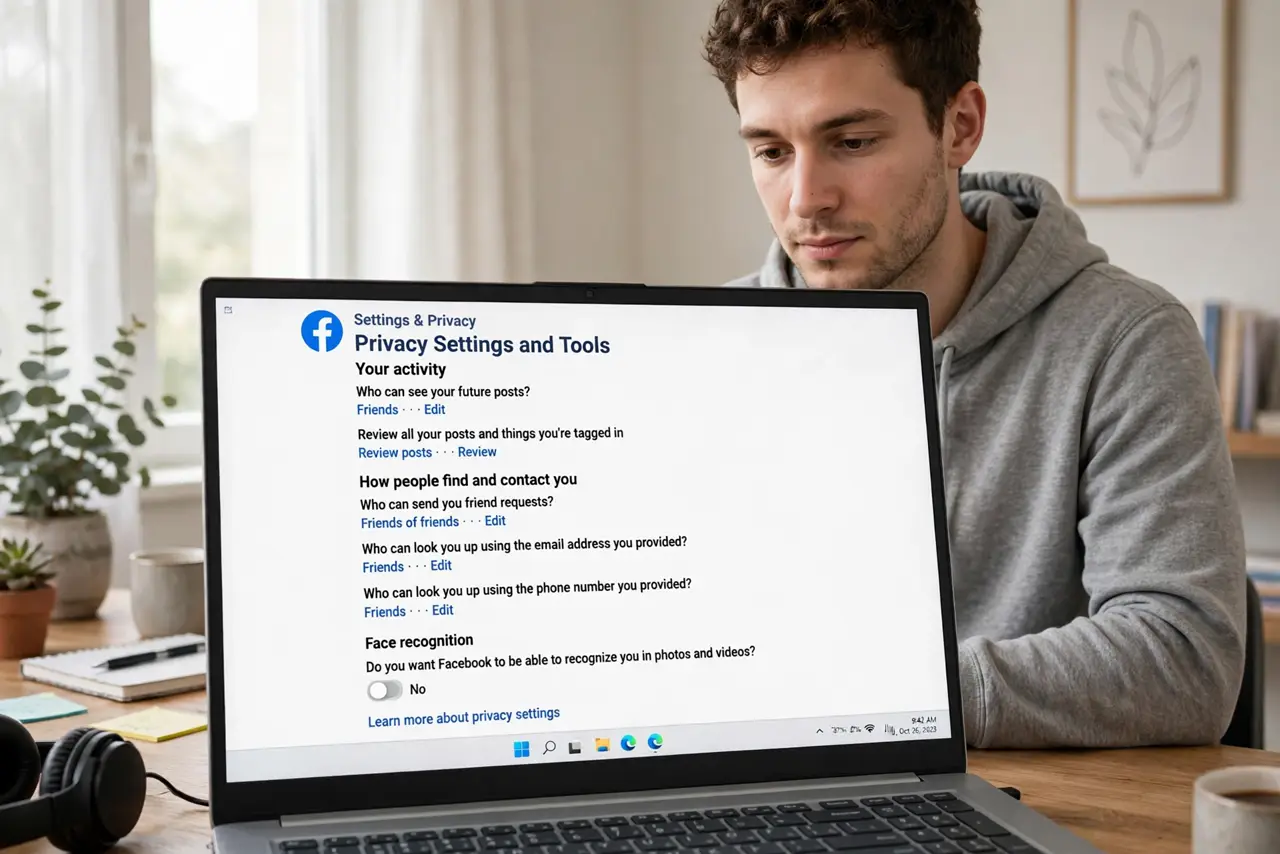
TL;DR / Quick Fix
Quick fix: run Facebook's Privacy Checkup yearly — it reviews who sees your posts, profile info, and connected apps. Set past posts to Friends, remove apps you do not recognize, and turn on login alerts. Fifteen minutes once a year closes most oversharing. See the privacy guide for deeper settings.
Follow these steps
- Open Privacy Checkup. On Facebook: Settings > Privacy Checkup. It runs as a guided wizard — Who can see what you share, How to keep your account secure, How people find you, Your data settings. Fifteen minutes, four sections.
- Lock down who sees your posts. Set the default audience to Friends, then use Limit past posts to retroactively restrict old Public posts. Your 2012 self posted for everyone — fix that now.
- Review profile info visibility. Phone number, email, birthday, hometown — each has its own audience setting. Strangers do not need your phone number; set sensitive fields to Only Me or Friends.
- Prune connected apps and websites. Years of Log in with Facebook pile up. Remove anything you do not recognize or no longer use — each one holds data you forgot you granted. The off-Facebook activity cleanup pairs with this.
- Turn on login alerts. Get notified of unrecognized logins immediately. It is the fastest way to catch someone in your account — see unknown-device alerts for what to do when one fires.
- Repeat yearly. Settings drift, new features default to public, old apps linger. Put a yearly reminder on your calendar — privacy is maintenance, not a project.
What NOT to do
- Do not assume Friends means private. Friends of friends, tagged photos, and public comments leak more than the audience setting suggests — check tag review too.
- Do not leave old quiz apps connected. The personality quiz from 2016 still holds your data until you remove it — prune ruthlessly.
- Do not post your phone number publicly for the marketplace listing. Spammers harvest exactly that — use Messenger instead.
- Do not skip the checkup because you have nothing to hide. Oversharing is not about secrets — it is about data brokers, scammers, and future-you.
Frequently asked questions
Does Privacy Checkup change my old posts?
Only if you use the Limit past posts step — it converts Public and Friends-of-Friends posts to Friends. It is reversible per post if you overdo it.
Can people still find me if I lock everything down?
Your name and profile photo stay public — that is Facebook's minimum. Everything else is yours to restrict.
How is this different from the main privacy settings?
Checkup is the guided tour; Settings > Privacy is the full control panel. Run the checkup yearly, visit settings when something specific bothers you.