Set a Fan Curve in BIOS
Your desktop fans idle at a jet-engine whine or stay asleep until the CPU is already cooking. A fan curve tells each fan exactly how fast to spin at each temperature — silence when cool, airflow when hot. Most motherboards hide this in the BIOS hardware monitor, and setting it takes five minutes.

TL;DR / Quick Fix
Quick fix: enter BIOS and open the hardware monitor or fan control section. Set a gentle curve: low speed under 50C, ramping up past 70C, full speed near 90C. Save and exit. Test under load — silence at idle with no overheating is the goal.
Follow these steps
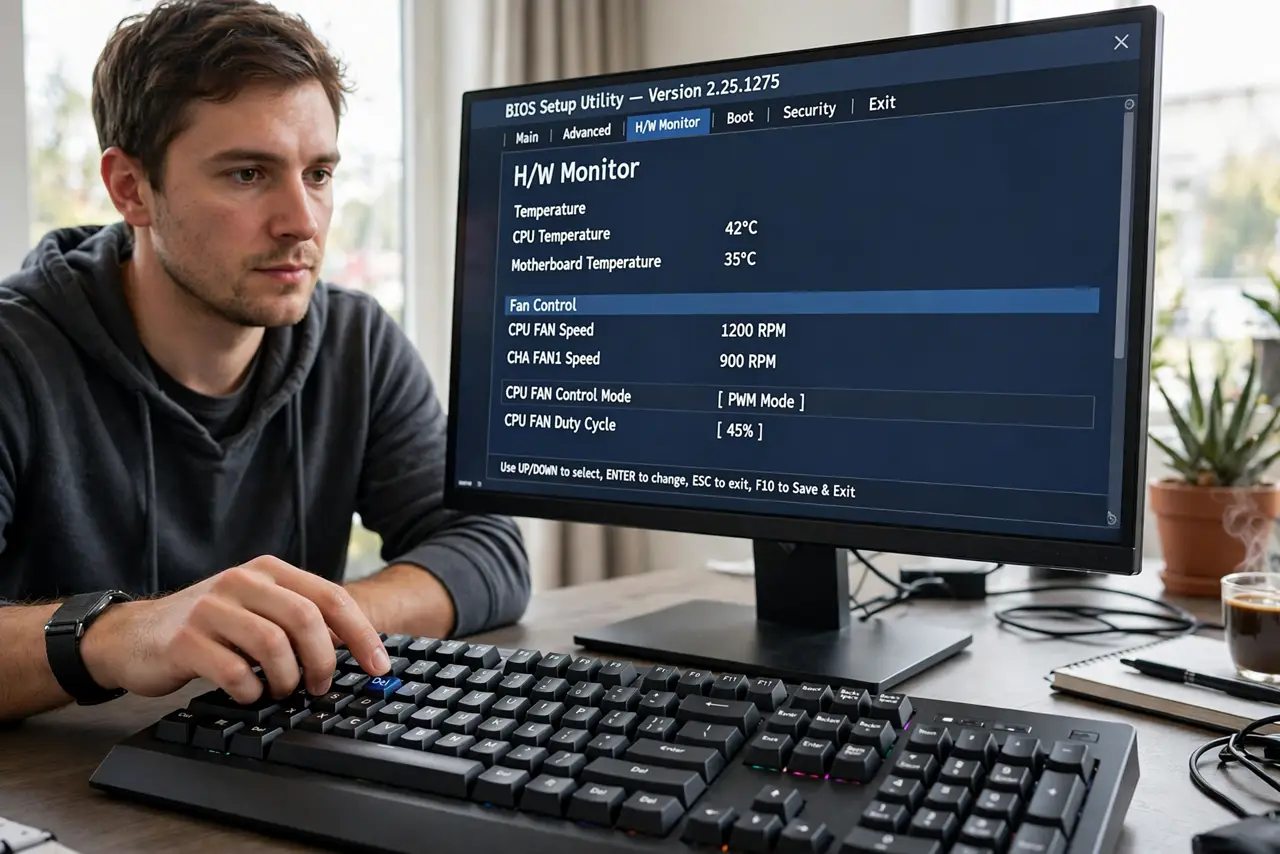
- Enter the BIOS hardware monitor. Reboot into setup (Del/F2) and find H/W Monitor, Fan Control, or Q-Fan — the name varies by motherboard maker.
- Identify which fan is which. CPU fan, chassis fans, pump headers — label them before changing anything. Tuning the wrong fan fixes nothing.
- Set low speed for low temps. Under about 50C the PC is basically idling; fans can run slow and quiet. Silence at idle is the main prize of a custom curve.
- Ramp up through the middle. From 60-80C, scale speed with temperature. This is the normal working range — audible but not screaming.
- Max out near the limit. Approaching 90C means full speed, no compromises. Cooling beats noise when the chip is genuinely hot.
- Stress-test and listen. Run a heavy task and watch temperatures. Adjust until idle is quiet, load stays safe, and no fan runs full speed always for no reason.
What NOT to do
- Do not set fans to zero at idle unless the board supports it. Some fans stall below a minimum speed and then cannot restart.
- Do not copy someone else's curve blindly. Their case, fans, and climate differ — use theirs as a starting sketch only.
- Do not disable the CPU fan warning. If a fan dies, you want the BIOS screaming about it, not silent overheating.
- Do not max all fans 'to be safe.' Constant full speed wears fans faster and the noise will drive you to undo it within a week.
Frequently asked questions
What is a fan curve?
A map from temperature to fan speed: the BIOS reads temps and sets each fan's speed accordingly, instead of one fixed speed.
Can a bad fan curve damage my PC?
Only if you set speeds absurdly low under load. The CPU's own thermal protection shuts down before damage — but do not test that theory.
Why do my fans ignore the curve?
Some fans are voltage-controlled vs PWM — the header mode must match the fan type. Check the BIOS fan mode setting per header.