Files Sync the Wrong Folder? Fix OneDrive Sync
OneDrive is syncing a folder you did not choose, or ignoring the one you actually need. The chosen-folders list controls this, and it is easy to check once you know where it lives. Fix the list, not the files.
TL;DR / Quick Fix
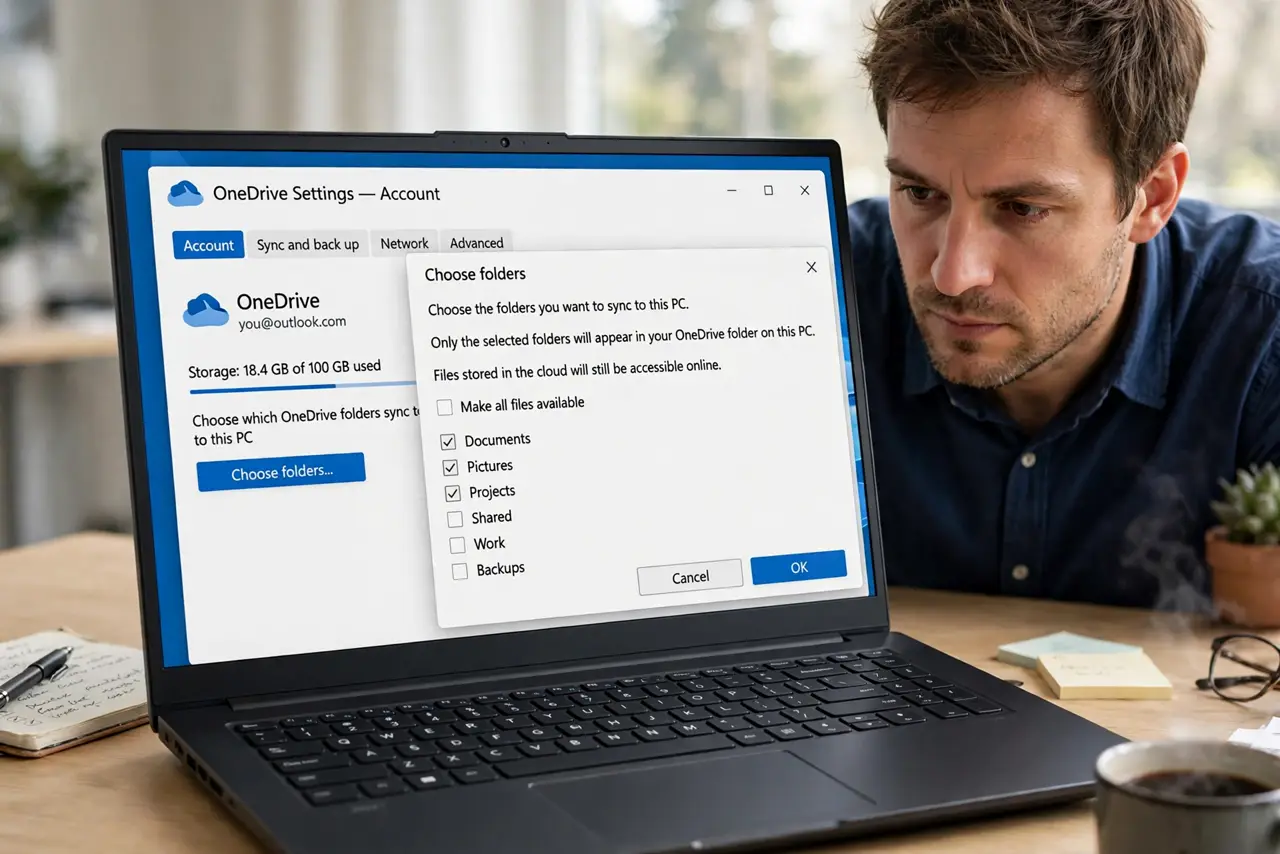
Quick fix: open OneDrive settings, then Account, then Choose folders, and uncheck folders you do not want while checking the ones you do. Let sync settle, then confirm in File Explorer that only your chosen folders show sync icons afterwards.
Follow these steps
- Open OneDrive settings. Click the OneDrive cloud icon in the taskbar, open Settings, and go to Account. This page shows which OneDrive account is syncing on this computer.
- Open Choose folders. Click Choose folders and look at the full list. Checked folders sync to this computer, and unchecked folders stay online only, which explains most wrong-folder surprises.
- Uncheck the wrong folders. Uncheck any folder you do not want on this computer, and confirm the choice. Windows stops syncing those folders and removes their local copies from this device only.
- Check the folders you need. Check the folders you do want, and confirm they appear in File Explorer under OneDrive. A folder missing from the list was never chosen, so it never synced.
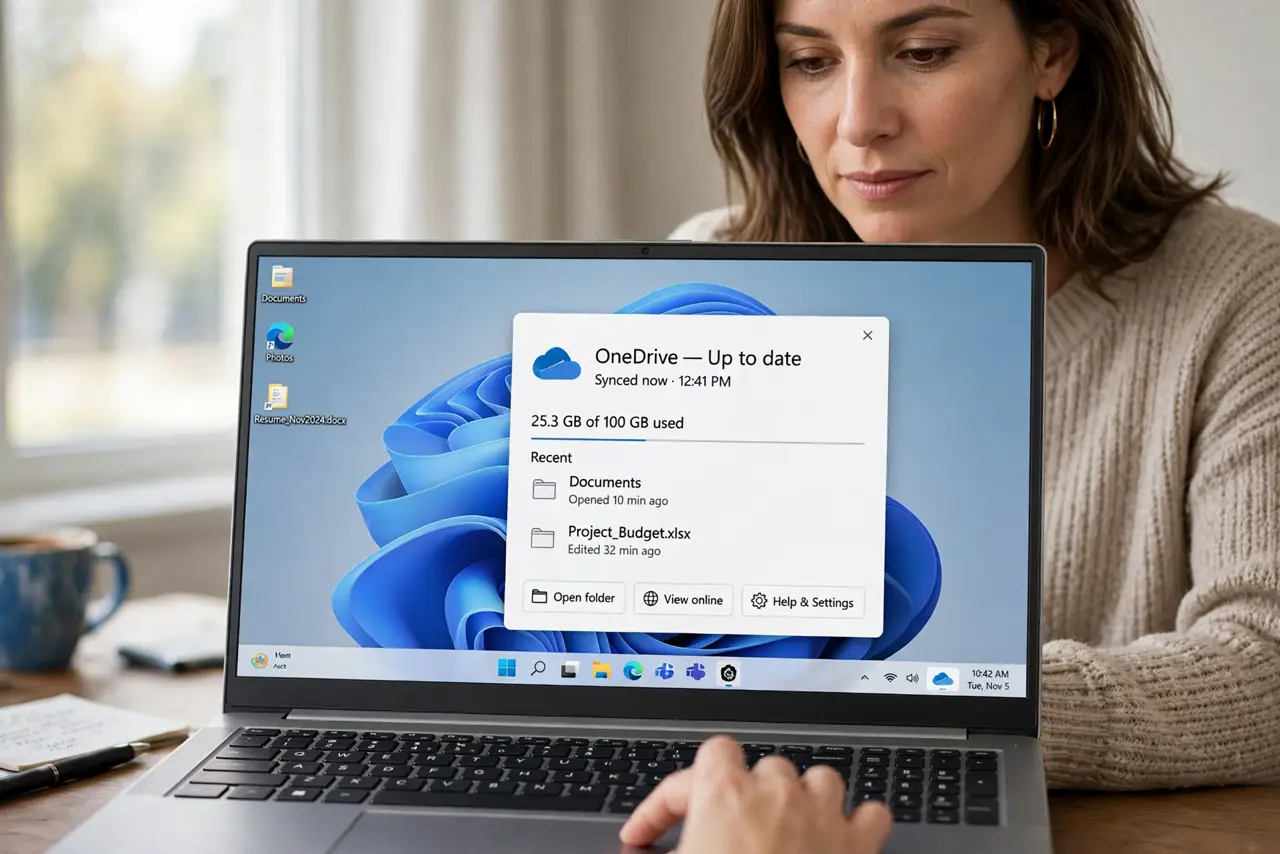
- Let sync settle. Wait for the OneDrive icon to show sync complete before judging the result. Sync takes time, and checking mid-sync makes a correct list look wrong.
- Restart OneDrive if the list looks stale. Close OneDrive from its taskbar icon, reopen it, and check Choose folders again. A restart refreshes a list that did not update after your changes.
What NOT to do
- Do not move files around to fix a sync list. Moving files while sync is confused can duplicate them, while fixing the chosen list solves the cause.
- Do not delete a folder from File Explorer to stop syncing it. Uncheck it in Choose folders instead, so it stays safe online while leaving this computer.
- Do not sync every folder just to be safe. A full sync fills the drive and slows everything, while a chosen list keeps only what you need.
- Do not judge the list while sync is running. Wait for sync complete, or you will change a list that was already correct.
Frequently asked questions
Why is OneDrive syncing a folder I never picked?
It may have been checked during setup, or a default folder was included. Uncheck it in Choose folders to stop it.
Does unchecking delete my files?
No. Unchecking removes the local copy from this computer, while the files stay safe in OneDrive online.
Why is my folder missing from this computer?
It was never checked in Choose folders, or sync has not finished. Check the list and wait for sync complete.