Set Up a Fire TV Stick
A Fire TV Stick promises streaming in minutes, then stalls at Wi-Fi setup, remote pairing, or the Amazon sign-in loop. The order that works: power it properly (wall outlet, not the TV's USB), pair the remote first, then Wi-Fi, then accounts. Rushing the order is what creates the loops.
TL;DR / Quick Fix
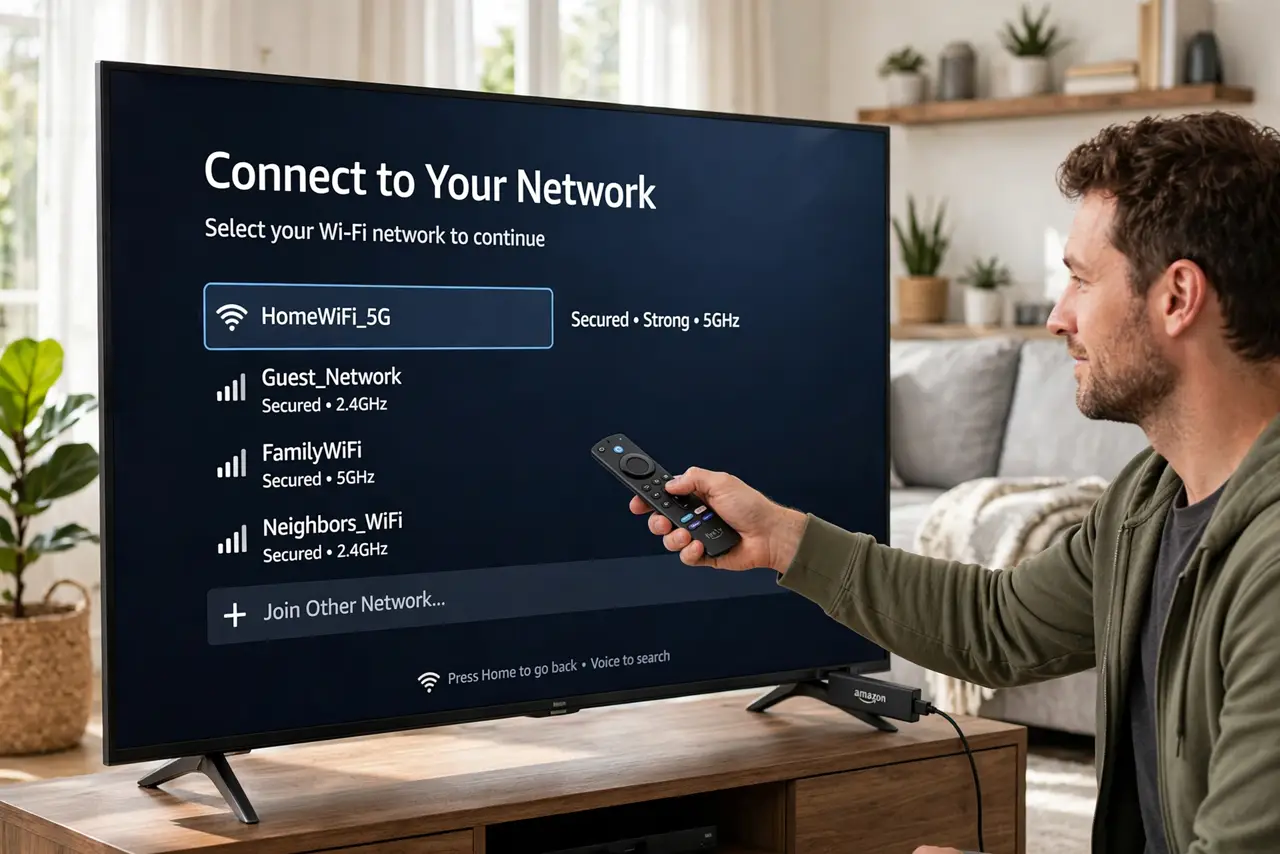
Plug the Fire TV Stick into HDMI and power it from the outlet — USB ports underpower it and cause freezes. Pair the remote by holding Home, connect to Wi-Fi, sign into the Amazon account. If Wi-Fi setup loops, restart the stick near the router, then review the privacy settings.
Follow these steps
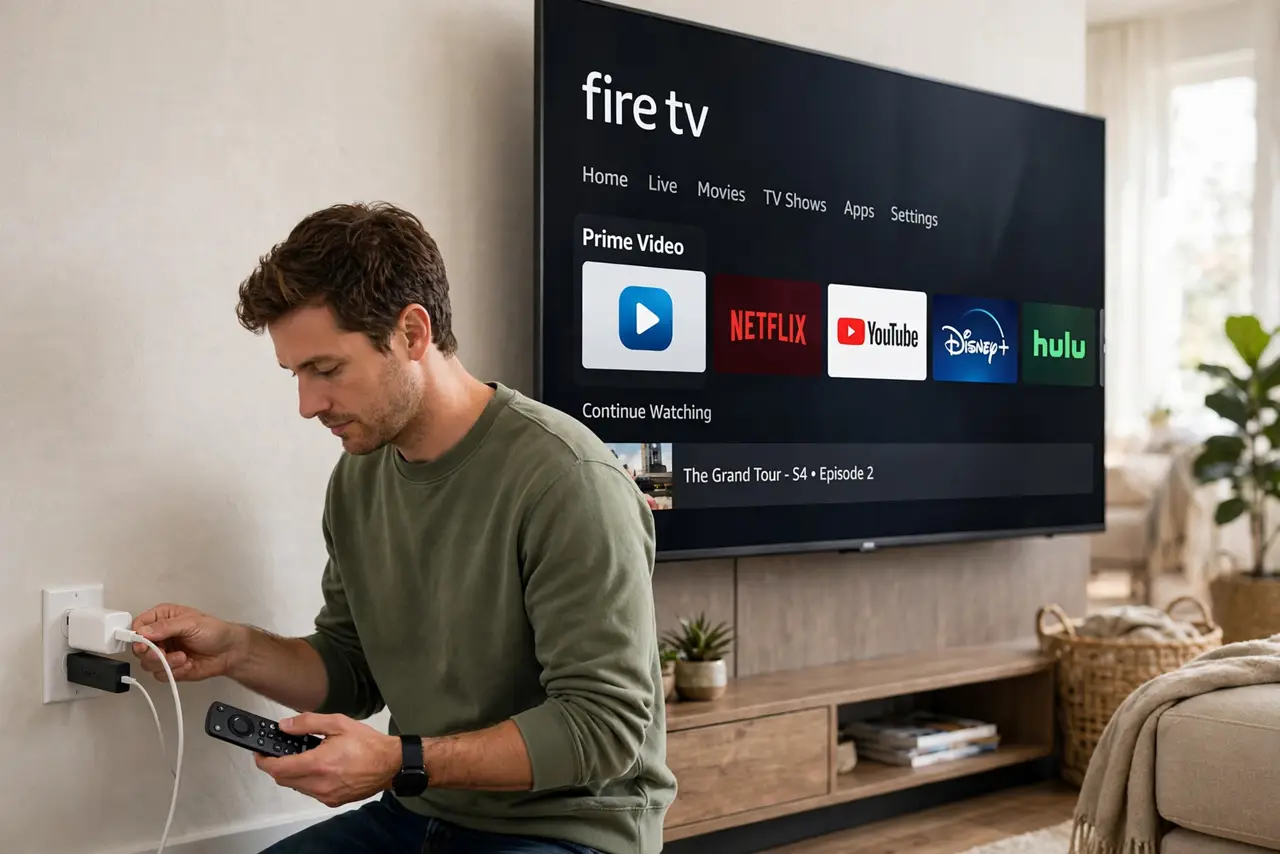
- Power it from the wall, not the TV. Use the included adapter in a wall outlet. TV USB ports rarely supply enough current, causing the random freezes and reboot loops people blame on Wi-Fi.
- Plug into HDMI and switch inputs. Insert the stick firmly (use the extender if space is tight), then switch the TV to that HDMI input. You should see the Fire TV logo within a minute.
- Pair the remote. Hold the Home button for about ten seconds near the stick. If it will not pair, fresh batteries and a stick restart fix most cases.
- Connect to Wi-Fi. Choose your network and enter the password carefully — the on-screen keyboard is where most 'wrong password' errors are born. Use the 5 GHz band if the router is nearby.
- Sign into your Amazon account. Enter your credentials or use the code shown at the Amazon sign-in page on another device. The code method avoids typing passwords with the remote.
- Install your apps and check for updates. Grab your streaming apps from the app store, then check Settings, My Fire TV, About, Check for Updates. Finish by reviewing privacy settings.
What NOT to do
- Do not power it from the TV's USB port. Underpowering causes exactly the freezes and setup loops people troubleshoot for hours.
- Do not type the Wi-Fi password hastily. The remote keyboard invites typos — a 'wrong password' is usually a wrong keystroke, not a network problem.
- Do not skip the system update. An outdated Fire OS causes app crashes that look like broken apps but are not.
- Do not ignore the privacy settings. The defaults share viewing data generously — a two-minute review after setup is worth it.
Frequently asked questions
Why does my Fire TV Stick keep restarting?
Almost always insufficient power — switch to the wall adapter. If it persists on wall power, try a different HDMI port and check for overheating.
Can I use it on hotel Wi-Fi?
Yes, through the captive portal browser in Settings, Network. Hotel logins work but may need re-authenticating daily.
Do I need Amazon Prime?
No — the stick works with any apps you install, including free ones. Prime just unlocks Amazon's own content library.