Set Up a Fitbit Tracker
Your new Fitbit counts steps on your wrist, but the app on your phone shows yesterday's numbers — or nothing at all. Sync problems are almost never a broken tracker; they come from pairing in the wrong place, missing permissions, or Bluetooth hiccups. This guide sets it up the right way so syncing just works.
TL;DR / Quick Fix
Quick fix: charge the tracker, install the Fitbit app, and pair from inside the app — not from your phone's Bluetooth settings. Keep Bluetooth and location on, stay near your phone, and open the app daily to sync. Most failures come from missing permissions or pairing in the wrong place.
Follow these steps
- Charge the tracker before anything else. A tracker that dies mid-pairing creates half-finished setups that confuse the app. Put it on the charger until it shows a healthy charge, then start.
- Install the Fitbit app from your app store. Get the official Fitbit app from the App Store or Google Play and sign in or create your account. Do not use third-party sync apps — they cause duplicate-device headaches later.
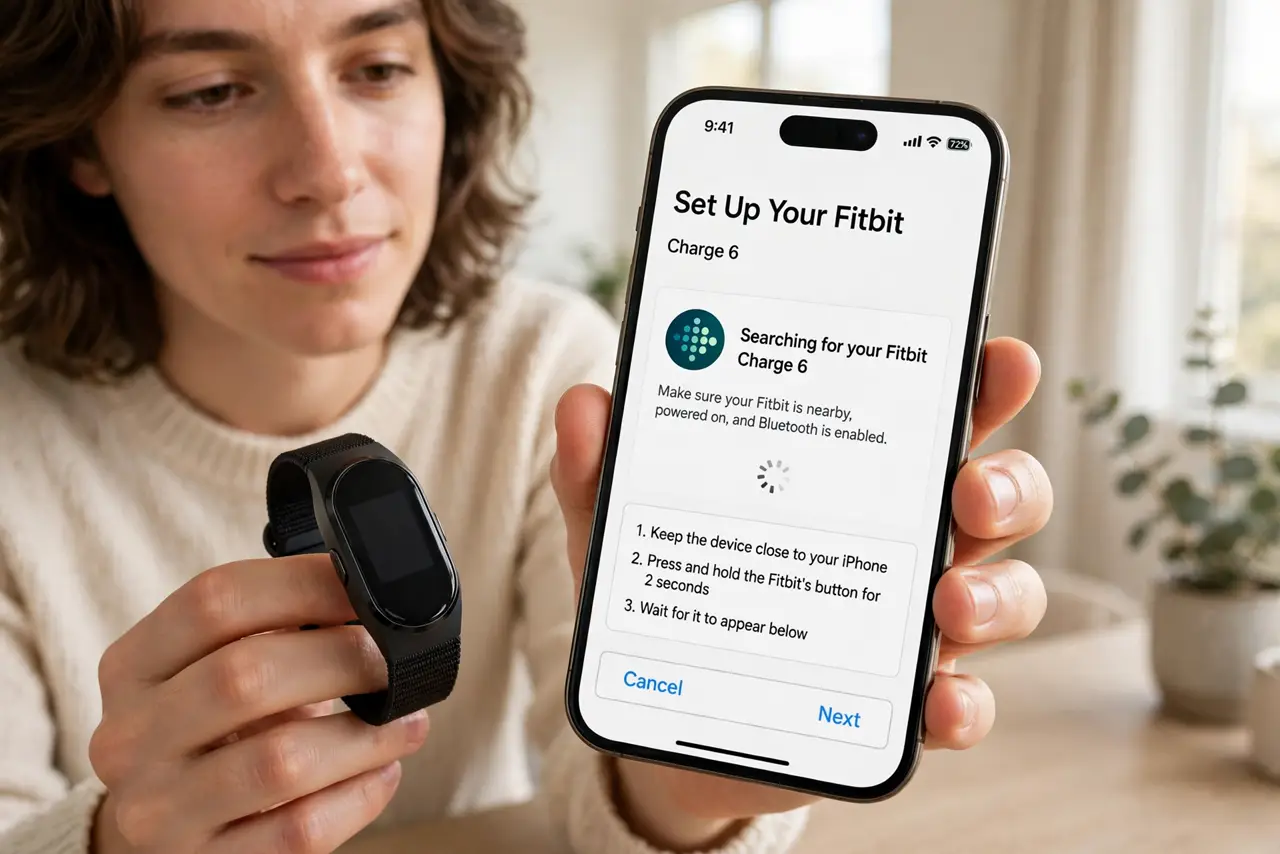
- Pair from inside the Fitbit app, not system settings. In the app, tap your profile picture, then Set Up a Device, and follow the prompts. If you paired the tracker in your phone's Bluetooth menu first, forget it there — app pairing is the only one that counts.
- Allow Bluetooth and location permissions. The app needs Bluetooth to talk to the tracker and location permission on Android for Bluetooth scanning to work. Denying either one silently breaks syncing with no error message.
- Stay close and keep the app open during first sync. For the first sync, keep the tracker within a few feet of the phone with the app open. Later syncs happen in the background as long as Bluetooth stays on.
- Open the app daily to keep data flowing. If steps stop updating, open the app and pull down to force a sync. Regular syncing also keeps the tracker's memory from filling up and dropping old data.
What NOT to do
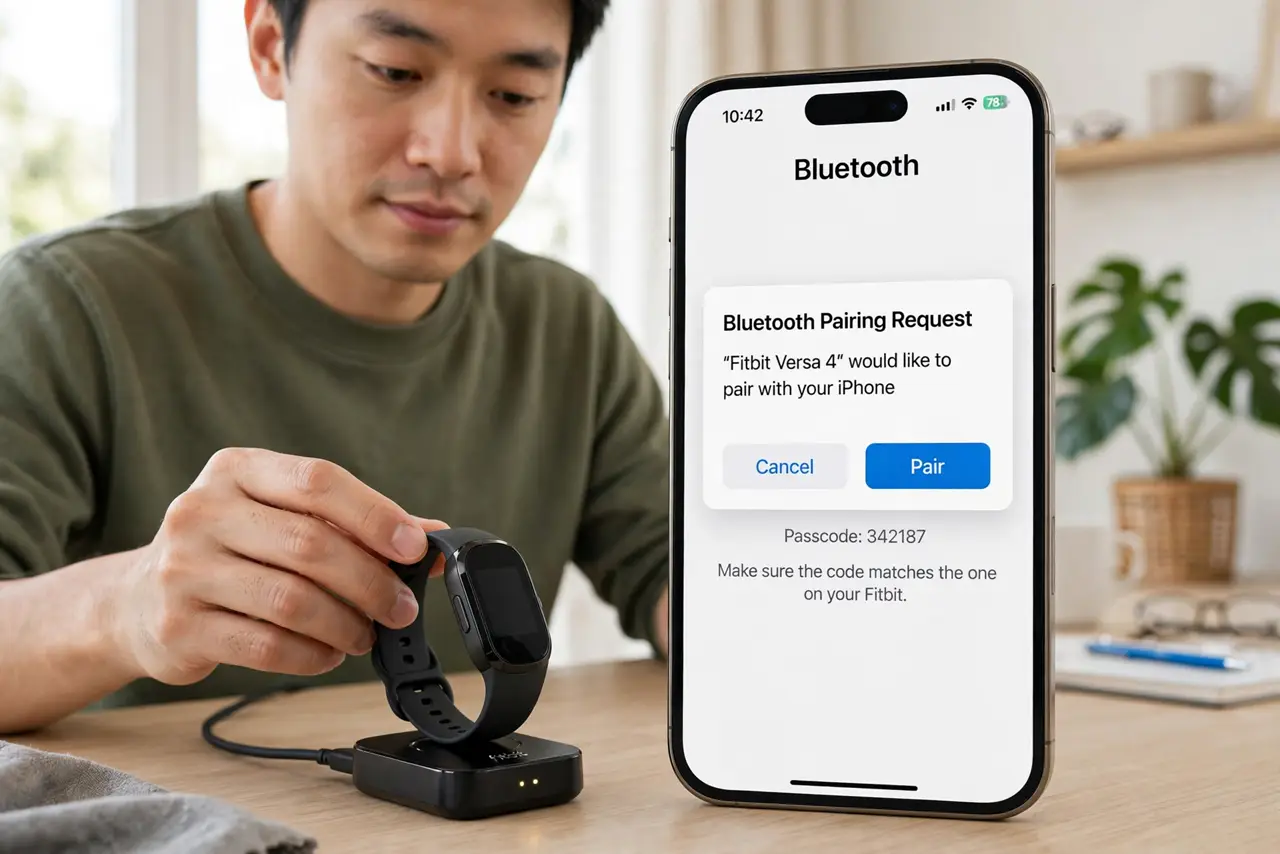
- Do not pair the tracker in your phone's Bluetooth settings. App pairing and system pairing are different things — only the in-app pairing syncs your data.
- Do not create a second Fitbit account when sync fails. A fresh account orphans the tracker and splits your history; fix the pairing instead.
- Do not factory-reset the tracker as a first step. Resetting wipes unsynced data — try re-pairing and permissions first.
- Do not turn off Bluetooth to save battery and expect syncing. The tracker needs Bluetooth on; the battery cost is tiny compared to a tracker that never syncs.
Frequently asked questions
How long does the first pairing take?
Usually two to five minutes, including a possible firmware update. If it stalls beyond ten minutes, restart both the phone and the tracker and try again.
Why did my steps stop syncing yesterday?
Most often the app lost Bluetooth permission after a phone update, or the tracker paired to system Bluetooth instead of the app. Re-check permissions first.
Does the tracker need Wi-Fi to sync?
No. Syncing uses Bluetooth between the tracker and your phone; the phone then uploads to your account over whatever connection it has.