Find My Device on Android?
Your Android phone is gone — couch cushions, taxi, or worse — and panic is setting in. Find My Device can ring it, show it on a map, lock it, or erase it remotely, all from any browser. But it only works if it was set up before you lost it. Here's the setup and the recovery playbook.
TL;DR / Quick Fix
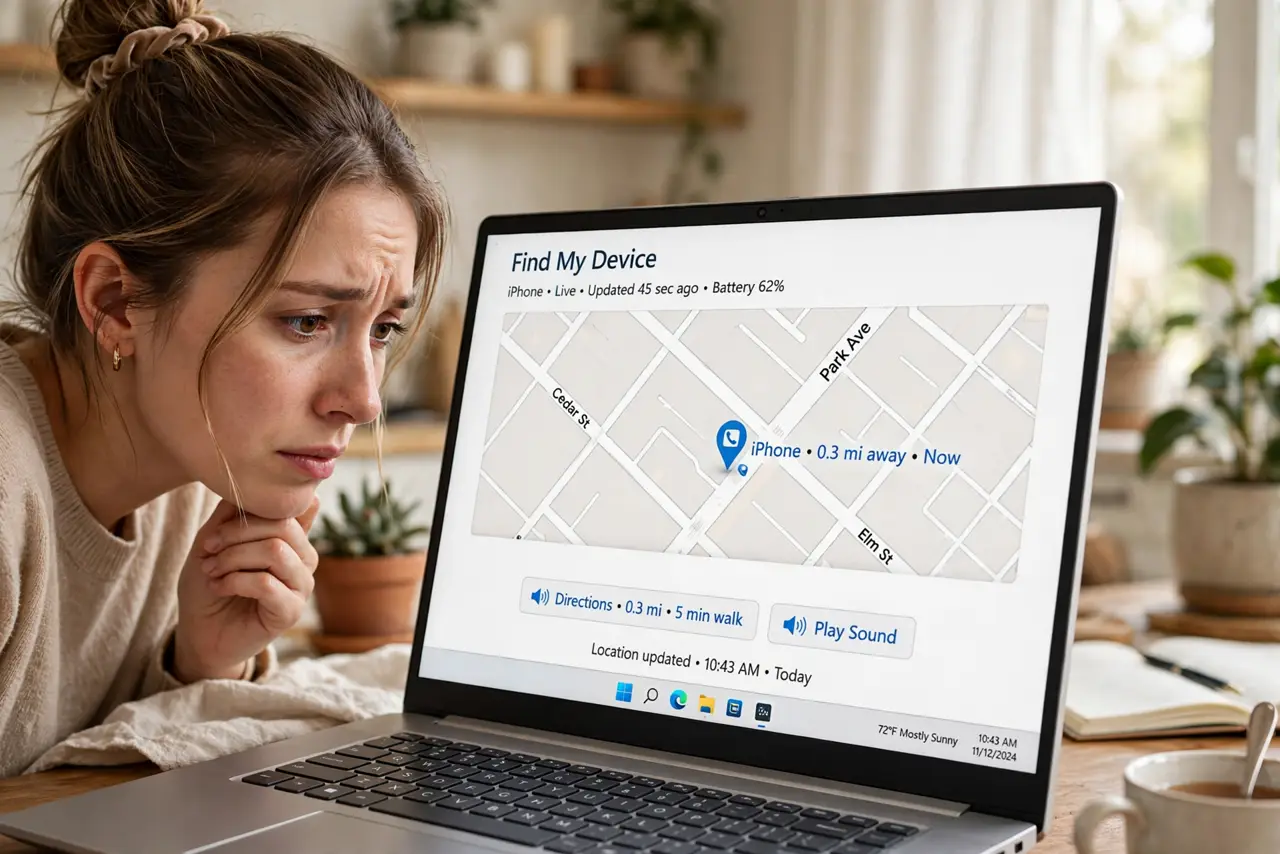
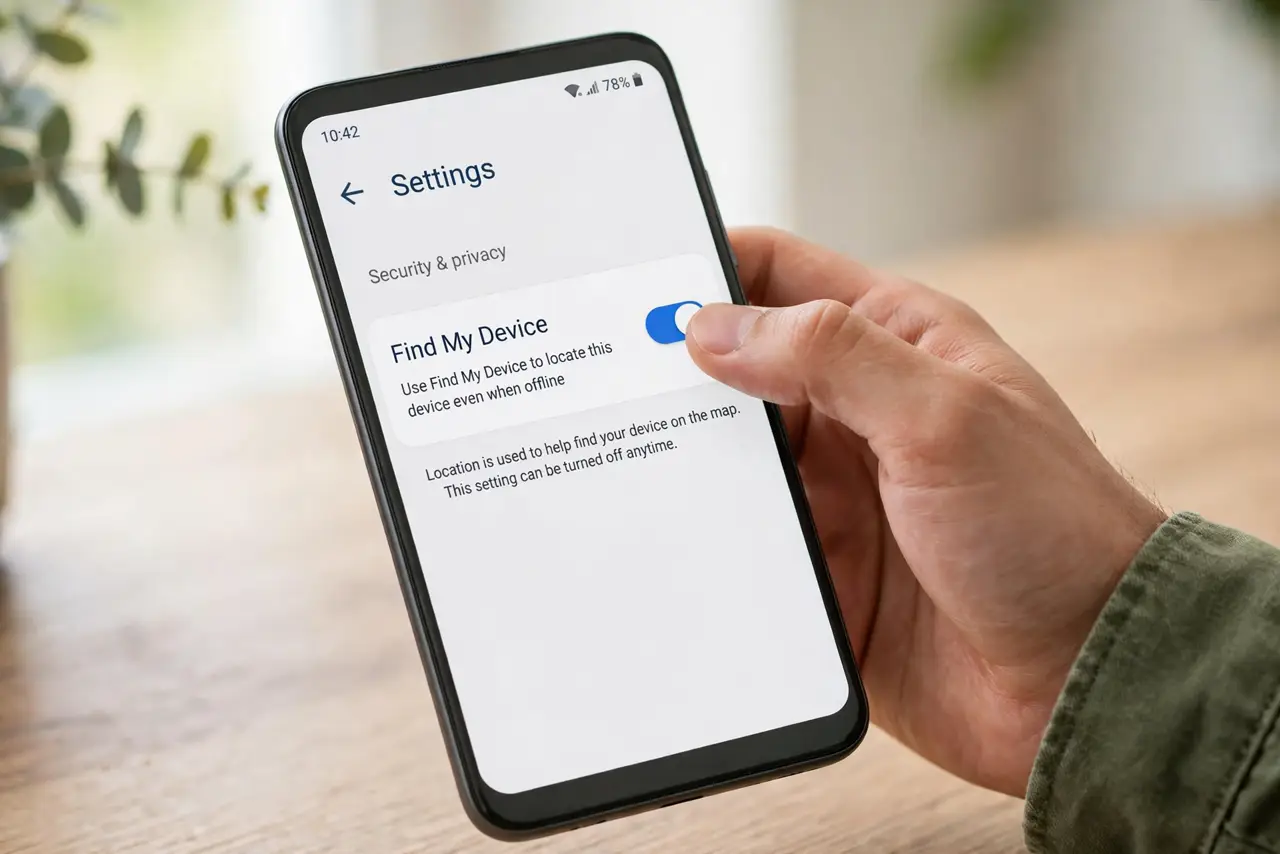
Quick fix: go to the Find My Device site in any browser and sign in — you can ring, locate, lock, or erase the phone. Set it up now: on the phone, go to Settings, Security, Find My Device, and turn it on with location enabled.
Follow these steps
- Turn it on before you need it. On the phone: Settings, Security (or Google settings), Find My Device — switch it on. Also enable Location. This is the step everyone skips until it's too late.
- Test it from a browser. Visit the Find My Device site, sign in to the same Google account, and confirm your phone appears. Testing now means no fumbling during a real panic.
- Ring it first when lost. If it's nearby — couch, car, jacket — hit Play Sound. It rings at full volume for five minutes even on silent, which finds most lost phones in seconds.
- Locate it on the map. The map shows the last known location with a timestamp. Fresh location means it's on and connected; an old timestamp means it's off or offline — see stale location issues for what that means.
- Lock it remotely if it's truly gone. Use the secure-device option to lock it with your PIN and show a message with a callback number on the lock screen. Do this the moment you believe it's stolen, not later.
- Erase as the last resort. Factory reset remotely wipes your data if recovery looks hopeless. Note: erasing also removes Find My Device tracking — and if you lose 2FA access, act on that separately and fast.
What NOT to do
- Do not confront a thief at the shown location. A map pin is for police reports, not heroics — hand the location to authorities.
- Do not erase immediately if there's any chance it's nearby. Erasing kills tracking — ring and locate first, erase only when recovery is truly hopeless.
- Do not assume it works with location off. Find My Device needs location services and internet — a phone in airplane mode can't be found until it reconnects.
- Do not skip the lock screen PIN. Find My Device's remote lock is far weaker if the phone had no PIN — set one now, before anything happens.
Frequently asked questions
Can I find it if it's turned off?
You'll see the last location before it powered down, but no live tracking. Some newer phones report location briefly after shutdown — check if your model supports offline finding.
Does it work without a Google account?
No — Find My Device is tied to your Google account sign-in. No account, no tracking. This is another reason to stay signed in on your own phone.
Someone found my phone — how do they reach me?
Use the secure-device option to display a message and callback number on the lock screen. A finder can reach you without unlocking anything.