Pair a Garmin Watch
Your new Garmin watch is charged and ready, but your phone can't find it — or pairing starts and dies halfway. Garmin pairing fails for the same boring reasons as every Bluetooth gadget: wrong pairing location, missing permissions, or a watch still bonded to an old phone. This guide gets the handshake right.
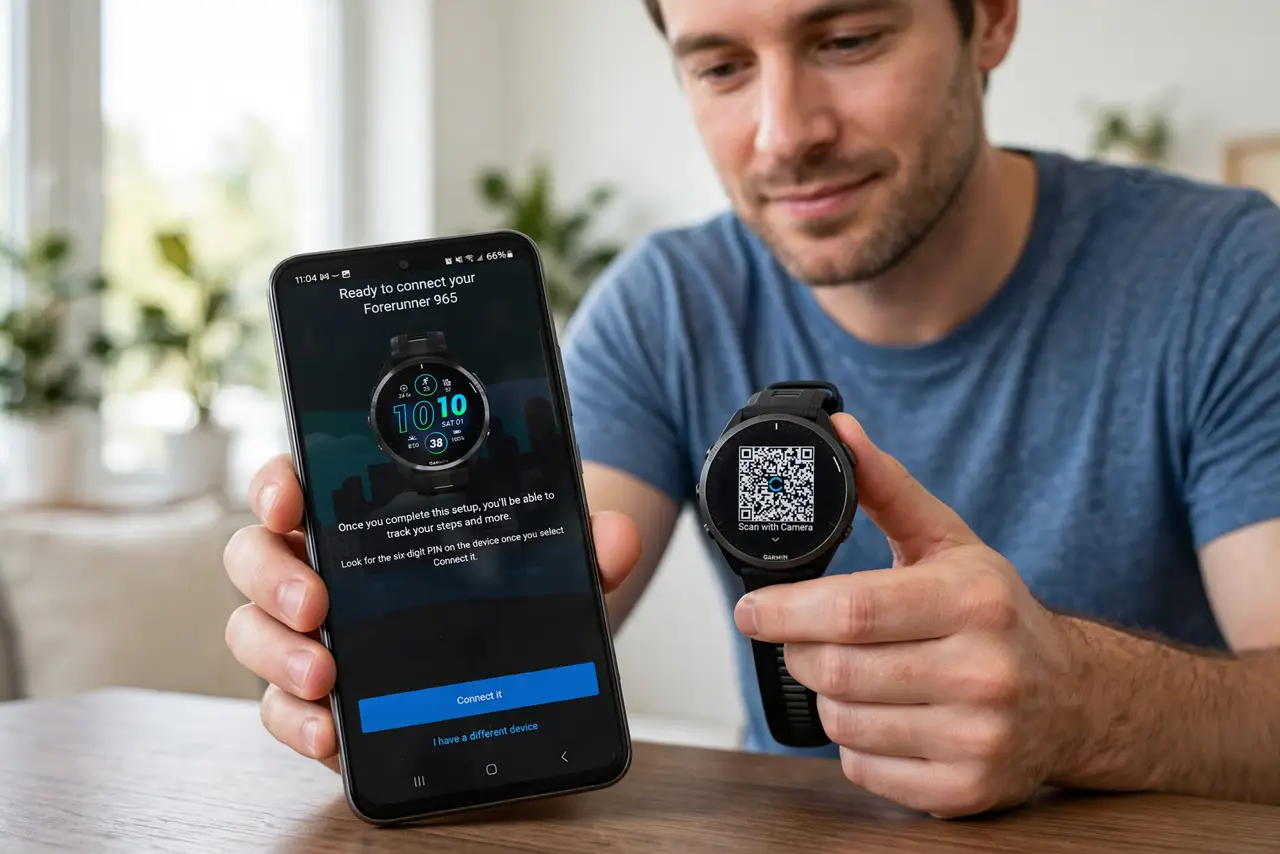
TL;DR / Quick Fix
Quick fix: charge the watch, install the Garmin Connect app, and pair from inside the app with Bluetooth on — not from the phone's Bluetooth settings. Grant location and notification permissions when asked, then sync and install any updates. Keep the watch close to the phone during pairing.
Follow these steps
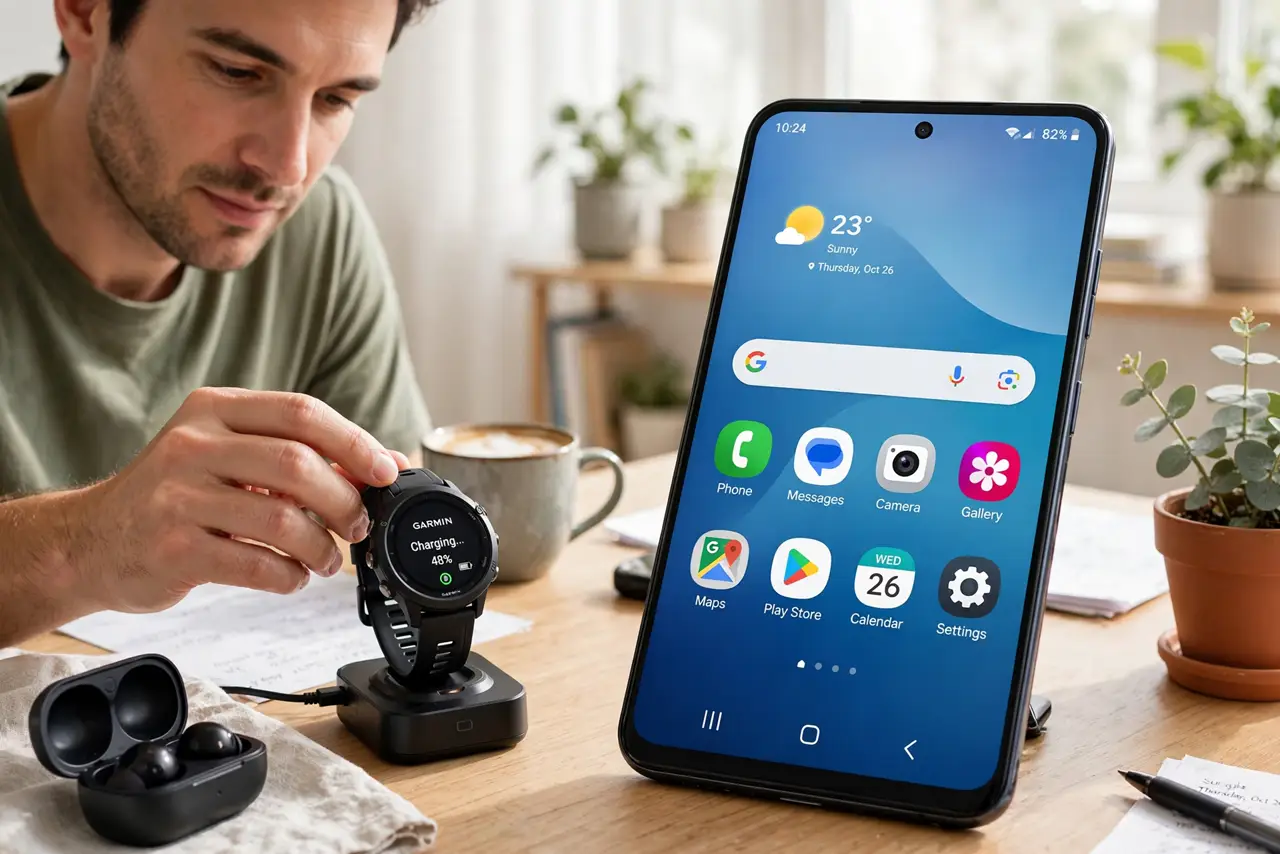
- Charge the watch first. Low battery during pairing causes dropouts that look like Bluetooth failures. Charge to a healthy level before you begin.
- Install the Garmin Connect app. Get the official Garmin Connect app from your app store and sign in. This is the only app that should handle pairing — not your phone's Bluetooth menu.
- Pair from inside the app. In Garmin Connect, add the device and follow the prompts with the watch nearby. If the watch was paired in system Bluetooth settings, forget it there first — system pairing blocks app pairing.
- Grant location, Bluetooth, and notification permissions. Android needs location permission for Bluetooth scanning; both platforms need notifications allowed for smart alerts. Denying these quietly breaks half the features.
- Keep the watch close during pairing. Stay within a few feet with a clear path. Walls and distance during the handshake are a common cause of 'pairing failed' loops.
- Sync and install updates after pairing. Once paired, let the app sync and install any firmware updates. Updates often fix the exact pairing quirks people complain about.
What NOT to do
- Do not pair the watch in your phone's Bluetooth settings. App pairing is the real pairing — system pairing just gets in the way.
- Do not skip the permission prompts. A Garmin without location and notification permissions is a watch that never syncs and never buzzes.
- Do not try to pair while the watch is still connected to an old phone. Unpair or forget it on the old device first, or the new phone fights for the connection.
- Do not factory-reset the watch as a first step. Resetting wipes unsynced workouts — re-pair and check permissions first.
Frequently asked questions
My phone can't find the watch at all — now what?
Restart both devices, confirm Bluetooth is on, and make sure the watch isn't still paired to another phone. Then pair from inside Garmin Connect.
Can I pair the watch with a new phone?
Yes — unpair it from the old phone's app first, then pair fresh on the new one. Your data lives in your Garmin account, not the phone.
Why did pairing work but notifications don't arrive?
Notification permission was likely denied. Allow it in your phone's settings for Garmin Connect, and check Do Not Disturb isn't silencing everything.