Delete All Promotions at Once
Thousands of promo emails eat your storage and bury the mail that matters. Gmail's Promotions tab collects most of them in one place, which means you can select and delete them in bulk instead of one by one. This guide shows the bulk delete, and the smarter move that stops them coming.
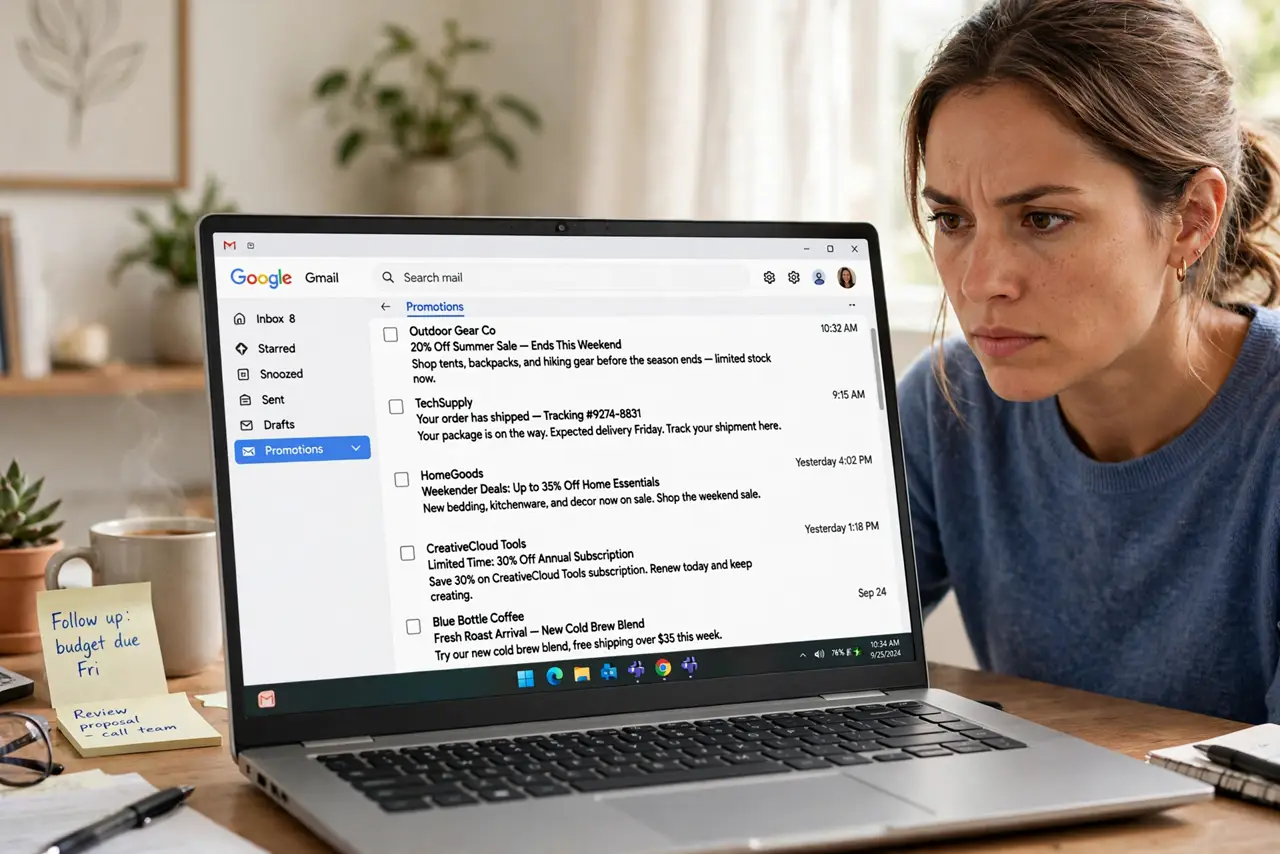
TL;DR / Quick Fix
Quick fix: open the Promotions tab, tick the select-all box, and if Gmail offers it, choose Select all conversations to grab thousands at once, then delete. Empty the trash afterward to free storage. To stop the flood instead of just deleting it, unsubscribe or block senders you never read.
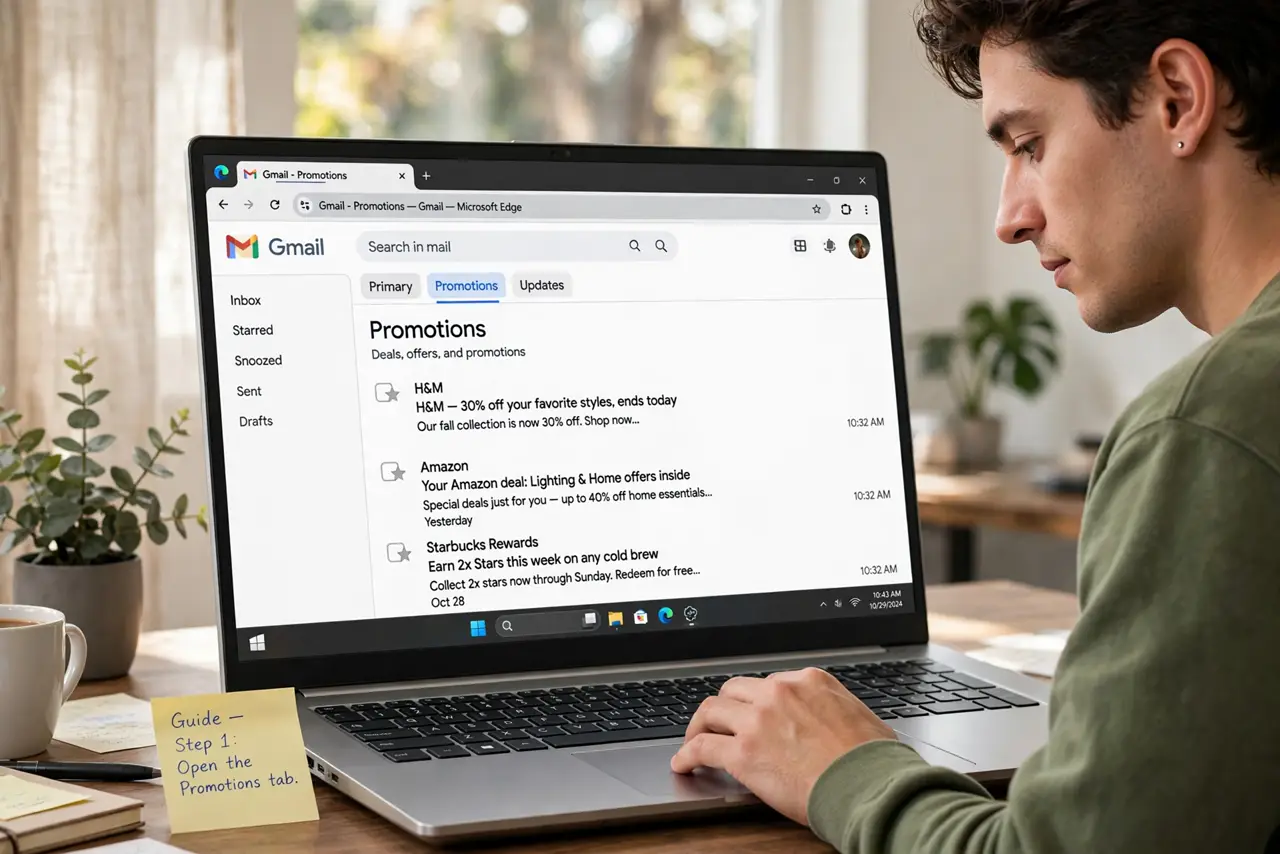
Follow these steps
- Open the Promotions tab. Click Promotions at the top of the inbox. If you do not see tabs, enable them in Settings under Inbox first.
- Select everything on screen. Tick the master checkbox at the top of the list. Gmail selects every promo on the current page.
- Select ALL conversations. Look for the banner offering to select all conversations in Promotions and click it — this grabs thousands, not just the fifty on screen.
- Delete in one click. Press Delete. Everything moves to trash, where it sits for 30 days before auto-deleting — recoverable if you grabbed something by mistake.
- Empty trash to free space now. Open Trash and choose Empty Trash now. Until you do, deleted mail still counts against your storage — see managing storage.
- Stop the flood with filters. Bulk deleting treats the symptom. Create a filter that skips the inbox and archives promos automatically, or unsubscribe from the worst offenders.
What NOT to do
- Do not delete without checking the select-all banner. Deleting only the visible page leaves thousands behind.
- Do not forget some promos hold receipts. Search for order or receipt first if you track purchases by email.
- Do not use Delete for newsletters you actually read sometimes. Archive them instead so they stay searchable.
- Do not empty trash immediately if you bulk-selected hastily. Give yourself a day to spot mistakes.
Frequently asked questions
Will deleting promos free my storage?
Yes — after you empty trash. Deleted mail counts toward storage until the trash is emptied or the 30-day auto-delete kicks in.
Can I automatically delete old promos?
Yes. A filter matching the Promotions category can delete or auto-archive incoming mail. Review the filter first so it never catches real mail.
What is the difference between delete and archive?
Delete sends mail to trash for 30 days; archive removes it from the inbox but keeps it forever and searchable — the archive vs delete distinction matters for receipts.