A More Compact Gmail View
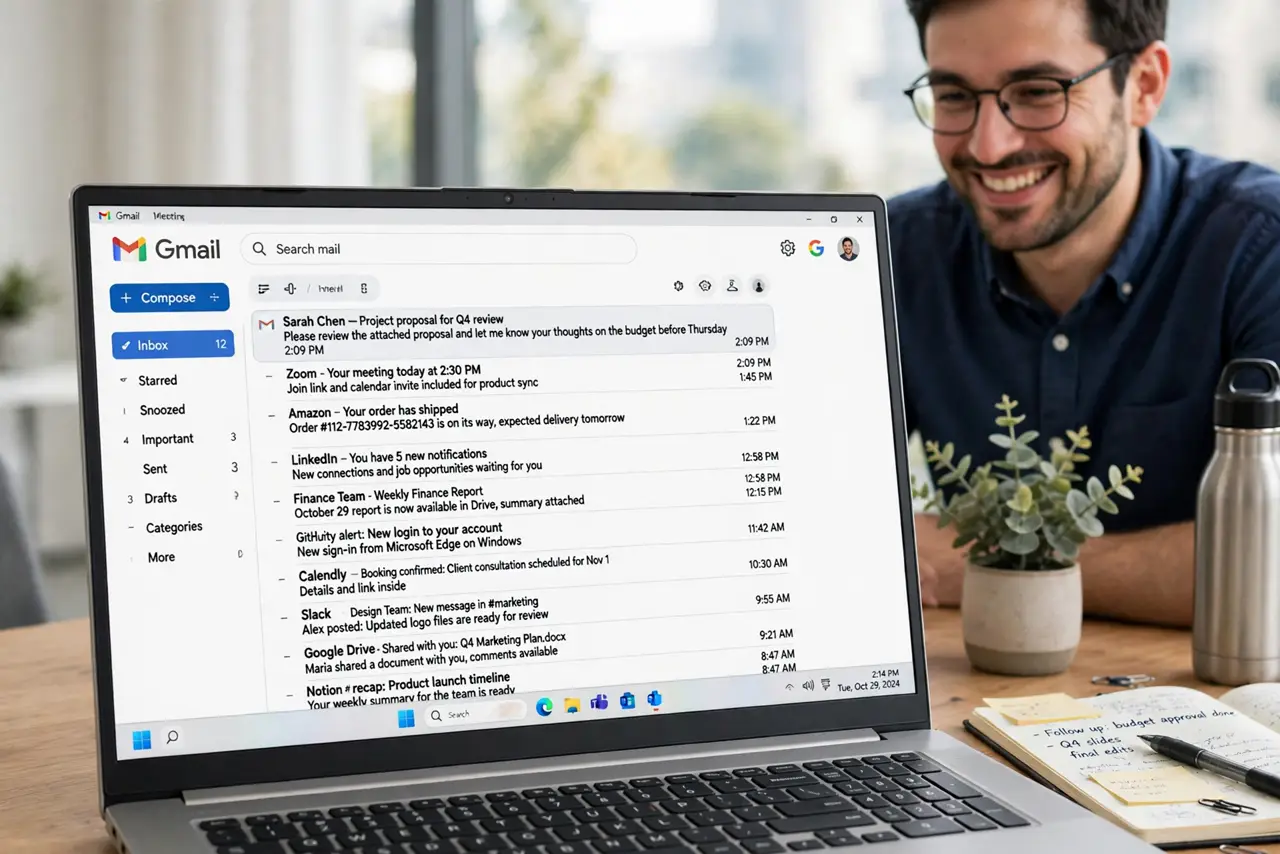
Your inbox shows twelve emails per screen and scrolling feels endless — but Gmail lets you shrink the row spacing with one setting. Display density controls how much air each email row gets: Default, Comfortable, or Compact. Compact fits dramatically more on screen without shrinking the text itself.
TL;DR / Quick Fix
Quick fix: click the gear icon, choose Display density, and pick Compact — row spacing shrinks and far more emails fit on screen. Comfortable is the middle ground; Default wastes space. The setting is per-browser, so set it once on each computer you use.
Follow these steps
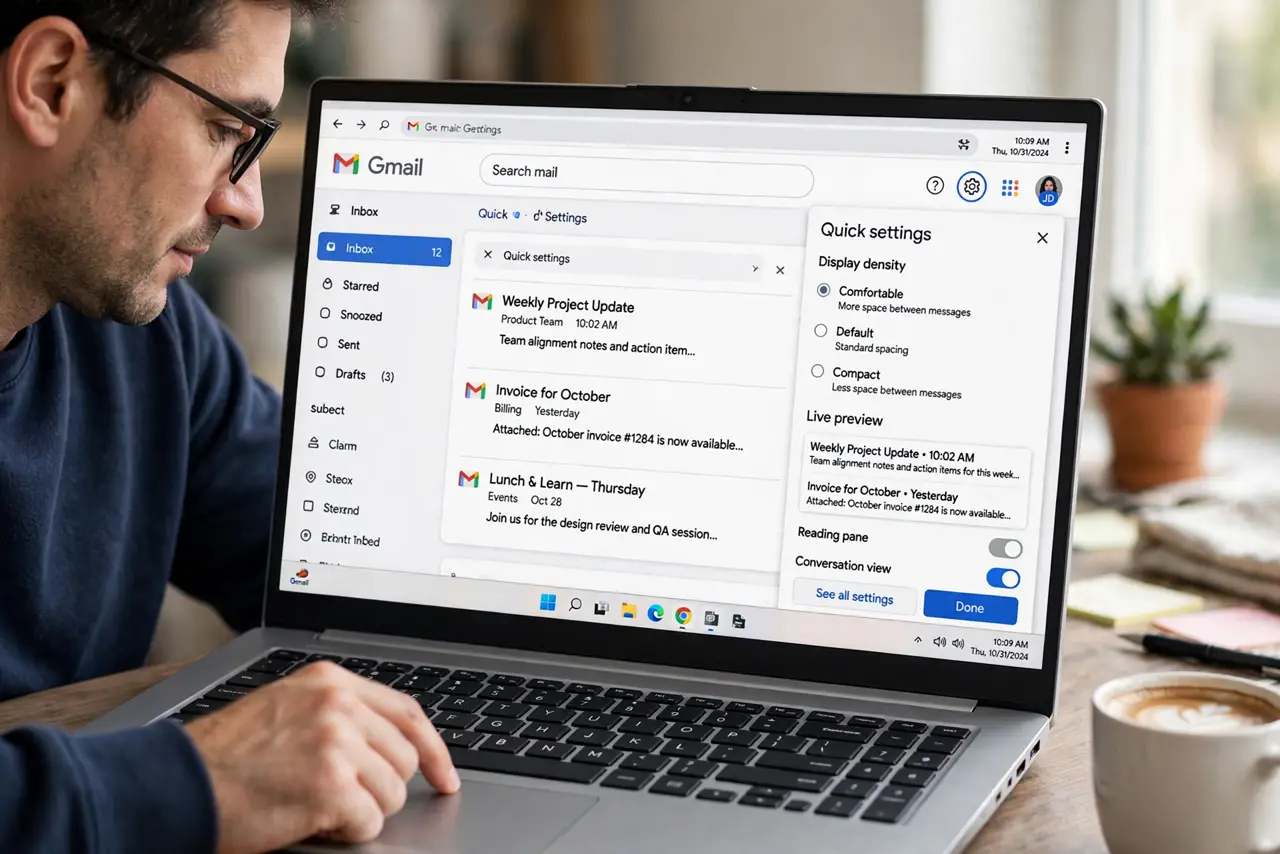
- Open the quick settings panel. Click the gear icon — no need for 'See all settings.' Display density sits right in the quick panel with three choices and a live preview.
- Pick Compact. Select Compact and watch the list tighten instantly. Text size stays the same — only the padding shrinks — so readability survives while capacity jumps.
- Compare with Comfortable. Comfortable is the middle ground: roomier than Compact, denser than Default. If Compact feels cramped on your screen, Comfortable is the honest compromise.
- Set it per browser. Density is stored per browser, not per account. Set Compact on your work computer's browser and your home one separately — it won't sync between them.
- Pair with the Preview Pane. Compact list plus Preview Pane is the maximum-information layout: many rows to scan, full message beside them. The two settings were made for each other.
- Revert anytime. Back to the gear icon, pick Default or Comfortable. It's instant and affects nothing but spacing — zero risk in experimenting.
What NOT to do
- Do not pick Compact on a tiny screen and squint. Density should match the display — Compact shines on 15 inches and up; small screens suit Comfortable.
- Do not expect it on mobile. The Gmail app manages its own spacing — density is a web-interface setting only.
- Do not confuse density with zoom. Browser zoom shrinks everything including text; density only trims row padding — they're independent controls.
- Do not forget the Multiple Inboxes panes. Panes have their own conversation counts — density and pane counts combine to set total visible mail.
Frequently asked questions
Will compact mode hurt readability?
For most people, no — the text size is unchanged, only whitespace shrinks. If your eyes tire, Comfortable keeps most of the gain with more air.
Why did my density change by itself?
It's per-browser: a new browser, cleared cookies, or a different computer resets it. Re-pick Compact wherever you land.
Does density affect printing?
No — print layouts use their own formatting. Density only changes the on-screen list.