Gmail Filters vs Labels? Use Both Right
Gmail has filters and labels, and beginners mix them up constantly. Labels are the folders-that-aren't-folders; filters are the robots that sort mail automatically. Used together, they run your inbox while you sleep — used confused, they hide your email.
TL;DR / Quick Fix
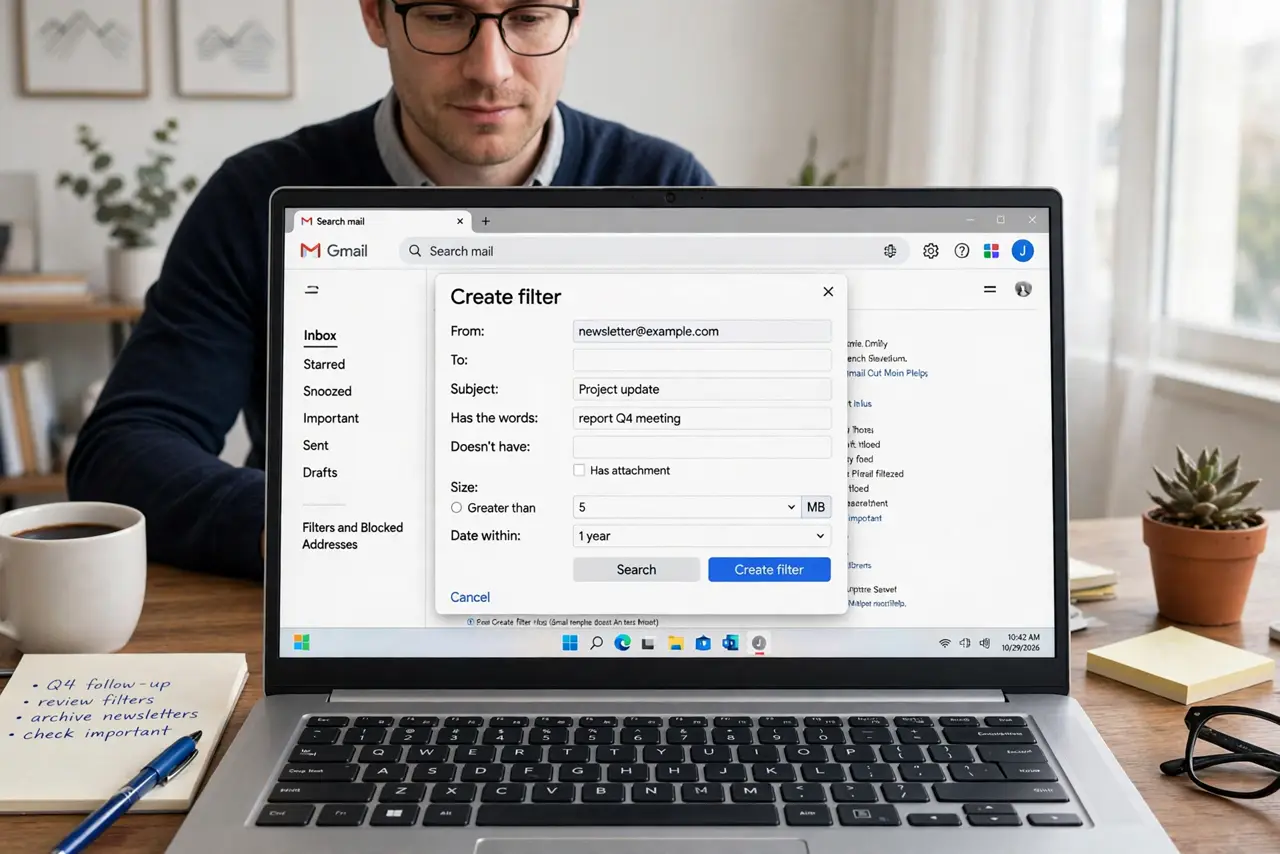
Quick fix: create labels for your categories first — Work, Receipts, Family — then build one filter per sender or subject that applies the right label and skips the inbox. Learn to [[search precisely|gmail-search-find-any-email]] first so your filter rules match the right mail.
Follow these steps
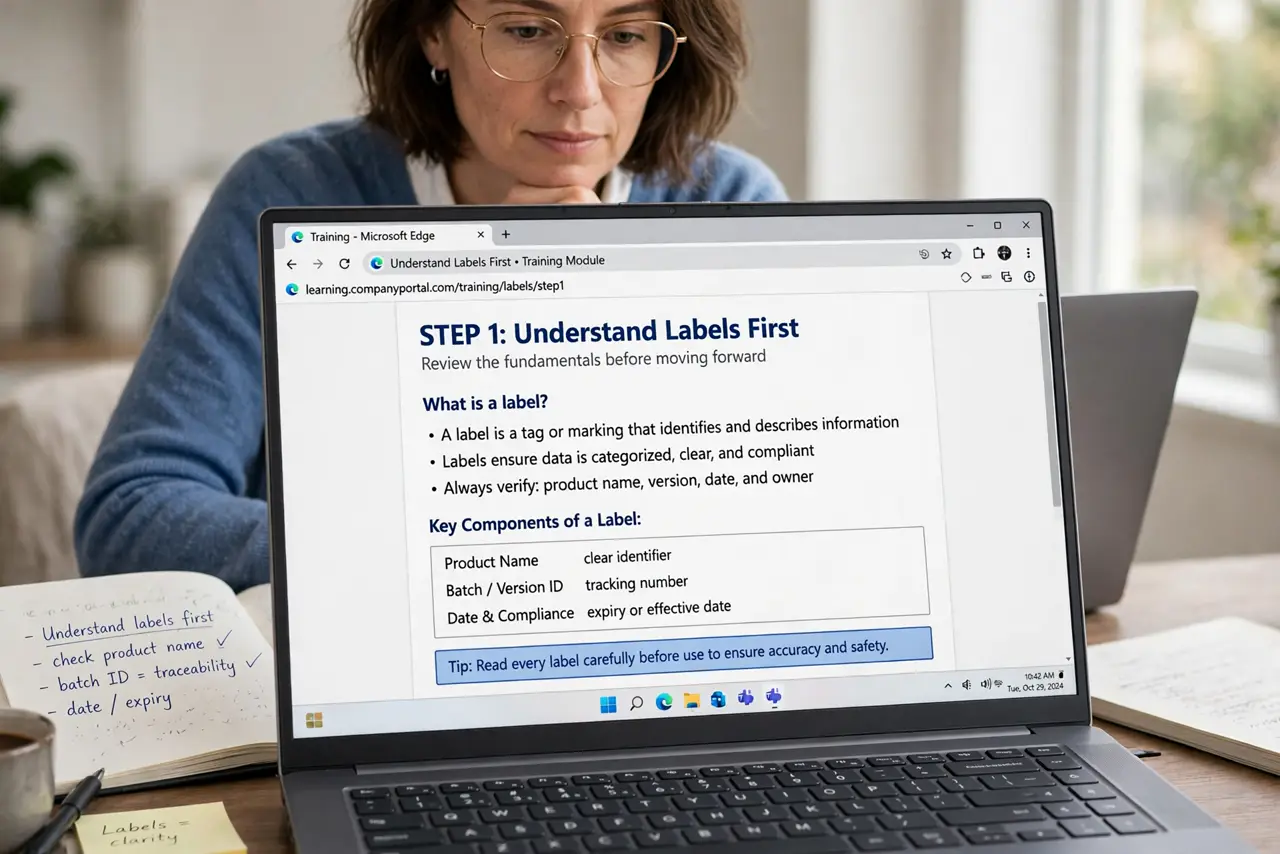
- Understand labels first. A label is like a tag — one email can wear several. Create them under Settings or the left sidebar before automating anything.
- Understand filters second. A filter watches incoming mail and acts: apply a label, skip the inbox, delete, forward. Filters are the automation; labels are the destination.
- Build your first filter from a real email. Open a representative email, click the three dots, choose 'Filter messages like these'. Gmail pre-fills the rule from that email — adjust, then continue.
- Pair each filter with a label. In the filter actions, check 'Apply the label' and pick yours, plus 'Skip the Inbox' if you want it filed silently. This is the classic tidy-inbox recipe.
- Test before trusting. After creating a filter, use 'also apply to matching conversations' carefully, then verify a few days of mail landed where expected.
- Review filters twice a year. Stale filters misfile mail from senders who changed addresses. A quick audit keeps the robots honest — and finds lost mail fast.
What NOT to do
- Do not create overlapping filters blindly. Two filters acting on the same email can label, archive, and delete in confusing combinations — keep rules distinct.
- Do not auto-delete with a new filter. Start new filters with labeling only; add deletion after weeks of watching them behave.
- Do not use filters as a spam solution. Real spam belongs to the spam filter — your filters are for organizing wanted mail, not fighting junk.
- Do not nest labels ten deep. Deep label trees feel organized but slow you down; three levels is plenty for a human brain.
Frequently asked questions
What's the difference between a label and a folder?
An email can have many labels but lives in one folder-like place. Labels are tags — more flexible than folders, slightly different to think about.
Can a filter apply two labels?
Yes. One filter can apply multiple labels, star the message, and skip the inbox all at once.
Why did my filter stop working?
The sender's address or subject changed, or you edited the label name. Open the filter and check its criteria against a recent email.