Import Old Email Into Gmail
You are switching to Gmail for good and want a decade of old email to come along — not just new mail going forward. A one-time import pulls your old mailbox's history into Gmail, labeled and searchable, while ongoing fetching keeps new mail flowing. Do the import first, then decide the old account's fate.
TL;DR / Quick Fix
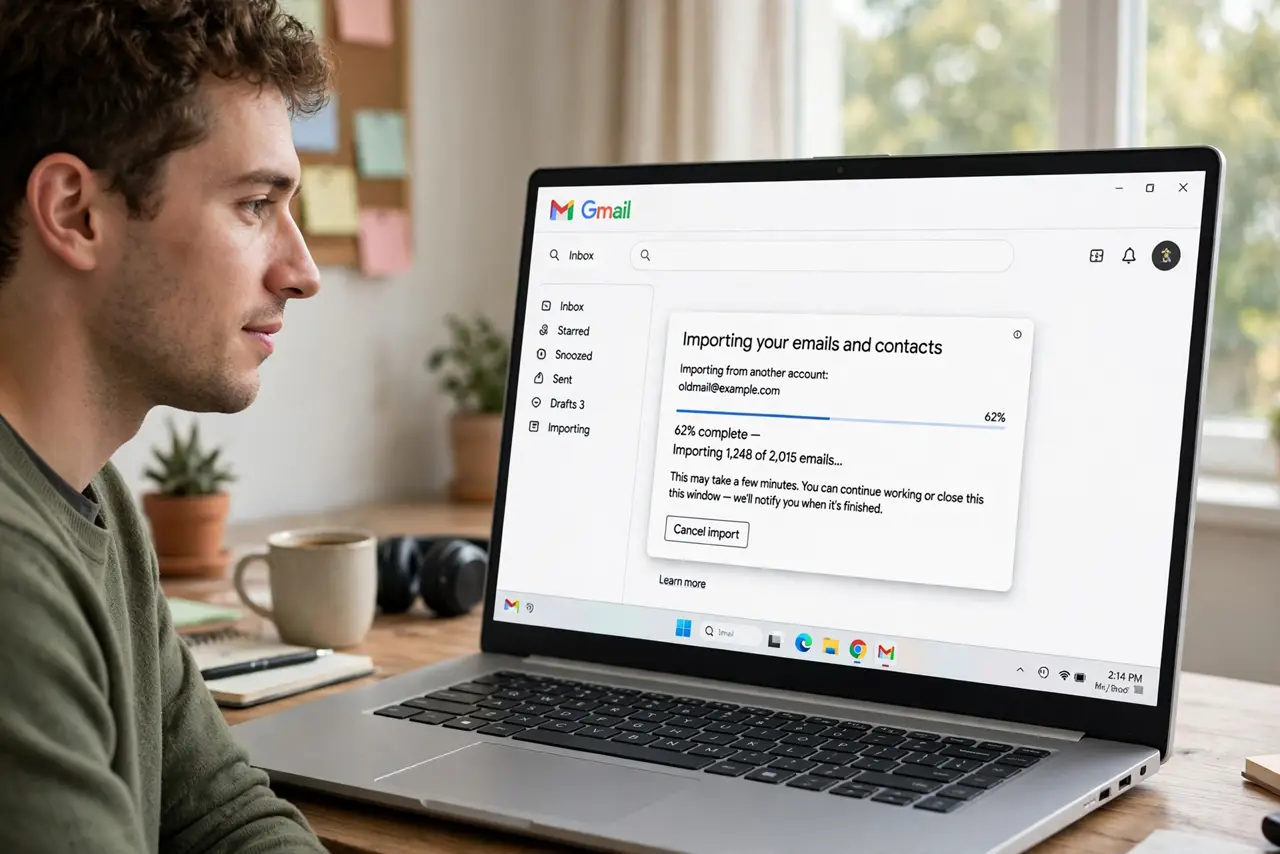
Quick fix: in Gmail settings under Accounts, use the import option for your old provider — Gmail copies your old mail and contacts in the background over a day or two. Keep the old account open during the import, label the imported mail, and verify everything arrived before closing anything.
Follow these steps
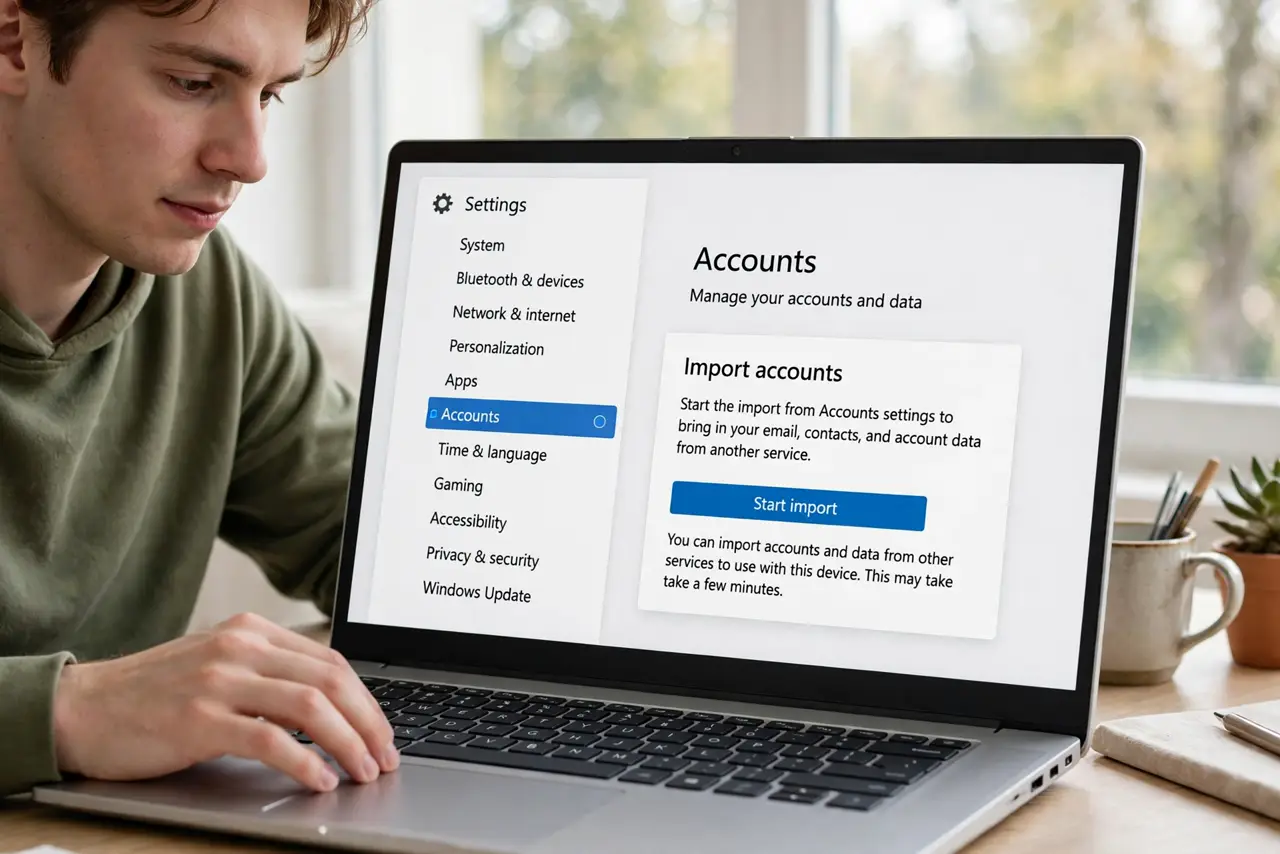
- Start the import from Accounts settings. Gear icon, See all settings, Accounts and Import — the import mail and contacts option handles Yahoo, Outlook, and others in one flow.
- Authorize the old account. Sign into the old provider when prompted and grant Gmail access. The import needs this handshake to read your old mailbox.
- Let it run — it takes a while. Large mailboxes import over hours or days in the background. You can use Gmail normally; the old mail appears progressively.
- Label the imported mail. Apply a label like 'Imported-Old' during setup. Ten years of history landing unlabeled in your inbox is chaos — the label keeps it contained.
- Verify before closing the old account. Spot-check important folders and search for a few old receipts. Only when you are satisfied, consider what to do with the old account.
- Set up ongoing fetching if needed. Import is one-time history; checking other accounts keeps new mail flowing. Use both during the transition.
What NOT to do
- Do not close the old account mid-import. Killing the source halfway leaves a half-copied mailbox and no clean way to resume.
- Do not import without a label. Unlabeled history mixes with current mail permanently — the label is your only clean separator.
- Do not panic when old mail appears slowly. Background imports trickle in over days; the progress is working even when it looks stalled.
- Do not forget contacts. The import flow usually offers contacts too — take it, so old addresses come along with the mail.
Frequently asked questions
How long does a Gmail import take?
Hours for small mailboxes, up to a few days for very large ones. It runs in the background — you do not need to watch it.
Will importing duplicate my mail?
If you also set up fetching, Gmail is smart about avoiding duplicates in most flows — but check for doubles afterward and delete the extras.
Can I import from any provider?
Gmail's built-in flow covers the big ones directly. For others, standard POP3 fetching in the same settings section does the job.