Mobile Signatures
Every email you send from your phone ends with Sent from my iPhone — or worse, no signature at all while your desktop emails look professional. The Gmail mobile app has its own signature setting, separate from the desktop one, and it takes a minute to fix. Here is how to make mobile emails look intentional.
TL;DR / Quick Fix
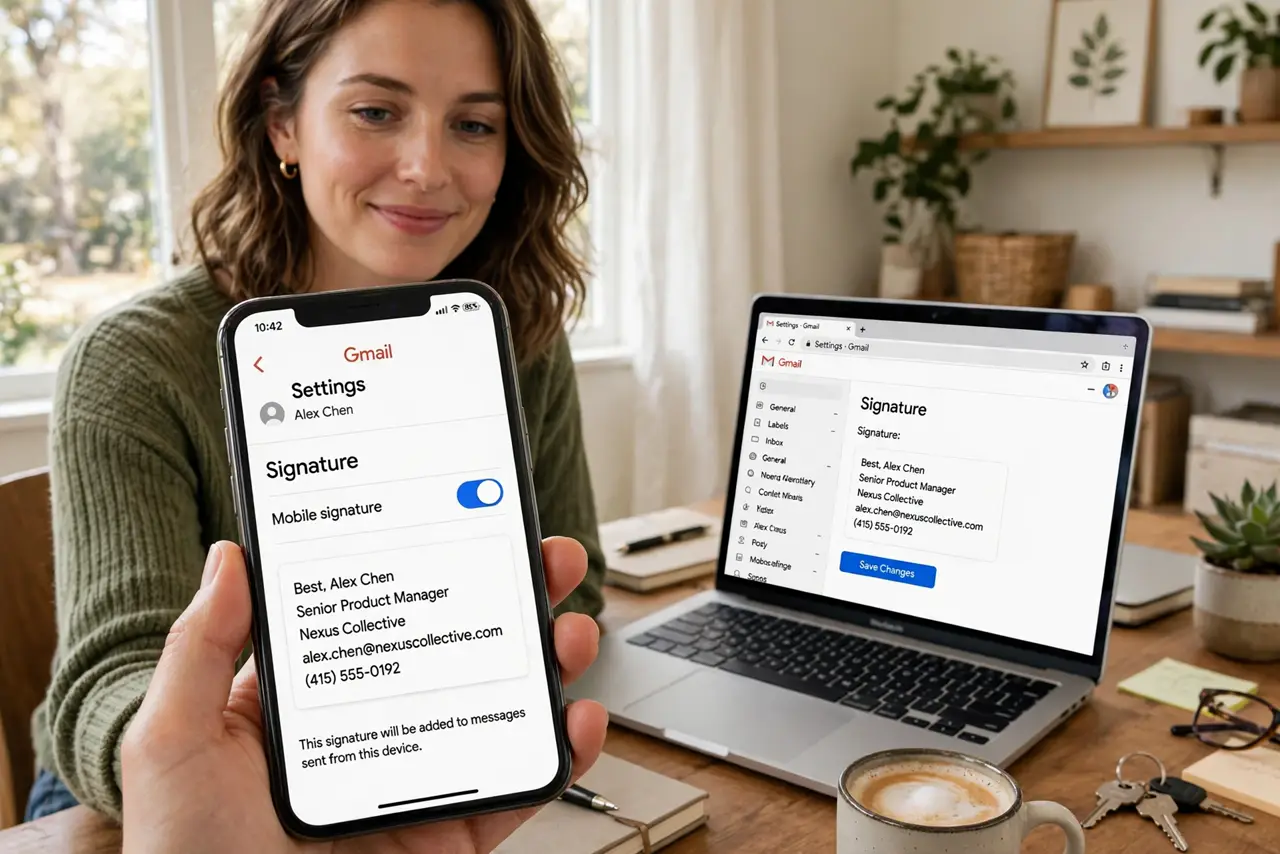
Quick fix: in the Gmail app, open Settings, choose your account, and edit the signature — delete the Sent from my iPhone line and write your own. The mobile signature is per device, so set it on each phone and tablet you use.
Follow these steps
- Open the Gmail app settings. Tap the menu, scroll to Settings, and choose your account. The signature option lives per-account — set it for each address you send from.
- Turn on the mobile signature. Enable the signature toggle if it is off. The default text is the generic Sent from my iPhone line — or nothing at all.
- Write a real signature. Replace the default with your name and whatever belongs — title, phone, company. Keep it short; mobile signatures should be two to four lines. See how signature images behave if you want a logo.
- Check it on replies too. Decide whether the signature appears on replies and forwards. Full signatures on every reply bloat threads — many people use a shorter reply signature.
- Match the desktop tone. Your mobile and desktop signatures should look like they come from the same person. Copy the wording, minus any broken image issues the phone version might introduce.
- Repeat on each device. The mobile signature is per device, not per account. Set it on your phone and your tablet separately — they do not sync.
What NOT to do
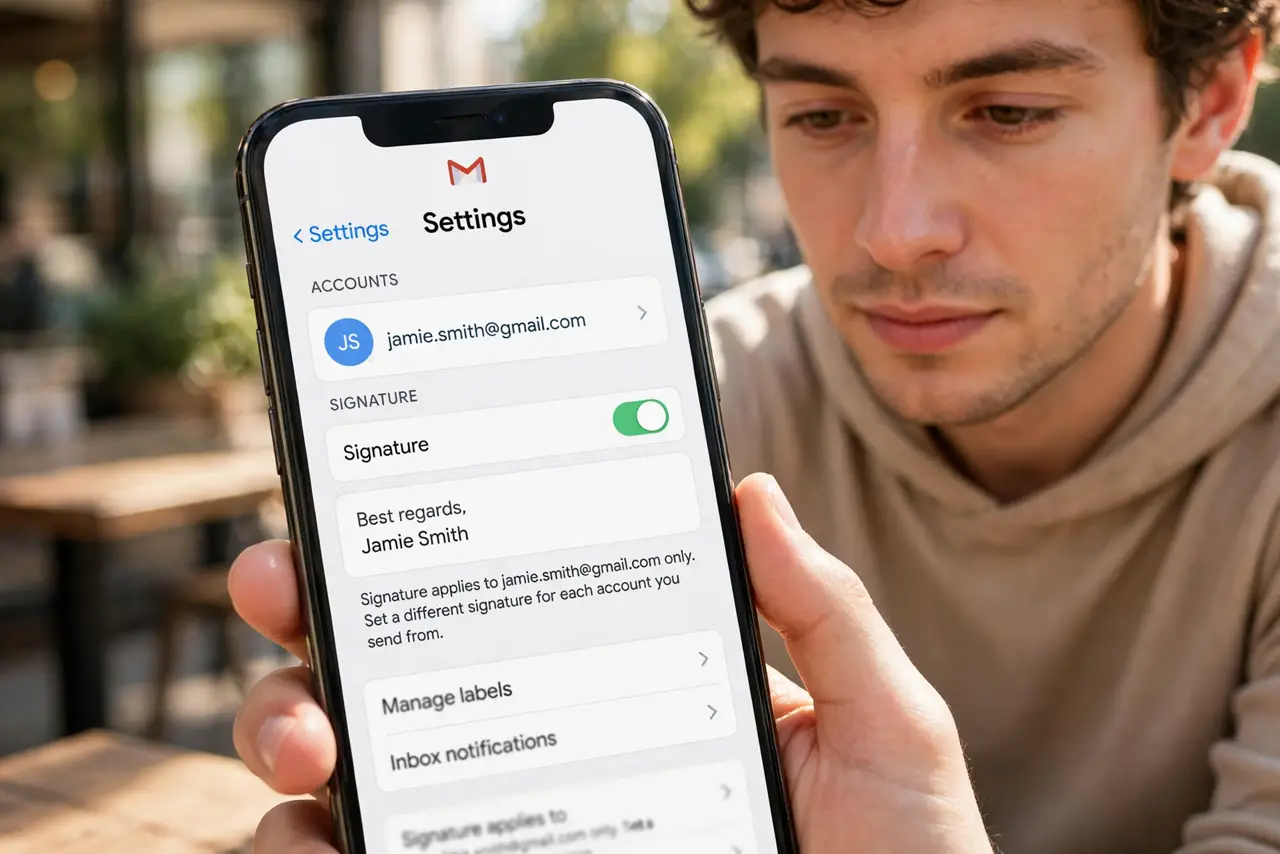
- Do not leave the default Sent from my iPhone line on work email. It looks careless — a real signature takes a minute.
- Do not paste a giant desktop signature into mobile. Long disclaimers and big images bloat phone emails — keep mobile short.
- Do not expect it to sync between devices. Phone, tablet, and desktop each need their own setup — check all three.
- Do not include sensitive info. Phone numbers and addresses in signatures get forwarded everywhere — include only what you would print on a card.
Frequently asked questions
Why does my phone signature differ from desktop?
They are separate settings — mobile signatures live in the app, desktop ones in Gmail's web settings. Set both.
Can I use different signatures per account?
Yes — the setting is per account in the app. Work and personal addresses can each have their own.
Will it appear on replies?
Only if you enable it for replies. Most people keep replies short or signature-free to avoid thread bloat.