Print an Email Cleanly? How To
You need a paper copy of an email — a receipt, a boarding pass, a contract — but printing from the browser gives you ads, sidebars, and half the thread. Gmail has a dedicated print view that strips the clutter and prints just the message. Two clicks, clean page.
TL;DR / Quick Fix
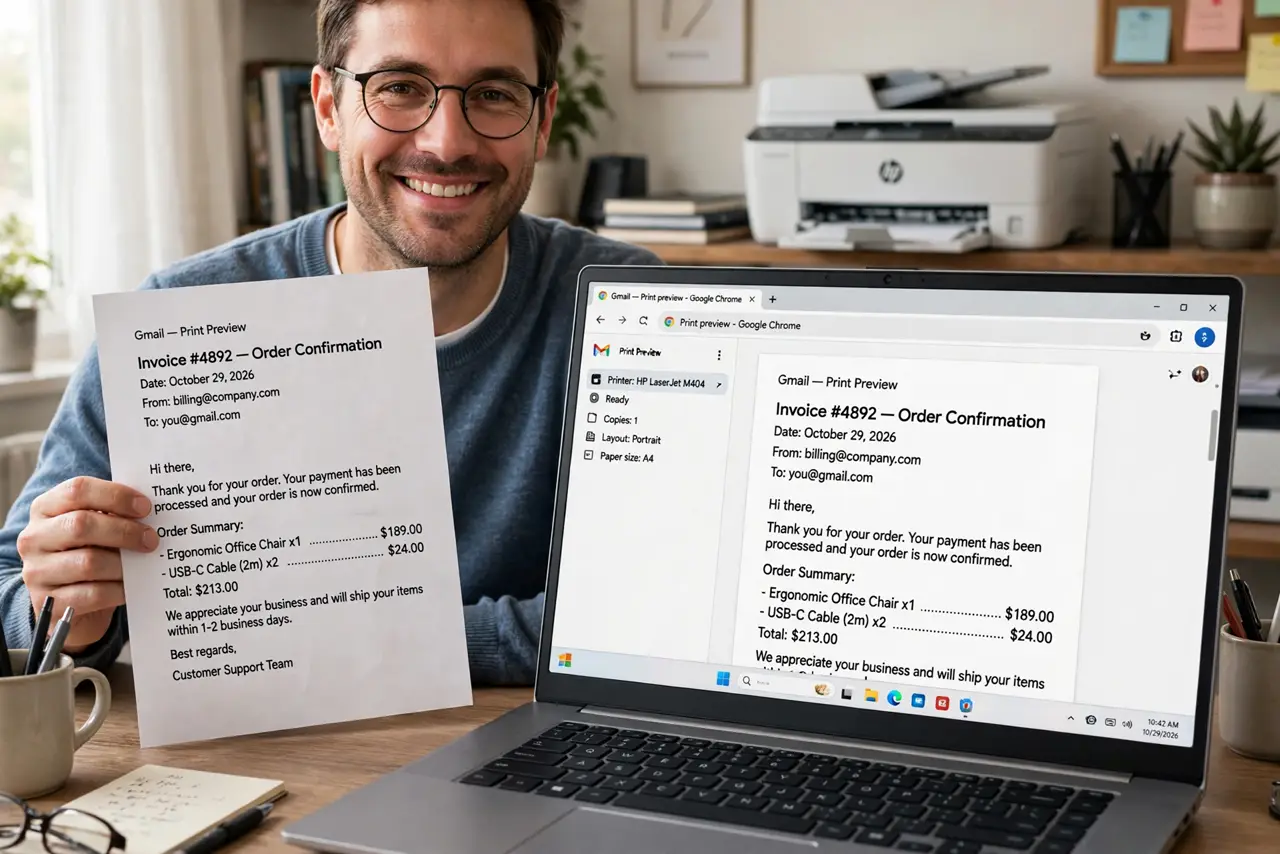
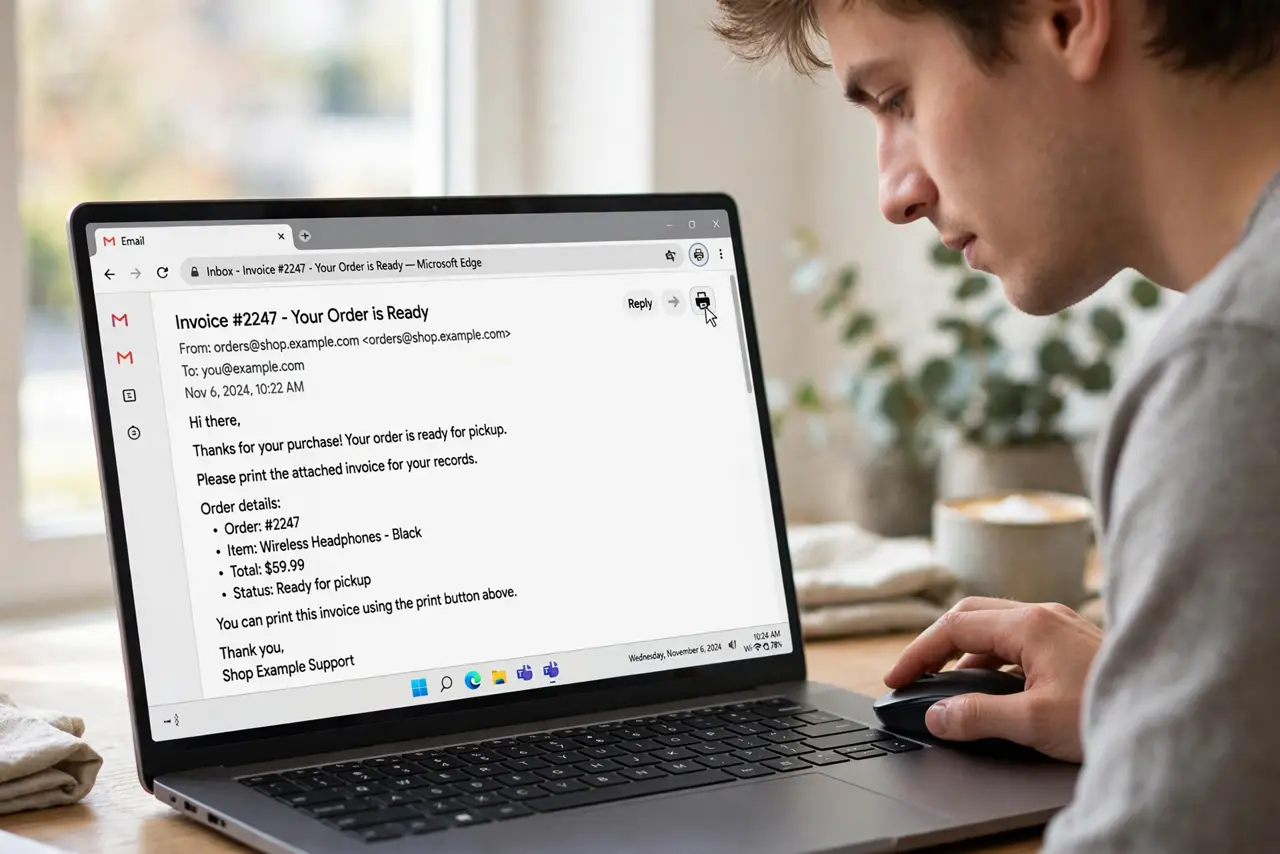
Quick fix: open the email, click the printer icon in the top-right toolbar — Gmail opens a clean print view with just the message. Use the browser's print dialog to choose pages, or save as PDF for a digital copy. For a whole thread, expand it first.
Follow these steps
- Open the email and click the print icon. The printer icon sits in the email's top-right toolbar — not the browser's print. Gmail renders a clean version with headers and the message body only.
- Use print preview to check pages. The browser's print dialog shows exactly what will print. Deselect unwanted pages here — long threads often include pages you do not need.
- Save as PDF instead of paper. Choose 'Save as PDF' as the printer destination for a digital copy. Receipts and confirmations live better as PDFs than as paper.
- Expand the thread first for full history. Collapsed replies print as one-liners. Click to expand the messages you need before hitting print — or each prints separately later.
- Print a single message from a thread. Open just that message's three-dot menu and print from there. Useful when the thread is long but only one reply matters.
- Check headers for the important stuff. The print view includes From, To, Date, and Subject — everything that makes the printout valid as a record.
What NOT to do
- Do not use the browser's print on the inbox view. You will get the whole interface — sidebars, ads, navigation — instead of the email.
- Do not print the entire thread by default. Ten pages when you needed one wastes paper and buries the important part.
- Do not forget to check which printer is selected. The office printer one floor up has received many confidential emails.
- Do not print sensitive emails you could save as PDF. Paper gets left on printers; PDFs stay in your files.
Frequently asked questions
Can I print without the 'printed from Gmail' clutter?
The dedicated print icon already strips nearly everything. What remains — headers and the message — is the useful part.
Why does the printout cut off the sides?
Wide tables or images in the email overflow the page. Try landscape orientation in the print dialog, or save as PDF and zoom.
Does printing work on the mobile app?
Yes — open the email, tap the three dots, Print. Your phone's print dialog takes it from there.