Send As Another Address? Setup
You have a work address and a personal Gmail, and you are tired of logging in and out to send from the right one. Gmail's 'Send as' feature lets you send mail from your other addresses without leaving your main inbox — replies even come back to the right place. Setup takes five minutes and one verification email.
TL;DR / Quick Fix
Quick fix: in Gmail settings under Accounts, use 'Add another email address' in the Send mail as section, then verify ownership via the confirmation email. After that, pick the From address from the dropdown in every compose window. Replies return to the address you sent from.
Follow these steps
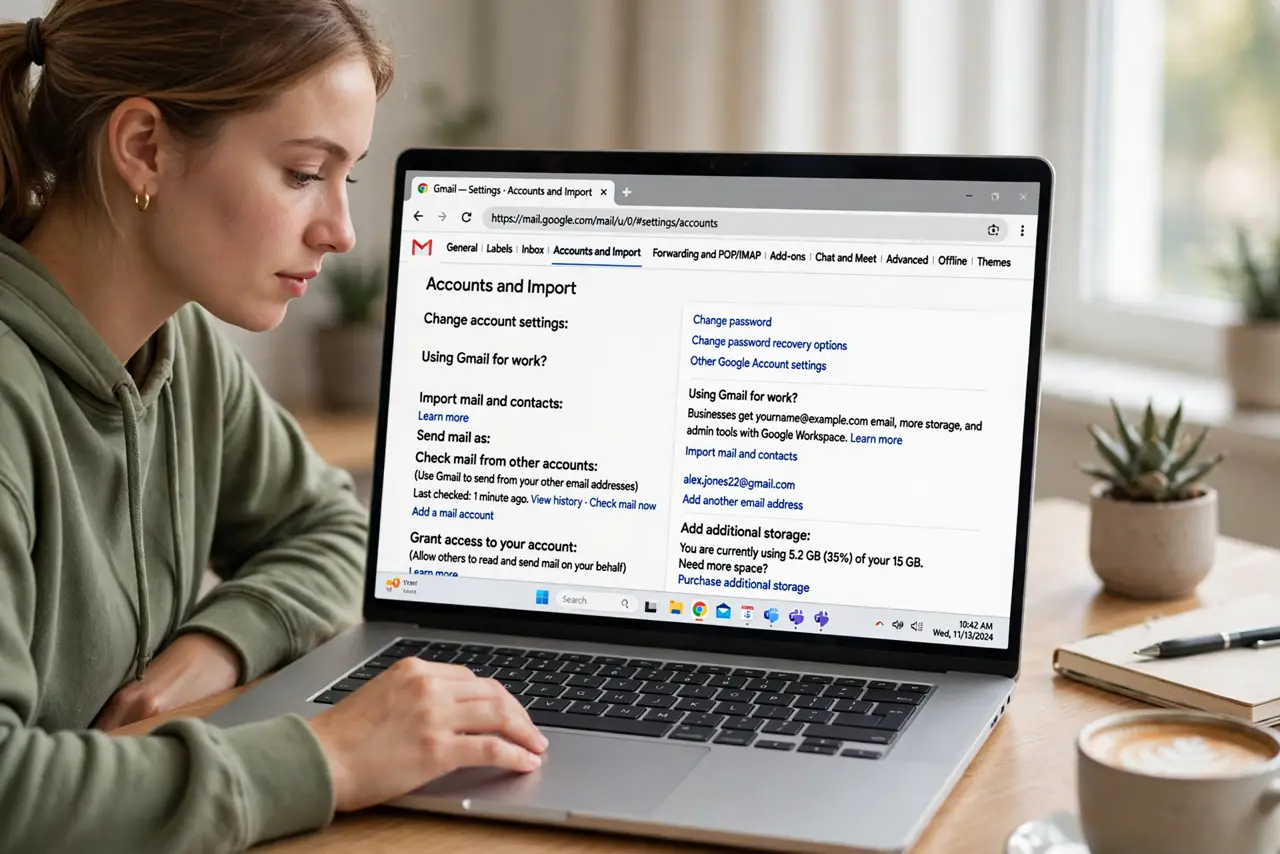
- Open Gmail settings, Accounts tab. Click the gear icon, See all settings, then the Accounts and Import tab. The 'Send mail as' section is where aliases live.
- Add the other address. Click 'Add another email address,' enter the name and address, and decide whether to treat it as an alias — for your own addresses, alias treatment is usually right.
- Verify ownership. Gmail sends a confirmation code to the other address. Enter it (or click the link) to prove the address is yours — this stops spammers impersonating people.
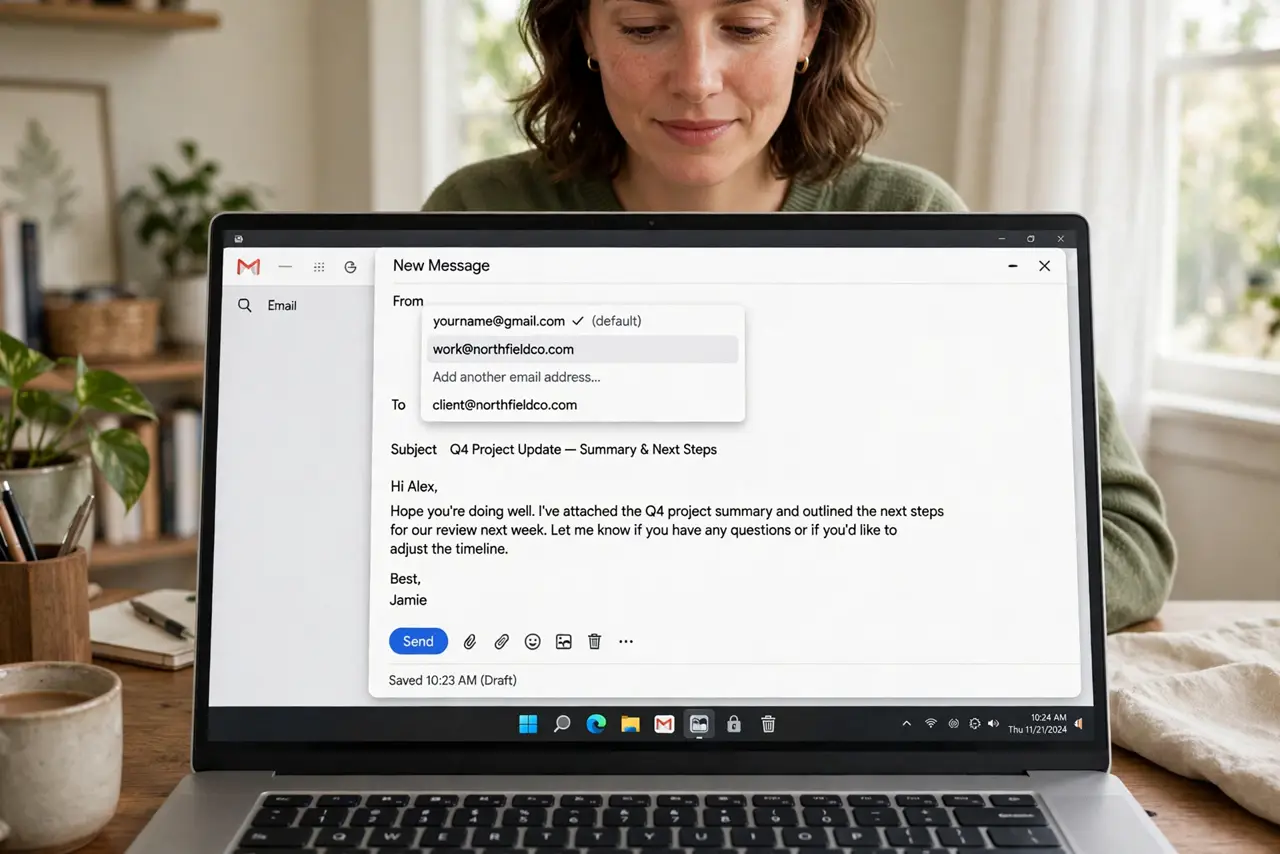
- Choose the From address per email. In any compose window, click the From line to pick which address sends. Set a default, but override it whenever the email belongs to the other identity.
- Understand reply behavior. Replies go to whichever address sent the original — the threads stay correctly separated without any effort from you.
- Use it on mobile too. The Gmail app's compose window has the same From dropdown. The alias works everywhere once verified — set it up once, use it anywhere.
What NOT to do
- Do not add addresses you do not own. The verification step exists to stop impersonation — it will stop you too.
- Do not forget which address you sent from. Check the From line before hitting send on sensitive mail — wrong-identity sends are embarrassing.
- Do not use Send-as for bulk mailing lists. Gmail's sending limits apply, and list mail belongs on a proper mailing service.
- Do not skip the verification email. Until verified, the alias sits unusable — check the other inbox's spam folder if the code seems missing.
Frequently asked questions
Can I send as my work address from personal Gmail?
Yes — that is the classic use. Your employer may need to allow it, but Gmail-side setup is the same verification flow.
Will recipients see my Gmail address?
No — they see the From address you chose. Technically savvy recipients can inspect headers, but the visible address is the alias.
What's the difference between an alias and a separate account?
An alias sends from one inbox; a separate account is a whole second mailbox. Use checking other accounts when you need to receive there too.