Back Up Gmail With Takeout
Years of email live only on Google's servers — receipts, tickets, family threads. If the account were ever locked or deleted, that history could vanish. Google Takeout exports your entire mailbox to a file you own, and running it once a year is cheap insurance.
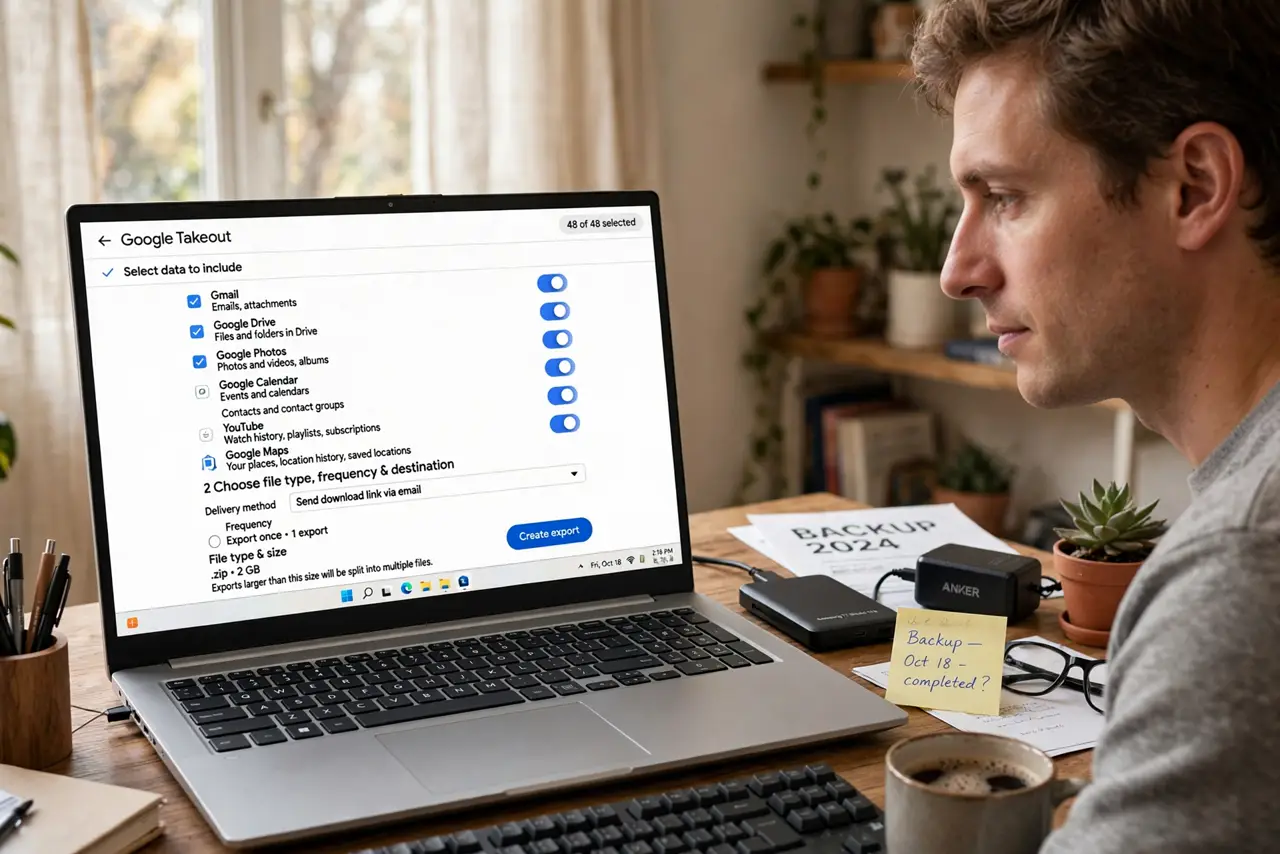
TL;DR / Quick Fix
Quick fix: go to Google Takeout, select only Mail, and create an export — you get an MBOX file with every email. It takes minutes to hours, and Google emails you a download link. Store the archive on an external drive, and repeat yearly so the backup never goes stale.
Follow these steps
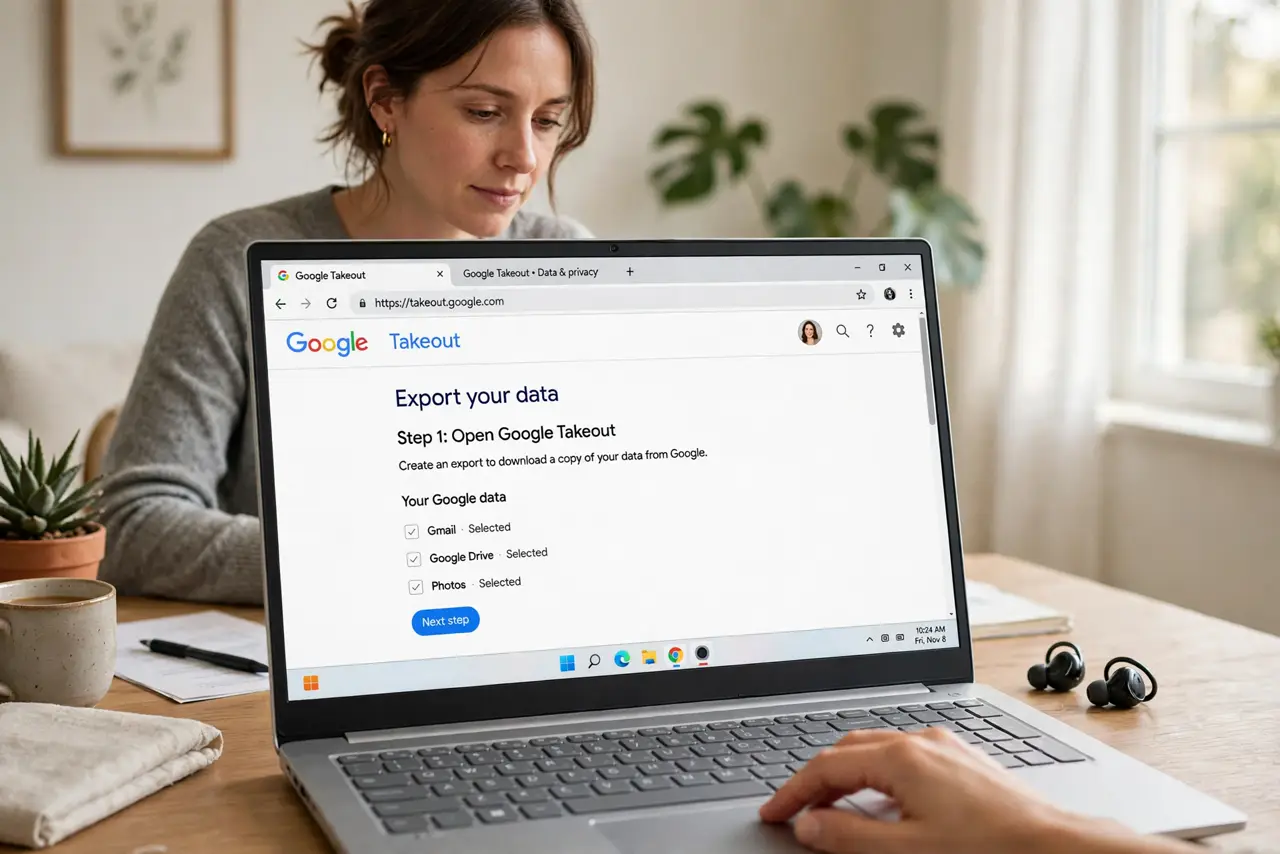
- Open Google Takeout. Go to Google Takeout while signed in. You will see every Google service with a checkbox.
- Select only Mail. Deselect all, then tick Mail. Exporting just mail keeps the download small and the process fast.
- Choose the export format. MBOX is the standard mailbox format readable by many mail apps; JSON adds metadata. MBOX suits most people.
- Start the export and wait. Click Create export. Small mailboxes finish in minutes; huge ones take hours. Google emails you when the download is ready.
- Download and store safely. Download the archive and copy it to an external drive or a second cloud account — not just the same computer. See importing old mail if you ever need it back in Gmail.
- Repeat yearly. Set a yearly reminder. A backup from three years ago is better than none, but a fresh one is better still.
What NOT to do
- Do not store the only copy on the same laptop. A backup on the device it backs up is not a backup.
- Do not share the download link. The export contains everything — treat it like your password.
- Do not skip the export because it is slow. Start it and let it run; it needs no babysitting.
- Do not assume Takeout backs up continuously. It is a one-time snapshot — repeat it.
Frequently asked questions
What format should I choose?
MBOX for a portable mailbox file most mail programs can open. JSON if you want raw metadata for processing.
How long does an export take?
Minutes for small mailboxes, hours or longer for tens of gigabytes. You get an email when it is ready — no need to watch.
Can I restore Takeout mail into Gmail?
Not directly with one click — you import the MBOX into a desktop mail app, then copy messages back. See the import guide.