Translate an Email in Gmail
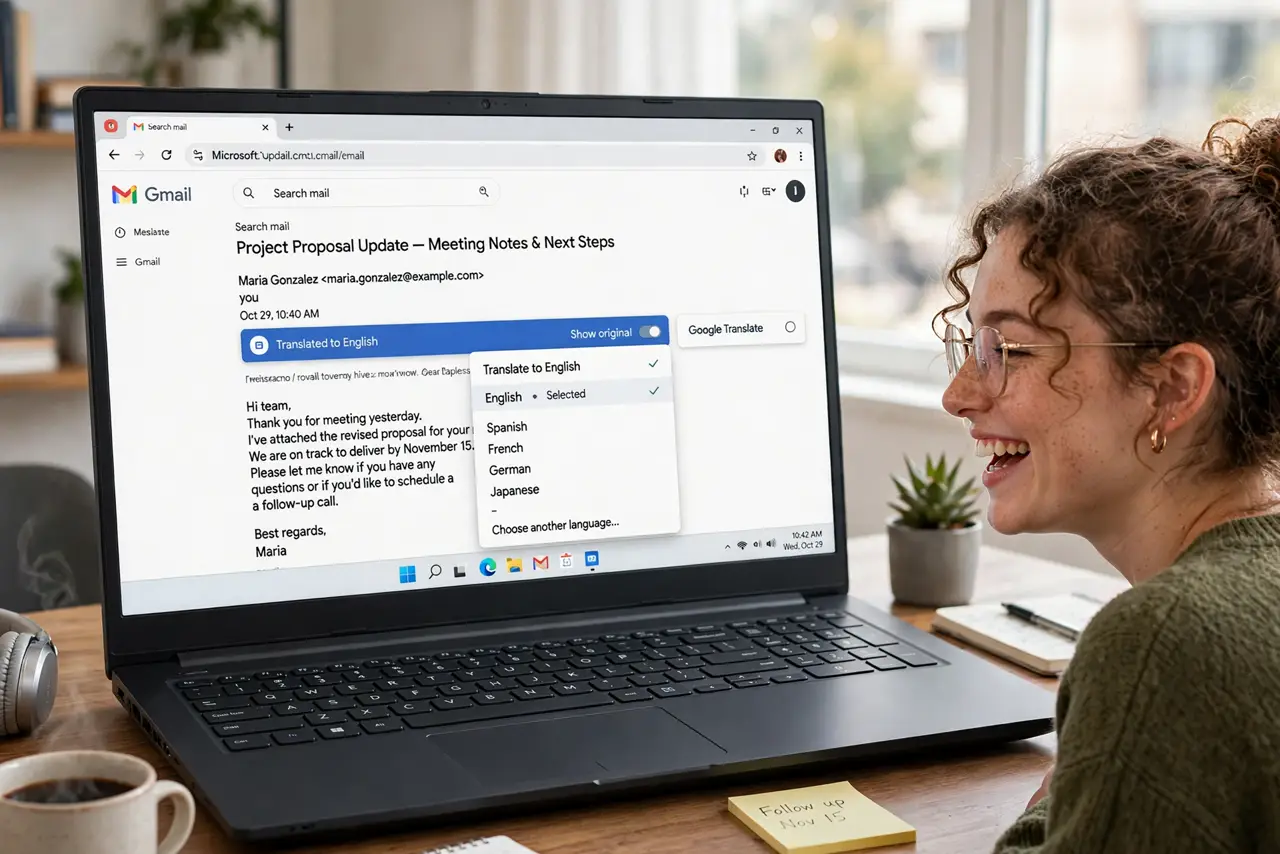
An important email arrives in a language you don't read — a supplier, a relative, a booking confirmation. Gmail can translate it inline in seconds, no copy-paste into another tab. The translation appears right in the message, with the original one click away for verification.
TL;DR / Quick Fix
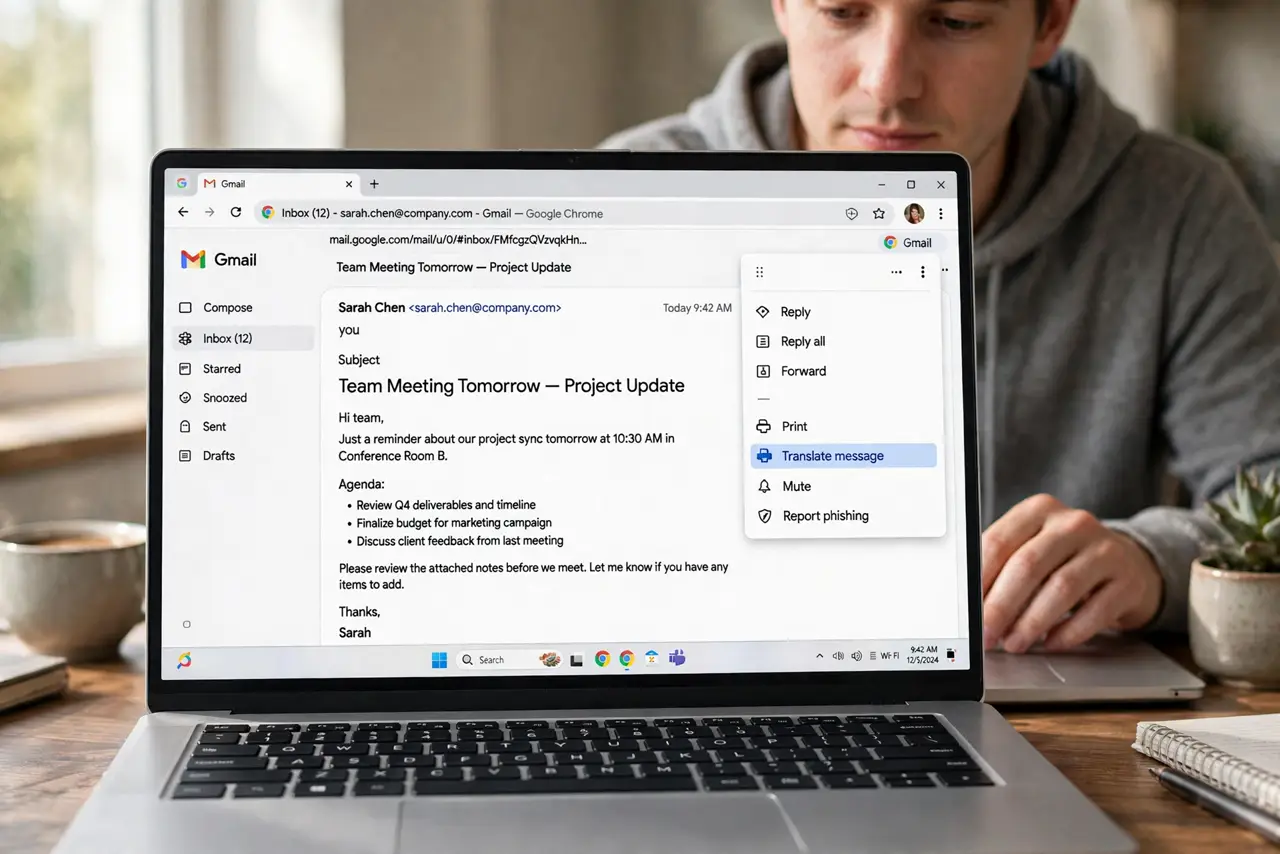
Quick fix: open the email, click the three-dot menu, and choose Translate message — pick the target language and Gmail converts it inline. The original stays one click away. Translation covers the body well; attachments and images with text need separate handling.
Follow these steps
- Open the message menu. In the open email, click the three vertical dots at the top right of the message (not the main toolbar). 'Translate message' sits in that menu.
- Pick your language. Gmail usually auto-detects the source and offers your account language as target. Change either dropdown if the detection guessed wrong — short emails confuse auto-detect most.
- Read the inline translation. The translated text replaces the body in place. Scroll normally — formatting, links, and structure survive; only the words change.
- Toggle back to the original. A banner offers 'View original message' — one click restores it. For anything contractual or critical, compare key sentences against the original.
- Know the limits. Body text translates well; attachments don't translate at all, and text inside images needs a separate tool. Very short or slang-heavy emails translate roughest.
- Handle the no-option case. If 'Translate message' is missing, the email may already be in your language, or it's mostly images. For clipped long messages, open the full message first — translation needs the whole text.
What NOT to do
- Do not trust translations for contracts. Machine translation is excellent for gist, dangerous for legal precision — get a human for anything binding.
- Do not translate sensitive mail on shared screens. The translated content is as confidential as the original — mind who's watching.
- Do not assume the reply translates too. Your reply composes in your language — translate it yourself before sending, or write simply.
- Do not forget the original exists. Always spot-check critical details (dates, amounts, names) against the original before acting.
Frequently asked questions
Which languages does Gmail translate?
Dozens — the same engine as Google Translate, covering all major world languages and many smaller ones. Coverage is broadest for European and Asian languages.
Why is there no translate option on this email?
Gmail hides it when the message matches your account language, or when the content is mostly images with no text to translate.
Can I auto-translate all foreign emails?
No per-language auto-setting exists in Gmail — it's per message, two clicks each. For heavy multilingual mail, a browser with auto-translate helps.