Google Keep? Plain Basics
Google Keep is Google's sticky-note app — quick notes, checklists, reminders, and voice memos that sync across everything with your Google account. It is deliberately simple: no folders, no databases, just colorful notes you can find in seconds. If your current system is scattered scraps of paper, Keep is the gentlest possible upgrade.
TL;DR / Quick Fix
Quick fix: Google Keep is a fast, simple note app for quick captures — notes, checklists, reminders, and photos that sync with your Google account. Use labels and colors lightly, pin the important notes, and set reminders with places or times. It is free and instant to start.
Follow these steps
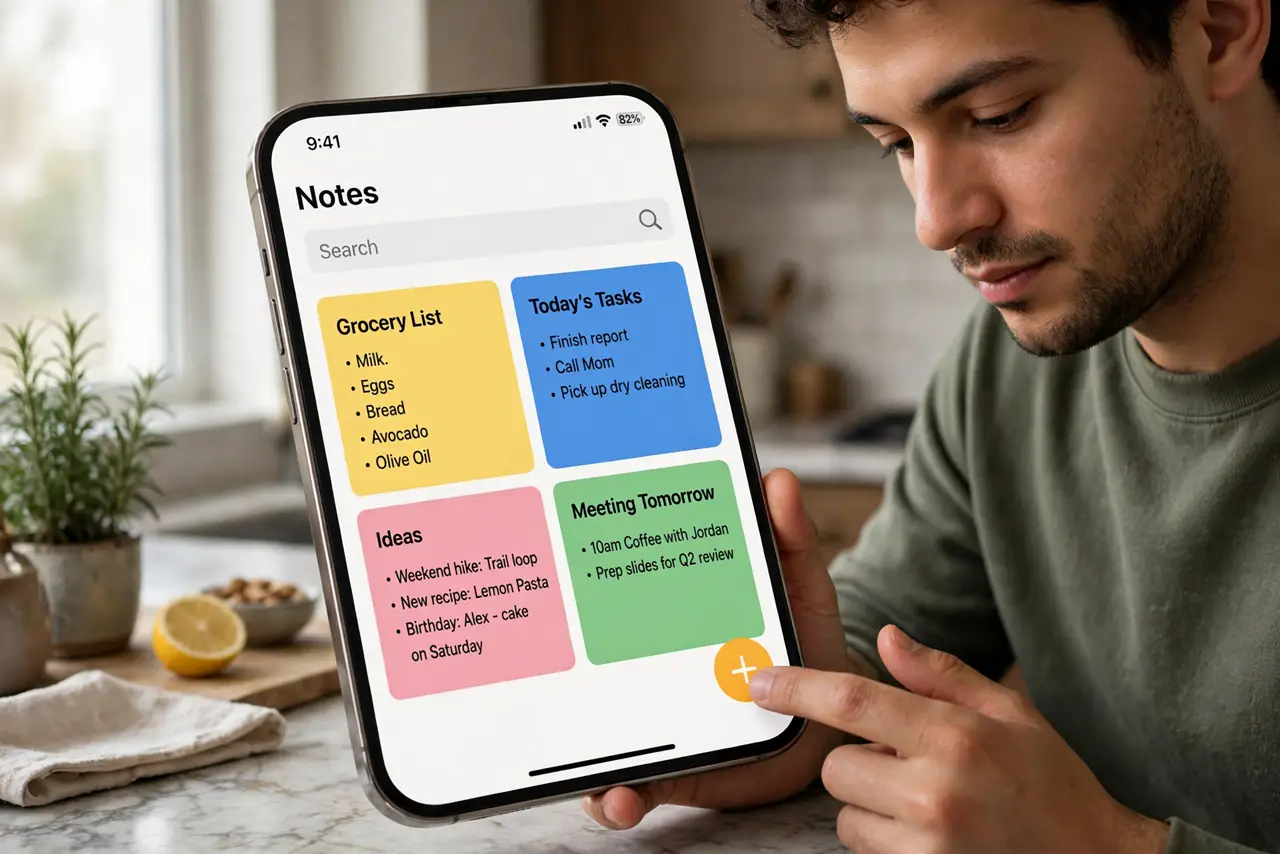
- Capture a note in ten seconds. Open Keep, tap the plus, type, done. The whole philosophy is speed — if capturing takes longer than thinking the thought, the system fails. Practice the fast capture until it is muscle memory.
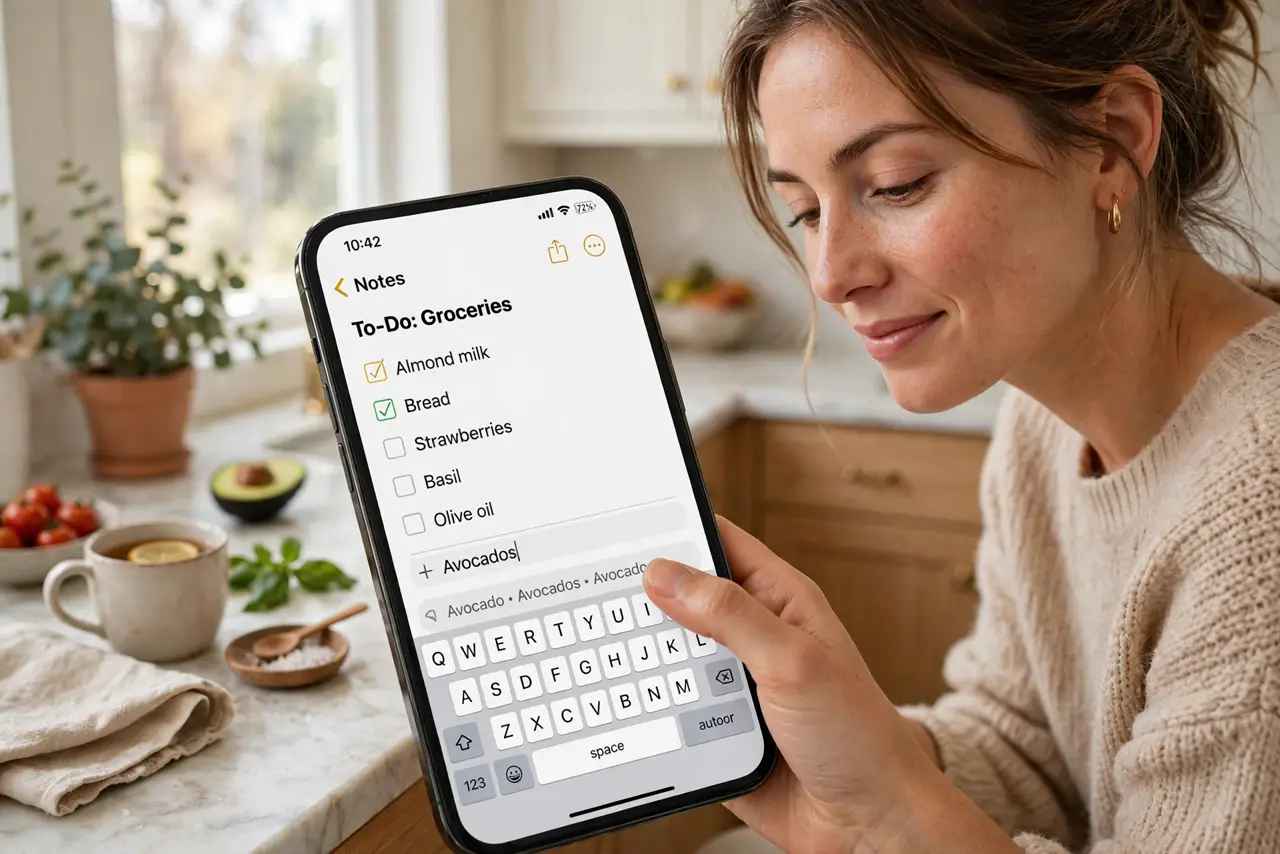
- Use checklists for errands. Keep's checkbox lists are its best feature — groceries, packing, to-dos. Shared checklists update live for everyone, which makes the family grocery run genuinely collaborative.
- Set reminders with teeth. Notes can remind you at a time or a place — 'buy milk' when you arrive at the store. Location reminders are the quiet superpower most users never try.
- Organize lightly with labels and colors. Labels are Keep's version of folders; colors are visual sorting. A few of each beat an elaborate taxonomy — Keep rewards the lazy organizer. Compare with Notion's heavier system if you outgrow simplicity.
- Pin what matters. Pinned notes stay at the top — your current project, today's list, the wifi password. Unpin ruthlessly when done; a pinned list of twenty is just a second inbox.
- Archive, do not delete. Finished notes archive with a swipe — out of sight but searchable. Deleting feels final; archiving keeps the safety net. Search finds archived notes just as fast.
What NOT to do
- Do not build a complex folder system in Keep. It has no folders by design — labels and search are the organization.
- Do not use Keep for long documents. It is a sticky-note app; essays and research belong in Docs or a real notes app.
- Do not ignore the web version. Keep at keep.google.com syncs with your phone — capture on one, find on the other.
- Do not store passwords in notes. Keep is convenient, not a vault — credentials belong in a password manager.
Frequently asked questions
Keep vs Apple Notes — which?
Keep wins for Google users and cross-platform simplicity; Apple Notes wins for Apple-only households with deeper formatting. Both are free and excellent at quick capture.
Can I share notes with family?
Yes — share any note or list with specific people, and edits sync live. Shared grocery lists are the canonical use case.
Is there a limit to notes?
Generous limits exist but few people hit them — tens of thousands of notes. Archive old ones and you will never think about it.