Best GoPro Settings to Start
A new GoPro offers a wall of settings — resolutions, frame rates, fields of view, stabilization modes — and the defaults are tuned for bright action, not your use case. Three decisions cover 90 percent of shooting: resolution and frame rate, field of view, and stabilization. Nail those and the rest can wait.
TL;DR / Quick Fix
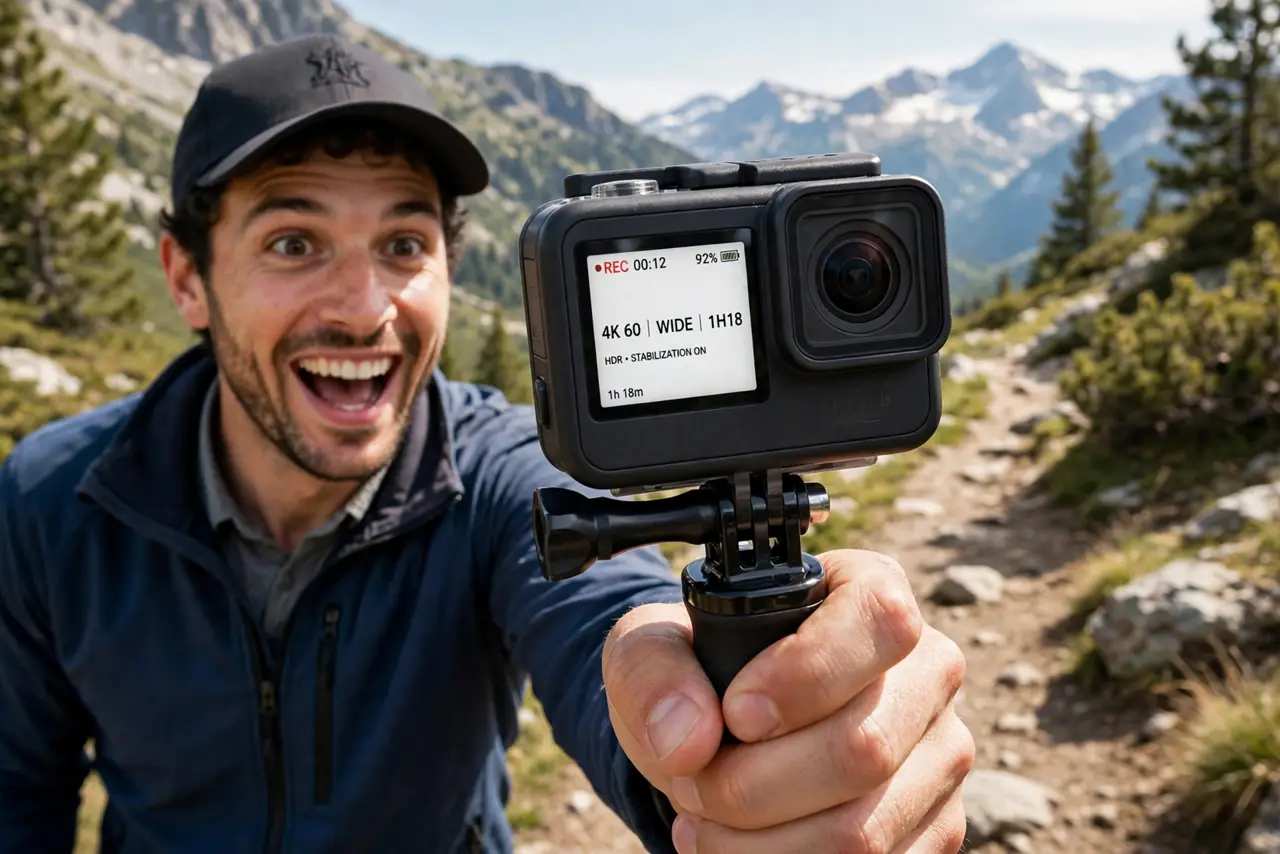
Start with 4K at 30fps for shooting (or 1080p at 60fps for slow motion), a Wide field of view, and stabilization on — these three choices handle most situations. Learn them before touching color profiles, and mount the camera: no setting fixes shaky mounting. The drone registration guide pairs well.
Follow these steps
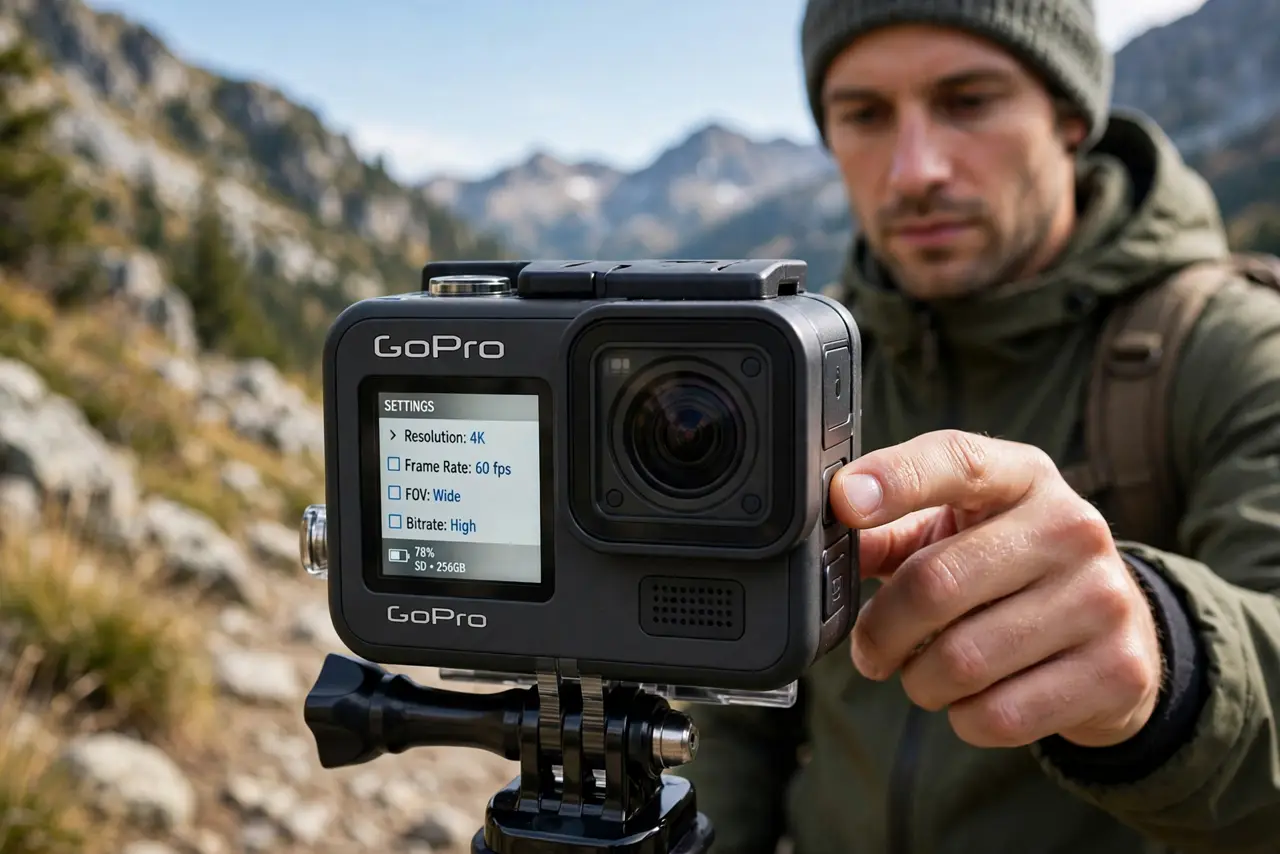
- Pick resolution and frame rate first. 4K30 is the versatile default — sharp and smooth. Choose 1080p60 or higher frame rates when you plan slow motion; choose 4K only if you will actually use the detail.
- Set the field of view to Wide. Wide is the classic GoPro look and the most forgiving for action. Narrow it to Linear only when straight lines (buildings, horizons) must not bend.
- Turn stabilization on. HyperSmooth (or your model's stabilization) is the magic — leave it on for handheld shooting. Turn it off only when the camera is already on a stable mount and you want maximum sharpness.
- Leave color on natural/auto for now. Flat color profiles give editing flexibility but look dull ungraded. Until you color-grade, the standard profile looks better straight out of camera.
- Test before the real shoot. Record a minute in your actual conditions, watch it on a bigger screen, and adjust. Settings that look fine on the tiny front screen can disappoint on a TV.
- Mind battery and heat. 4K plus stabilization drains batteries fast and heats the camera. Carry a spare battery and give it shade breaks on hot days — overheating shutdowns mid-shoot are miserable.
What NOT to do
- Do not shoot everything in maximum resolution. 5K files are enormous and most screens cannot show the difference — match resolution to the final use.
- Do not turn off stabilization 'for quality' handheld. The sharpness gain is invisible next to the shake you introduce — stabilization on, always, when handheld.
- Do not ignore the mount. A loose mount defeats every setting; a solid mount makes even basic settings look professional.
- Do not fill the card completely. The camera needs free space for file management — a full card corrupts more easily and stops recording without warning.
Frequently asked questions
4K or 1080p — which should I choose?
4K for detail and cropping flexibility; 1080p high-frame-rate for slow motion and smaller files. Most beginners should start 4K30 and adjust from experience.
Why does my footage look shaky despite stabilization?
Usually the mount, not the settings — check that every joint is tight. Extreme vibration (engine mounts) can exceed what stabilization corrects.
How do I get that smooth slow motion?
Shoot at 60fps or higher and play back at 30 or 24fps. The higher the shooting frame rate, the slower and smoother the slow motion.