Clean-Install GPU Drivers
New driver, new problems — stuttering, crashes, or a black screen where your game was. Driver leftovers from the old version are the usual suspect, and the fix is a true clean install: wipe the old driver completely, then install fresh. Here is the safe order that avoids making things worse.
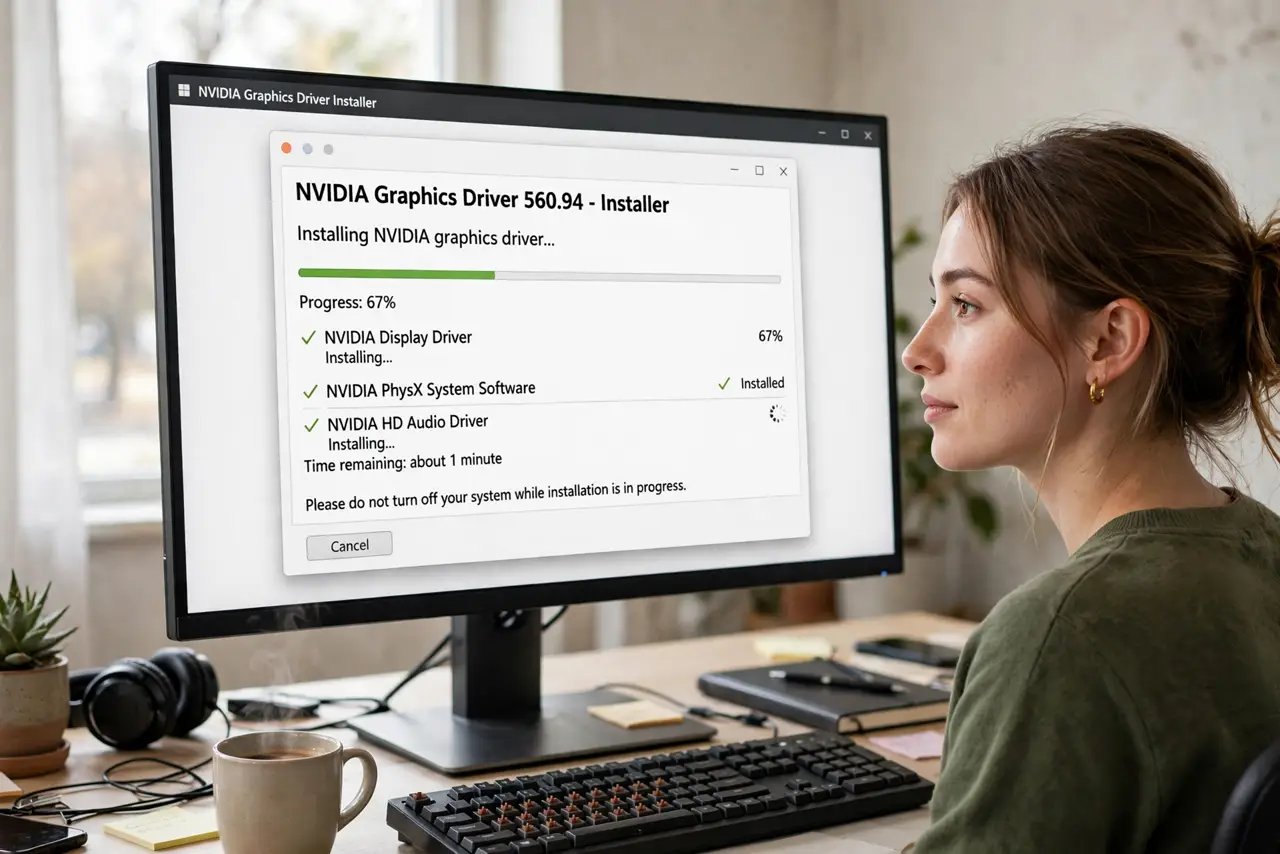
TL;DR / Quick Fix
Quick fix: download the latest driver from the GPU maker's site first. Then uninstall the old driver fully — the installer's 'clean install' option or a dedicated removal tool in safe mode — reboot, and install the fresh driver. Test one game before changing any settings.
Follow these steps
- Download the new driver first. Get it from the GPU maker's official site before removing anything. Losing the old driver with no replacement downloaded is how people end up on generic video output.
- Use the installer's clean option. Both major GPU installers offer a 'clean' or 'factory reset' install that removes old settings and profiles. For routine updates this suffices.
- Go deeper when problems persist. For crashes and corruption that survive a clean install, a dedicated driver-removal tool run in Windows safe mode wipes every leftover trace.
- Disconnect the internet during removal. Windows loves to 'help' by installing its own driver mid-process. Pull the network cable or disable Wi-Fi until the new driver is in.
- Install fresh and reboot. Run the downloaded installer, choose the standard options, and reboot when asked. Do not skip the reboot — half the fix lives there.
- Test before tweaking. Run one known game or app before restoring custom settings. If the problem is gone, reapply settings gradually — a bad old profile may have been the culprit.
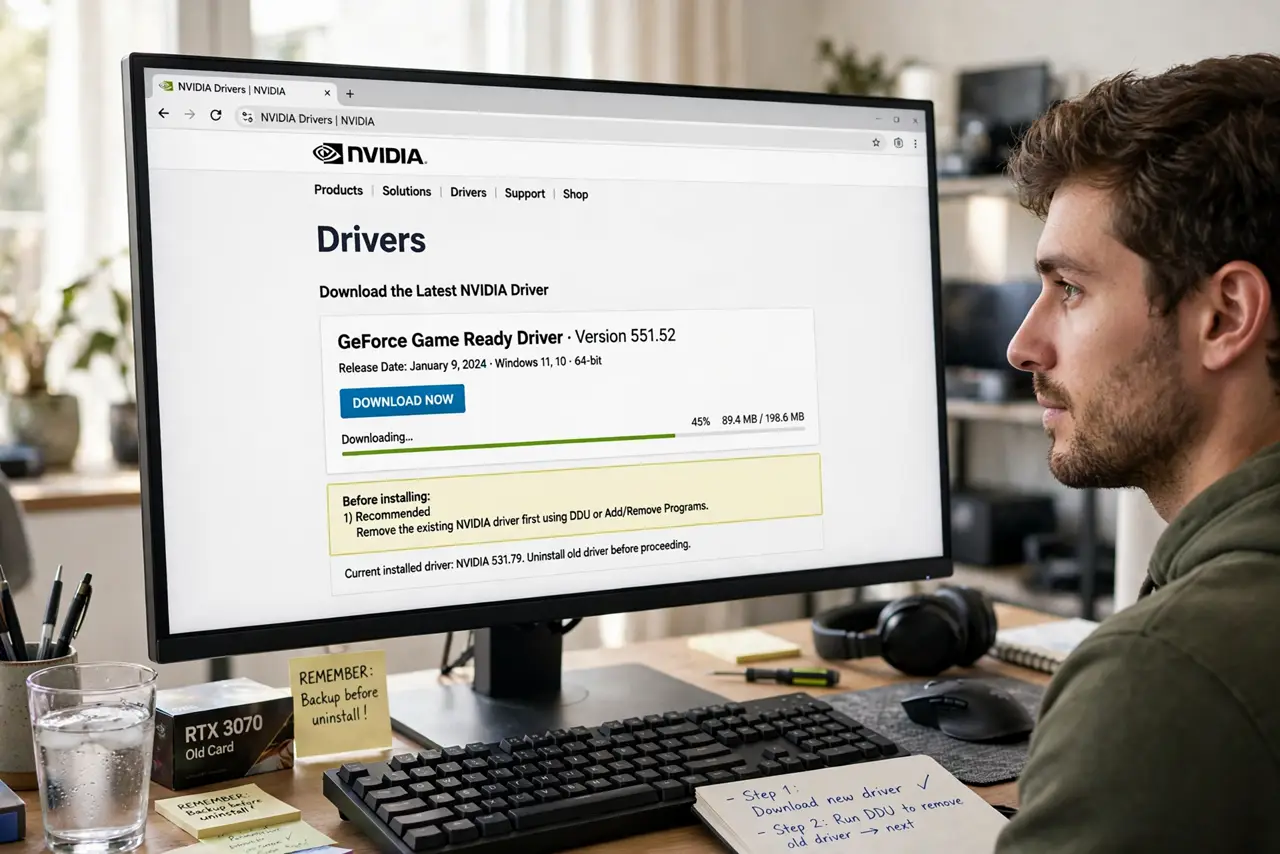
What NOT to do
- Do not install the new driver over a corrupted one and hope. Layering fresh on broken preserves the broken.
- Do not download drivers from random sites. Only the GPU maker's official pages — third-party 'driver updaters' bundle junk at best.
- Do not interrupt the install. A half-installed driver is worse than the old one — let it finish and reboot.
- Do not clean-install drivers weekly as maintenance. Clean installs fix problems; they do not prevent them.
Frequently asked questions
What is a clean driver install?
Removing the old driver — files, settings, and profiles — completely before installing the new one, instead of layering the new over the old.
Will I lose my game settings?
A true clean install wipes driver-level profiles. In-game settings usually survive, but screenshot your custom driver tweaks first.
How often should I update GPU drivers?
For new game releases, promptly. For a stable system with no issues, every few months is plenty — 'if it ain't broke' applies to drivers more than most software.