Guest Wi-Fi Can't See the Printer? Fix It
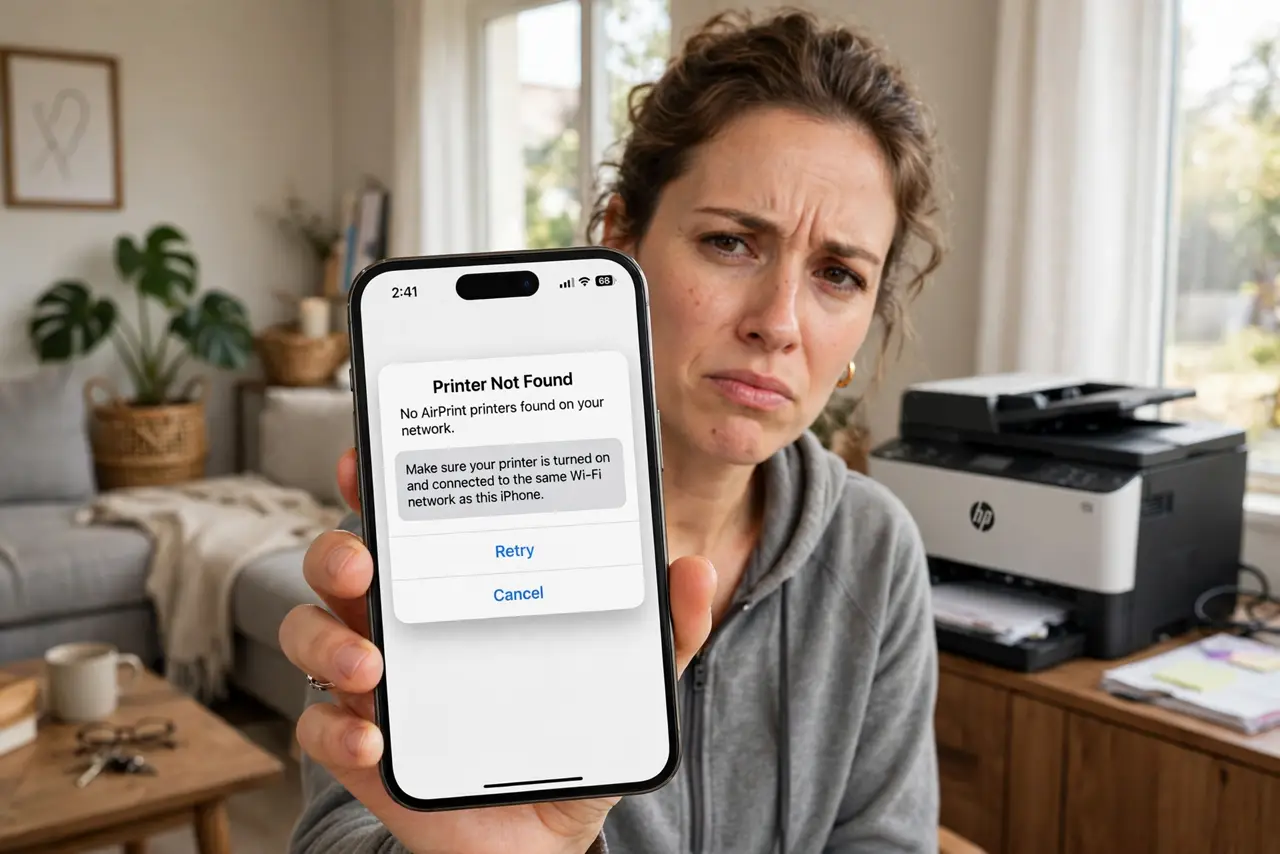
You put the guests on the guest Wi-Fi — good security — and now nobody can print the boarding passes. Guest networks deliberately isolate devices from each other and from your main network, which is exactly what blocks the printer. Here are the safe ways to share printing without dismantling the isolation.
TL;DR / Quick Fix
Quick fix: the simplest safe path is moving the printer to the guest network too — then guests and printer share the same isolated space. Or wire the printer to one computer with USB and share it from there. Do not disable guest isolation; it protects your main devices.
Follow these steps
- Understand why it is blocked. Guest networks use client isolation: devices on them cannot see each other or your main network. The printer is invisible by design, not by accident.
- Move the printer to the guest network. Join the printer to the guest Wi-Fi. Guests and printer then share one isolated network — printing works, your main network stays protected.
- Or wire the printer to one computer. USB or Ethernet the printer to a single PC and enable printer sharing. Guests print through that computer without touching network settings.
- Check the router's isolation toggle. Some routers let you allow specific devices through isolation. If yours does, whitelist only the printer — not the whole network.
- Use Wi-Fi Direct as a fallback. Many printers offer Wi-Fi Direct: guests connect straight to the printer for one job, then rejoin the guest network.
- Test from the guest device. After each change, print a test page from a phone actually on the guest network — not from your main-network laptop.

What NOT to do
- Do not disable guest isolation entirely. It protects your computers and NAS from compromised guest devices — keep it.
- Do not put guests on the main network just for printing. That trades all your network security for one boarding pass.
- Do not open the printer to the internet. Some printers offer cloud printing — convenient, but it punches a hole worth understanding first.
- Do not forget to revert temporary shares. A printer shared 'just for the weekend' tends to stay shared forever.
Frequently asked questions
Why can't devices on guest Wi-Fi see each other?
Client isolation — a security feature that blocks device-to-device traffic on the guest network so one compromised guest device can't attack others.
Is it safe to put the printer on the guest network?
Yes — printers are low-risk there, and it keeps your main network's devices isolated from guests.
My printer was working and suddenly vanished — same issue?
Only if something moved networks. If nothing changed, check the offline-after-restart guide instead.